
Order Center

How to Place Orders Manually on Temu

Update on: 25/05/2026

Table of contents

How to Order Manually and Pay on the Temu SiteStep-by-step Guide to Placing a Manual Order on TemuHow to Get the Order Number and Update Order Status on ZopiSteps to Retrieve Your Temu Order NumberHow to Update the Order Status on ZopiSteps to Update Your Order Status in Zopi

In exceptional cases where you need to place a manual Temu order, Zopi allows you to enter the Temu Order Number and instantly update the order status on Zopi.

How to Order Manually and Pay on the Temu Site

Step-by-step Guide to Placing a Manual Order on Temu

Follow these steps to successfully place a manual order on the Temu website:

  1. Visit Temu and log into your account.
  2. Select the items you wish to purchase.
  3. Click the Add to Cart button for each item you want.
  4. Review your cart and adjust quantities as needed.
  5. Click the Checkout button.
  6. Enter your shipping address and choose your preferred shipping method.
  7. Select your payment method (Card, PayPal, Apple Pay, Google Pay).
  8. Review your order details and click Place Order to complete the purchase.

How to Get the Order Number and Update Order Status on Zopi

The Temu Order Number is generated immediately upon placing your order and always starts with ‘PO’. To find your order number on the Temu site, follow these steps:

Steps to Retrieve Your Temu Order Number

  1. In your Temu account, click on your user avatar in the top right corner.
  2. From the left menu, under Your Orders, select All Orders.
  3. The order number is displayed directly under each order entry. Click Copy.

How to Update the Order Status on Zopi

Steps to Update Your Order Status in Zopi
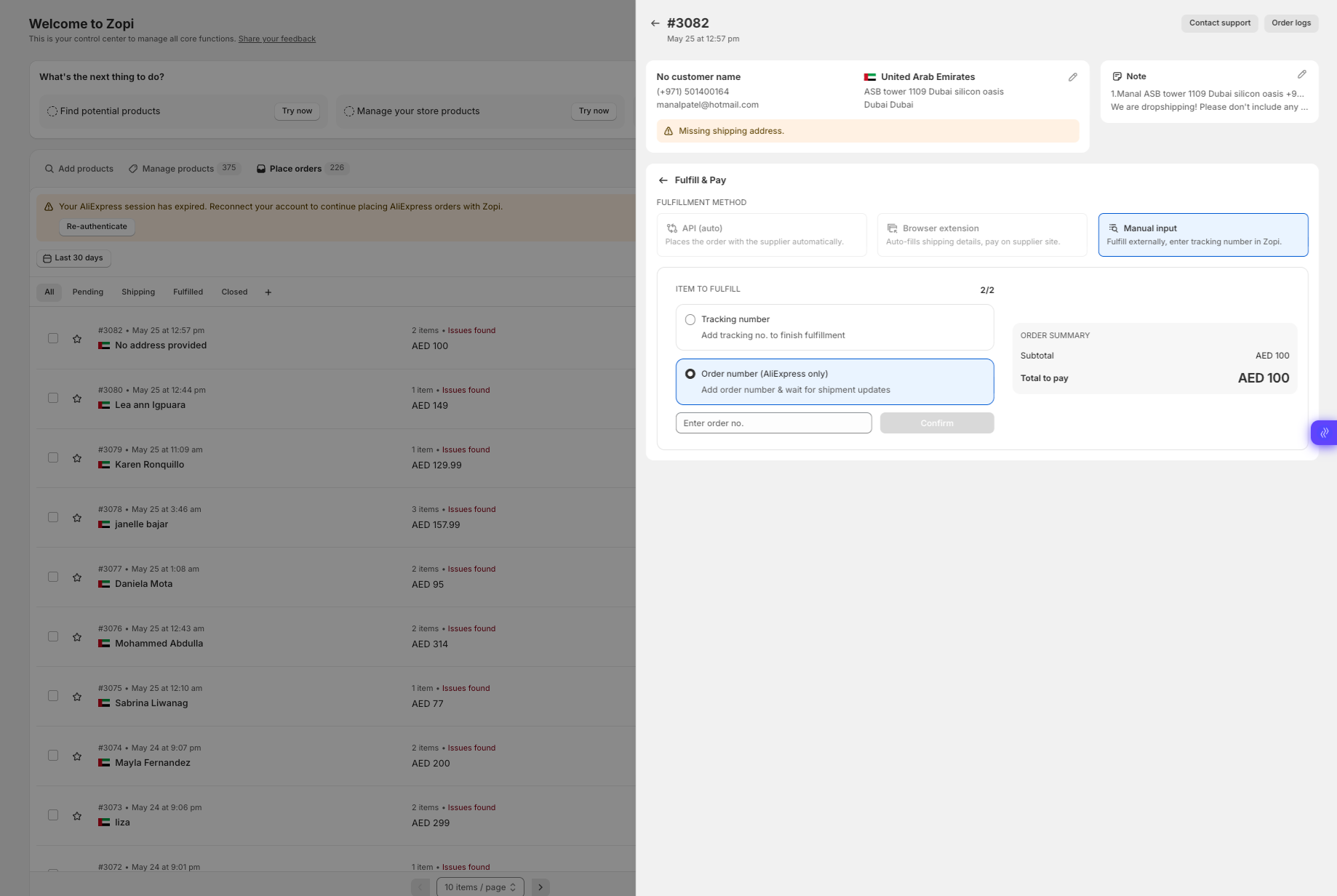
  1. Log in to Zopi
  2. Go to the Place orders tab
  3. Open the Pending sub-tab
  4. Select the order you want to update
  5. Click Make fulfillment
  6. Select Manually fulfill
  7. Paste your Temu Order Number into the popup
  8. Once Temu generates a tracking code, copy the tracking number and paste it into Zopi as well

👉 Tracking information is usually available around 3 days after the order is processed on Temu.

Important Notes About Temu Manual Fulfillment

Currently, Zopi only supports manually inputting:

  • Temu Order Number
  • Temu Tracking Number

👉 Zopi does NOT automatically sync:

  • Order status
  • Tracking status
  • Shipping updates
  • Delivery progress

This limitation exists because Temu currently restricts access to fulfillment and tracking data.

As a result, this workflow mainly helps you:

  • Manage orders in one place
  • Store Temu order references
  • Track fulfillment manually inside Zopi

👉 You will still need to monitor shipment progress directly on Temu when necessary.

After completing these steps, your order will be updated and categorized into different sub-statuses under Shipment, and the tracking code will sync with your Shopify store.

Related articles

Temu Sourcing FAQs

1. Can I dropship on Temu? Currently, Temu does not have specific policies regarding dropshipping. It is essential to follow Temu’s guidelines and utilize their orange boxes for shipping products. However, you can still leverage Temu for two primary purposes: Identify trending products. Source products as a supplier. 2. Is Temu a reliable supplier for…

Subscribe
Notify of
guest

0 Comments
Inline Feedbacks
View all comments

Table of contents

How to Order Manually and Pay on the Temu SiteStep-by-step Guide to Placing a Manual Order on TemuHow to Get the Order Number and Update Order Status on ZopiSteps to Retrieve Your Temu Order NumberHow to Update the Order Status on ZopiSteps to Update Your Order Status in Zopi

Related articles

Temu Sourcing FAQs

1. Can I dropship on Temu? Currently, Temu does not have specific policies regarding dropshipping. It is essential to follow Temu’s guidelines and utilize their orange boxes for shipping products. However, you can still leverage Temu for two primary purposes: Identify trending products. Source products as a supplier. 2. Is Temu a reliable supplier for…

Share your thought