Imported & Push to store

How to Edit a Product Before Pushing to Your Store in Zopi

Update on: 07/05/2026

Table of contents

When Should You Edit a Product?How to Edit Product in ZopiStep 1: Go to Zopi Dropshipping Step 2: Open Manage productsStep 3: Update Product InformationStep 4: Save ChangesStep 5: Push to StoreKey Fields You Should Always ReviewRecommended WorkflowBest PracticesConclusionNeed Help?

Editing your product before publishing helps you improve quality, pricing, and conversion. This step ensures your product looks professional and is ready to sell.

When Should You Edit a Product?

You should always edit a product before pushing it to your Shopify store.

Imported products (from AliExpress, Temu, eBay, Amazon) often have:

  • Messy titles
  • Low-quality descriptions
  • Unoptimized images
  • Incorrect pricing

Editing helps you:

  • Increase conversion rate
  • Build a consistent brand
  • Avoid supplier-related issues

How to Edit Product in Zopi

Follow these steps:

Step 1: Go to Zopi Dropshipping 

  • Navigate to: Zopi Dropshipping

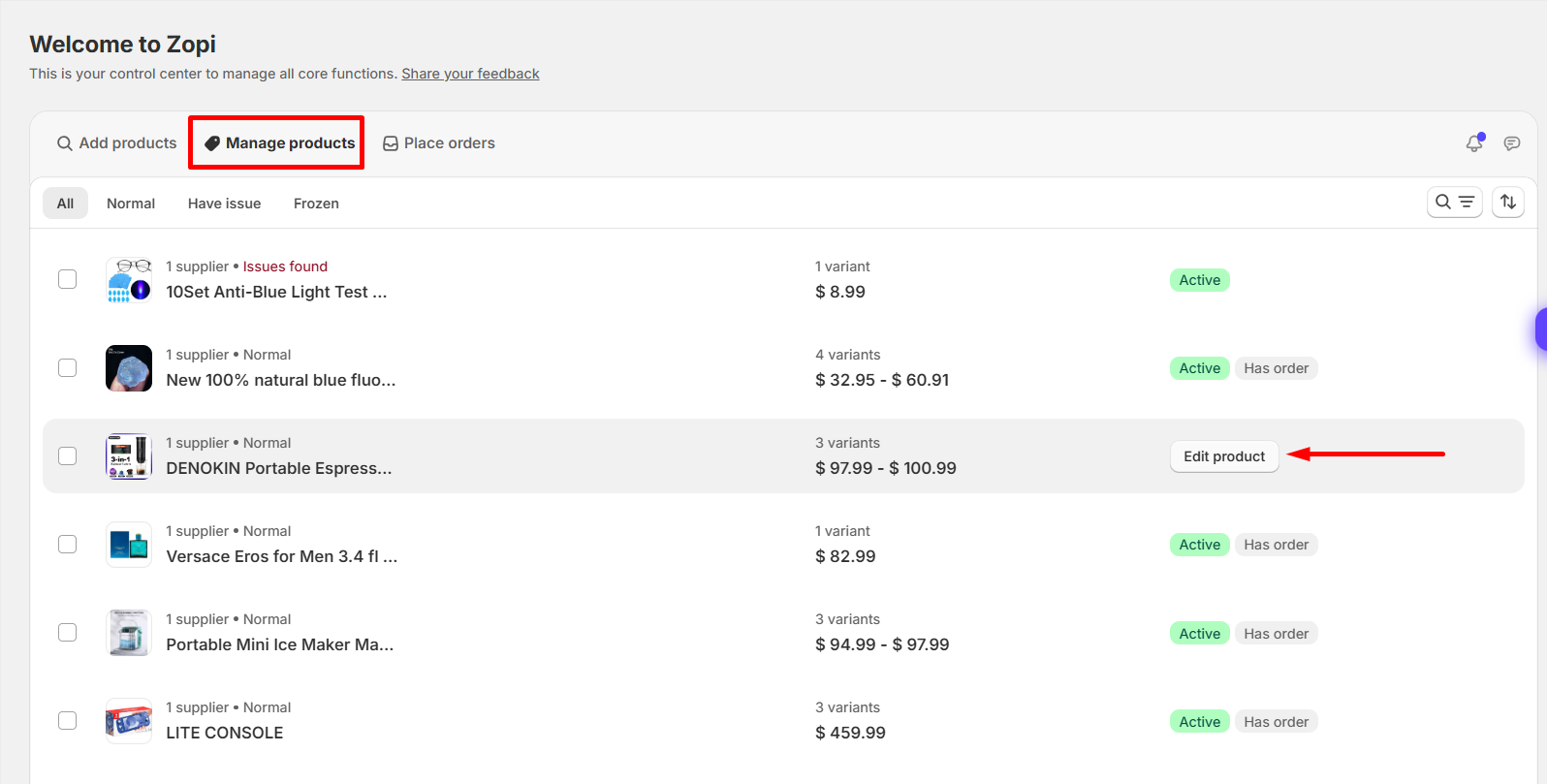
Step 2: Open Manage products

  • Find the product you want to edit
  • Click Edit product

Step 3: Update Product Information

You will see multiple sections:

1. Description

  • Replace the supplier title with a clean, readable name
  • Keep the title short and clear
  • Rewrite content for your customers
  • Focus on benefits, not just features
  • Remove supplier branding or irrelevant info

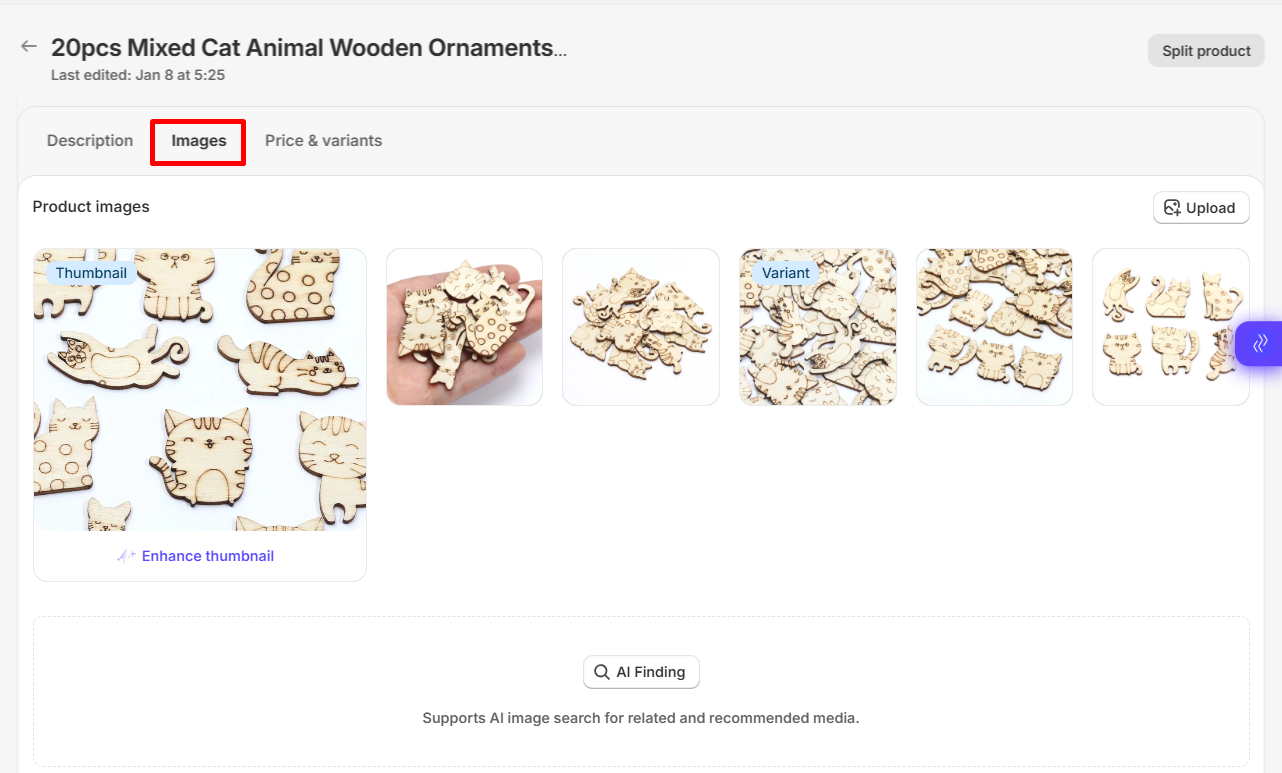
2. Images

  • Remove low-quality or duplicate images
  • Keep clean, high-resolution visuals
  • Avoid images with watermarks or Chinese text
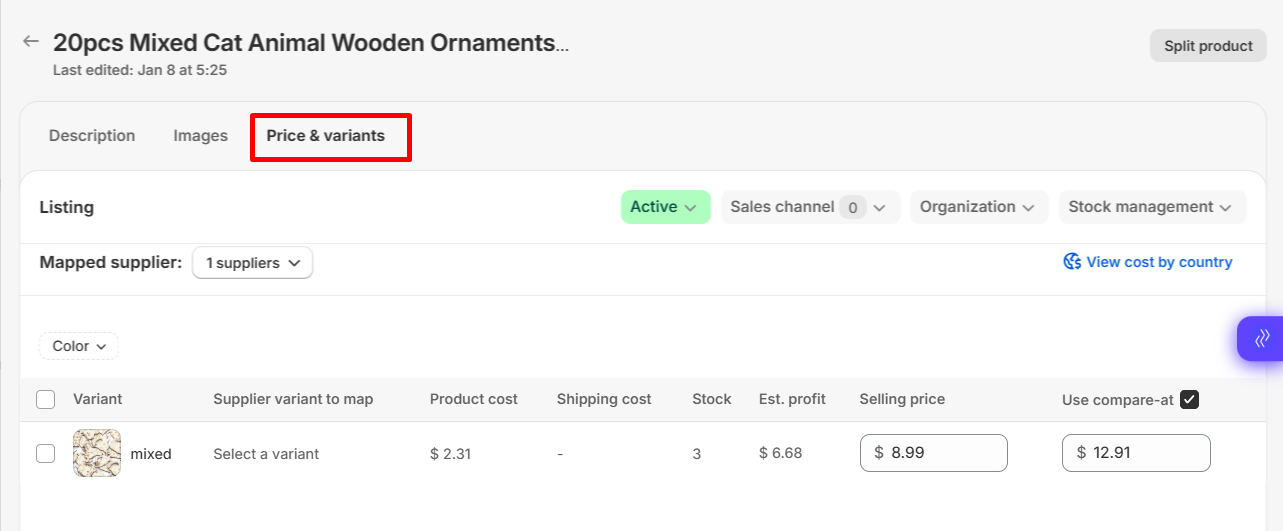
3. Price & variants

  • Review size, color, and options
  • Rename variants if needed (e.g., “Red XL” → “Red – XL”)
  • Set your selling price
  • Apply pricing rules if configured

Step 4: Save Changes

  • Click Save to update your product

Step 5: Push to Store

  • Click Push to Store when ready
  • Product will be published to Shopify

Key Fields You Should Always Review

Before pushing, double-check:

  • Title → Clear and customer-friendly
  • Description → Easy to read, benefit-focused
  • Images → Clean and high quality
  • Variants → Correct and easy to understand
  • Pricing → Profitable and competitive

Follow this flow every time:

  1. Import product
    → From supported source
  2. Edit product
    → Clean up content in Zopi
  3. Save changes
  4. Push to store
  5. Start selling & fulfill orders

Best Practices

  • Use simple English in titles and descriptions
  • Highlight key benefits in bullet points
  • Keep product pages clean and consistent
  • Test pricing before scaling
  • Use Zopi AI tools (if available) to optimize content faster

Conclusion

  • Editing your product before pushing is a critical step in your Zopi workflow.
  • It helps you create better listings, improve trust, and increase sales.
  • Always review and optimize your product before publishing to your store.

Need Help?

If you need assistance while using Zopi:

👉 Our team is available to help you resolve issues quickly and keep your orders running smoothly.

Related articles

Troubleshooting Product Import Issues in Zopi: Common Problems and How to Fix Them

Introduction Importing products is one of the most important steps in building a successful dropshipping store. With Zopi, you can streamline this process—but occasionally, you might run into some roadblocks. In this guide, you’ll learn: Why you might be unable to import products in Zopi How to solve common import issues What to do when…

Product Imported but Missing Images or Variants

Sometimes a product imports successfully into Zopi, but some images or variants (size, color, etc.) are missing. This guide explains why it happens and how to fix it before pushing the product to your Shopify store. Why Images or Variants Go Missing When Zopi imports a product from suppliers like AliExpress, Temu, eBay, or Amazon,…

Why Can’t I Import Products in Zopi

If you cannot import products into Zopi, the issue is usually related to your product import quota or file import requirements. This article explains the most common reasons and how to fix them. Product Import Quota Reached Each Zopi subscription plan includes a different product import quota. Once the quota is used up, it will…

Subscribe
Notify of
guest

0 Comments
Inline Feedbacks
View all comments

Table of contents

When Should You Edit a Product?How to Edit Product in ZopiStep 1: Go to Zopi Dropshipping Step 2: Open Manage productsStep 3: Update Product InformationStep 4: Save ChangesStep 5: Push to StoreKey Fields You Should Always ReviewRecommended WorkflowBest PracticesConclusionNeed Help?

Related articles

How to Add Products in Zopi (Simple Mode)

Learn the three main ways to add products into Zopi. This helps you quickly build your product list before editing and pushing them to your Shopify store. 1. Add Products Directly in Zopi This is the most common method. You can search and import products from supported suppliers directly inside Zopi. Steps Go to Zopi…

Troubleshooting Product Import Issues in Zopi: Common Problems and How to Fix Them

Introduction Importing products is one of the most important steps in building a successful dropshipping store. With Zopi, you can streamline this process—but occasionally, you might run into some roadblocks. In this guide, you’ll learn: Why you might be unable to import products in Zopi How to solve common import issues What to do when…

Split Products from Import List

At times, you may find that a single product has too many variants, prompting the need to divide it into multiple smaller products. Zopi provides a convenient Split Product feature that allows you to easily separate products as needed. Follow the guide below to learn how to utilize this feature! How to Split Products from…

Share your thought