Imported & Push to store

How to Import Products from AliExpress via Link in Zopi

Update on: 07/05/2026

Table of contents

When to Use This MethodStep-by-Step: Import via AliExpress LinkStep 1: Copy the product linkStep 2: Paste link into ZopiPush Settings ExplainedStep 3: Push to your storeWhat Happens After PushingBest PracticesConclusionNeed Help?

Importing products by link is the fastest way to bring a product you found on AliExpress into your Shopify store. This helps you move quickly from product discovery to selling.

When to Use This Method

Use this method when:

  • You are browsing AliExpress and find a potential product
  • You already have a product URL
  • You want a quick and simple import workflow
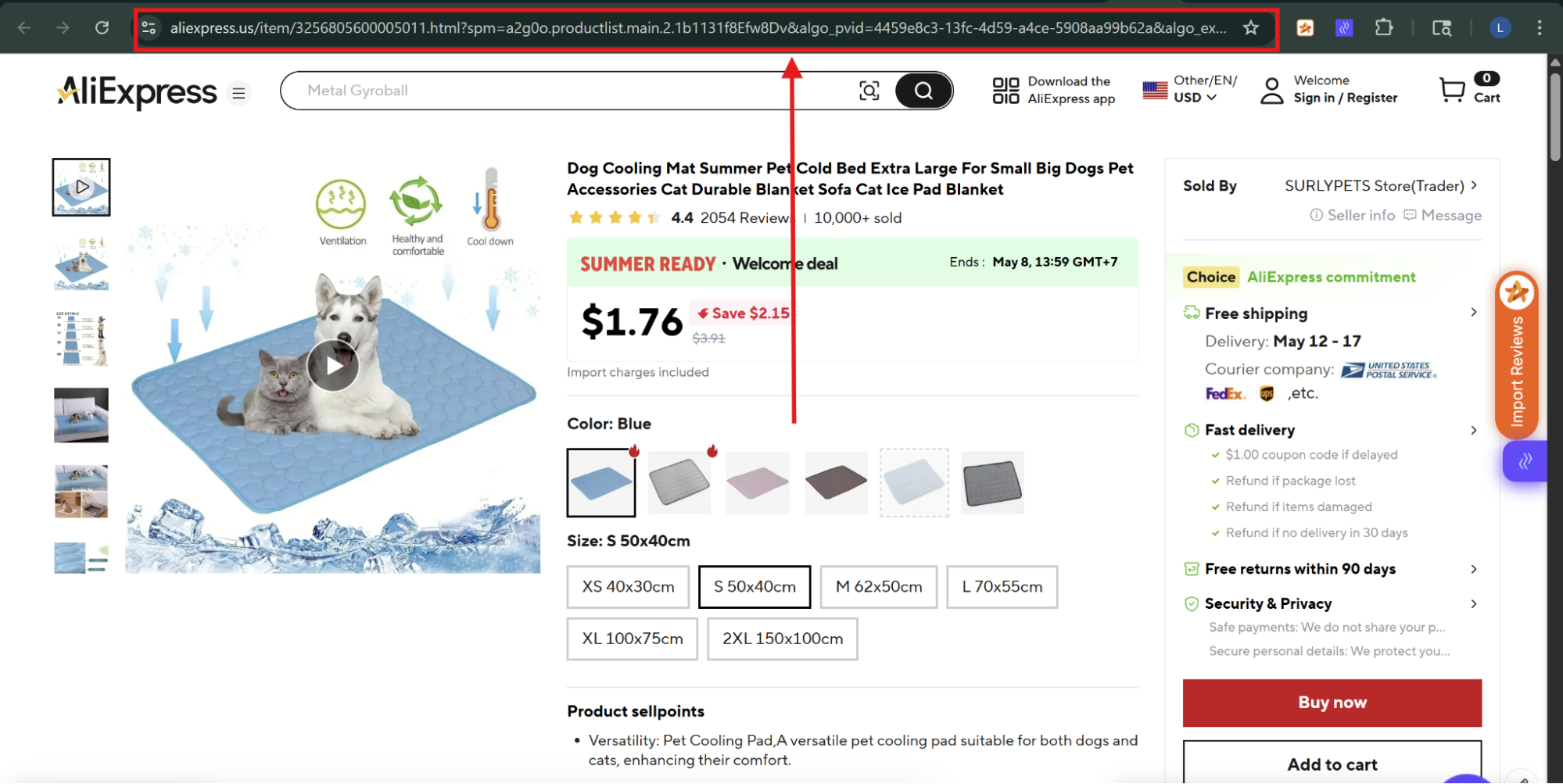
  • Go to AliExpress
  • Open the product page
  • Copy the URL from your browser

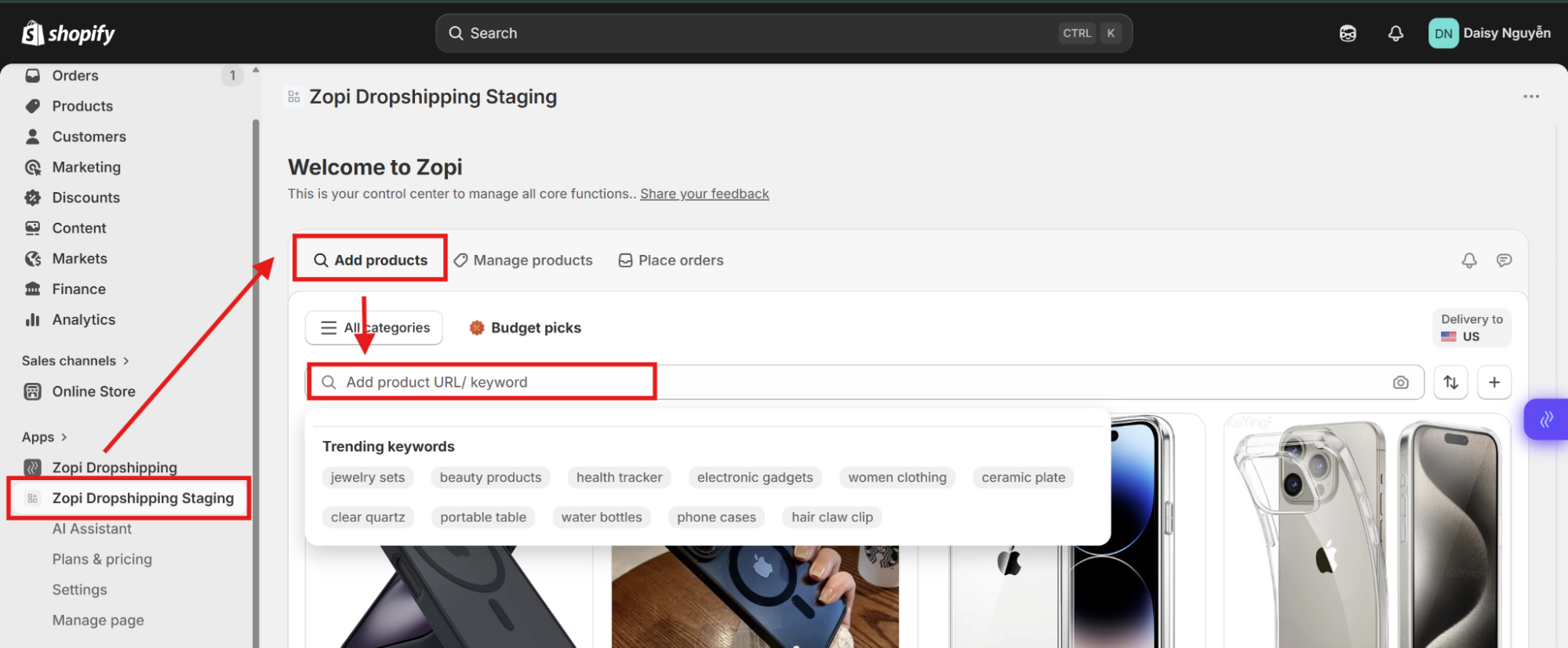
  • Open Zopi inside Shopify
  • Go to: Zopi > Add products
  • Paste the link into the search bar
  • Press Enter
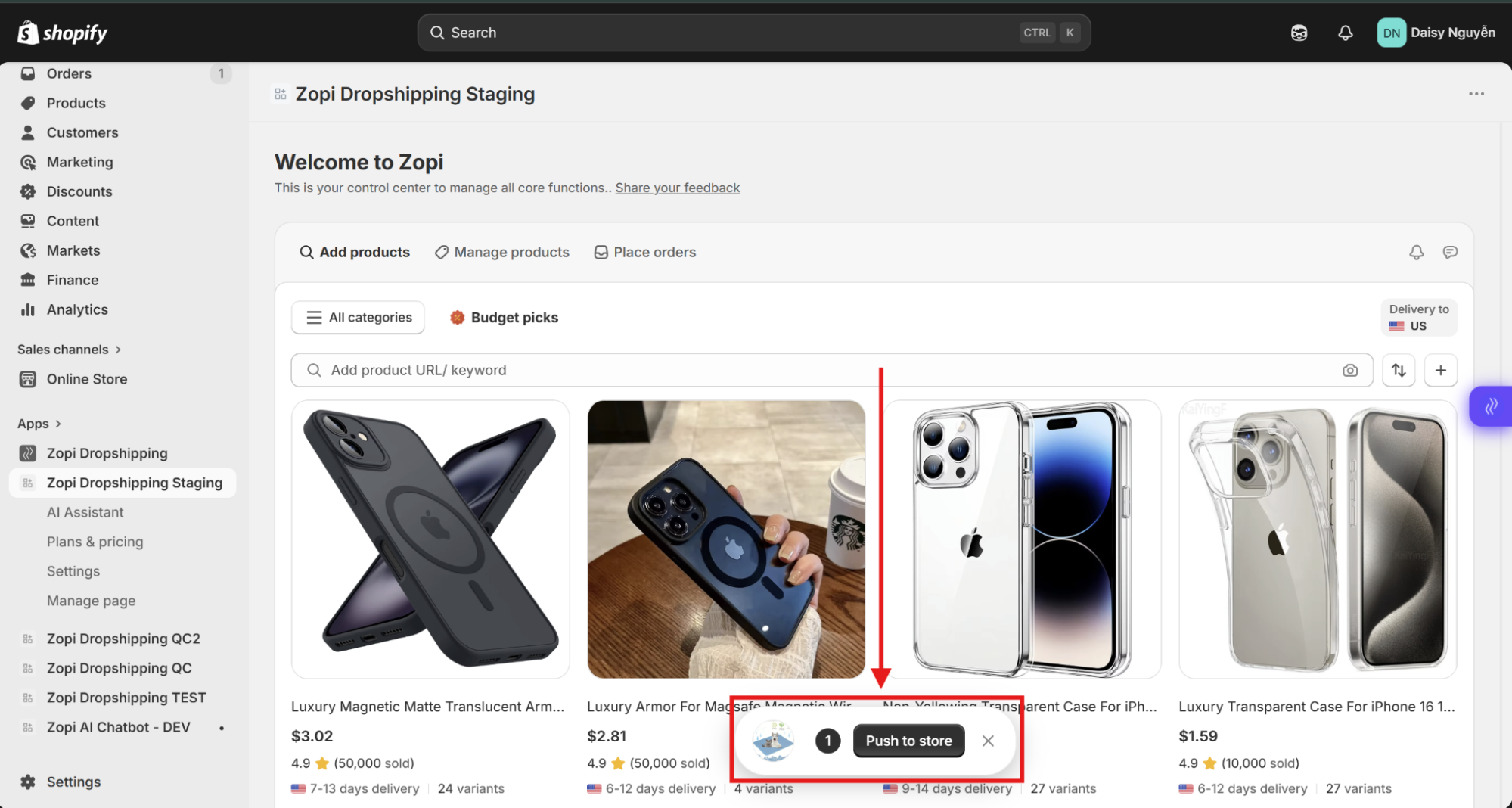
  • Click Push to store

Push Settings Explained

Before pushing the product to your store, Zopi allows you to customize several settings on the right panel:

  • Product status
    • Active: Product is live immediately
    • Draft: Product is hidden until you publish it
  • When product out of stock
    • Keep selling: Continue accepting orders
    • Stop: Disable purchase when out of stock
  • Set price
    • Auto: Apply your pricing rules
    • Manual: Set your own price
  • Set content
    • Keep original: Use supplier content
    • AI enhance: Improve title and description automatically

πŸ‘‰ You can adjust these settings based on your selling strategy.

Step 3: Push to your store

  • Click Push to Store again
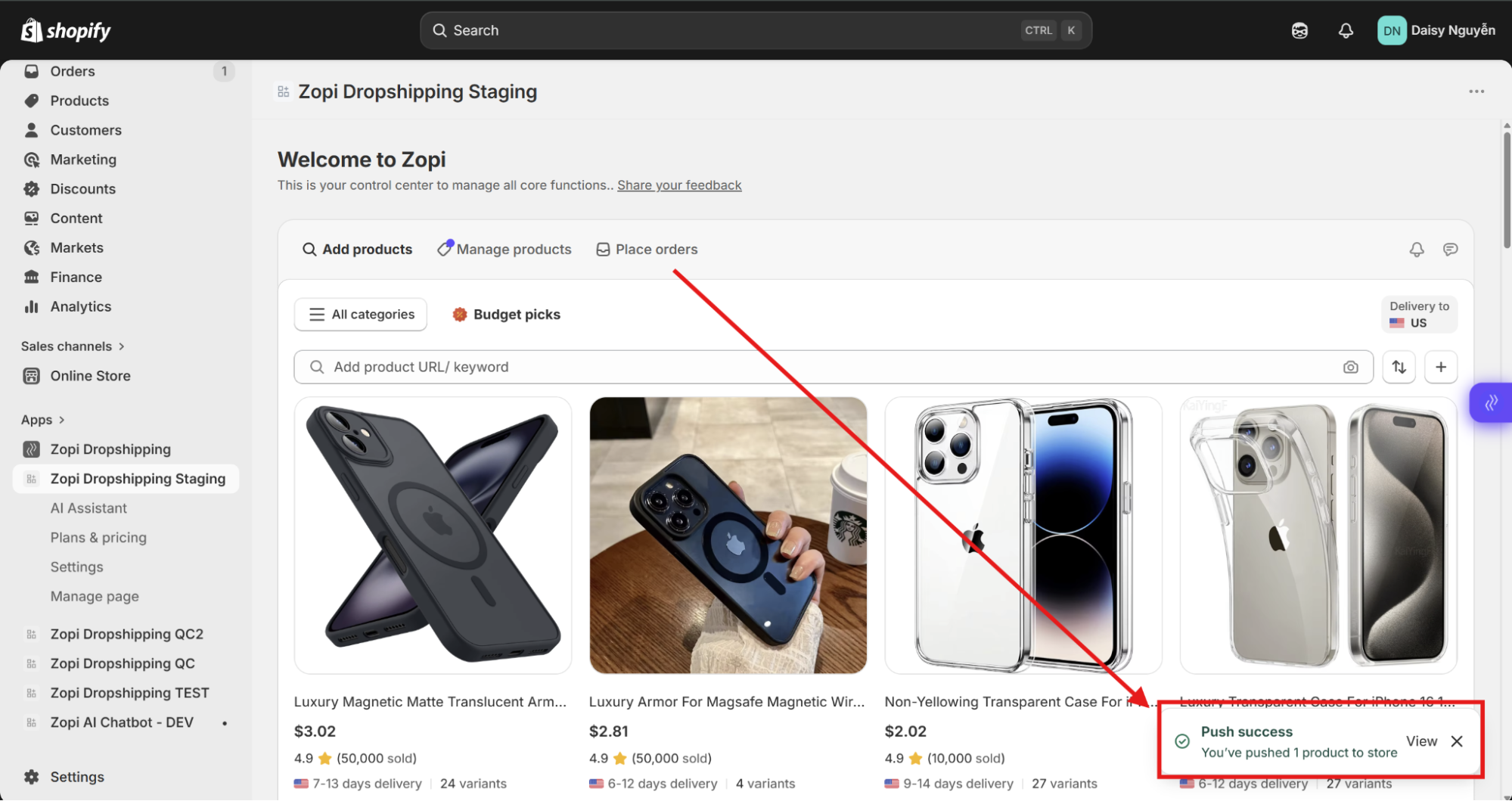
  • Once successful, you will see a success notification
  • The product is now added to your Shopify store
What Happens After Pushing

After a successful push:

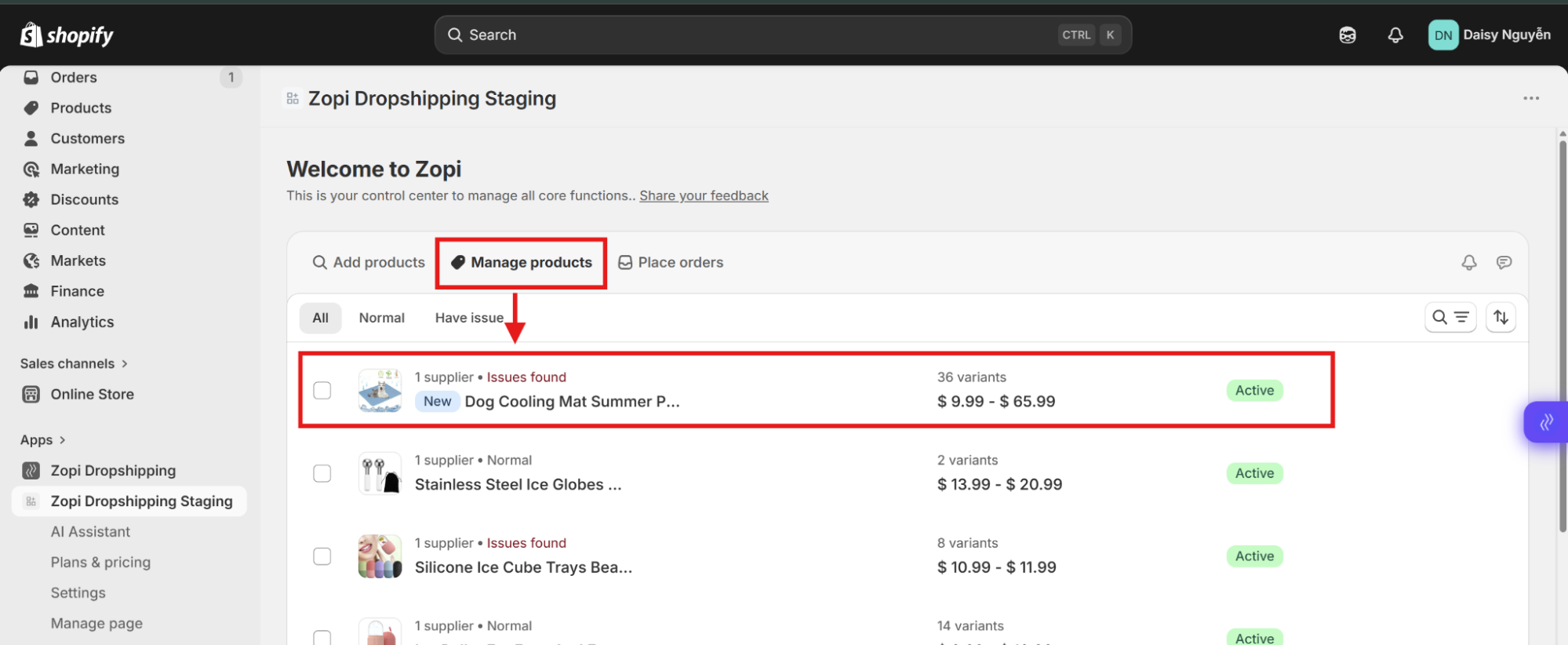
  • The product appears in: Zopi > Manage Products
  • It is also available in your Shopify product list
  • Supplier mapping is saved for fulfillment
  • You can start receiving and processing orders
Best Practices

  • Always review content before pushing
    β†’ Supplier titles are often not optimized
  • Use Auto pricing rules
    β†’ Save time and keep consistent margins
  • Set product as Draft if you want to review in Shopify first
  • Check shipping time and destination
    β†’ Avoid suppliers with long delivery times

Conclusion

  • Importing via AliExpress link is a quick and efficient workflow:
  • Copy link β†’ Paste into Zopi β†’ Adjust settings β†’ Push to store.

With the push settings, you have full control over how the product appears and behaves in your store.

Need Help?

If you need assistance while using Zopi:

πŸ‘‰ Our team is available to help you resolve issues quickly and keep your orders running smoothly.

Related articles

Troubleshooting Product Import Issues in Zopi: Common Problems and How to Fix Them

Introduction Importing products is one of the most important steps in building a successful dropshipping store. With Zopi, you can streamline this processβ€”but occasionally, you might run into some roadblocks. In this guide, you’ll learn: Why you might be unable to import products in Zopi How to solve common import issues What to do when…

How to Add Products in Zopi (Simple Mode)

Learn the three main ways to add products into Zopi. This helps you quickly build your product list before editing and pushing them to your Shopify store. 1. Add Products Directly in Zopi This is the most common method. You can search and import products from supported suppliers directly inside Zopi. Steps Go to Zopi…

Set Pricing Rules and Assign Cent

Setting the price for the products you sell in your store is crucial for ensuring profitability. Your selling price must always exceed the cost charged by your supplier. At Zopi, you can leverage the Pricing Rules feature to automate your product pricing effectively. Follow the steps below to set it up quickly and efficiently. Set…

Subscribe
Notify of
guest

0 Comments
Inline Feedbacks
View all comments

Table of contents

When to Use This MethodStep-by-Step: Import via AliExpress LinkStep 1: Copy the product linkStep 2: Paste link into ZopiPush Settings ExplainedStep 3: Push to your storeWhat Happens After PushingBest PracticesConclusionNeed Help?

Related articles

Set Pricing Rules and Assign Cent

Setting the price for the products you sell in your store is crucial for ensuring profitability. Your selling price must always exceed the cost charged by your supplier. At Zopi, you can leverage the Pricing Rules feature to automate your product pricing effectively. Follow the steps below to set it up quickly and efficiently. Set…

How to Filter Products Before Add in Zopi

Filtering products before import helps you find better products faster and avoid importing low-quality or unsuitable items into your store. This guide explains how to use product filters in Zopi to narrow down products by price, orders, shipping location, ratings, and more. Why Product Filtering Matters Not every supplier product is suitable for your store….

How to Add Products in Zopi (Simple Mode)

Learn the three main ways to add products into Zopi. This helps you quickly build your product list before editing and pushing them to your Shopify store. 1. Add Products Directly in Zopi This is the most common method. You can search and import products from supported suppliers directly inside Zopi. Steps Go to Zopi…

Share your thought