
Sometimes a product imports successfully into Zopi, but some images or variants (size, color, etc.) are missing. This guide explains why it happens and how to fix it before pushing the product to your Shopify store.
Why Images or Variants Go Missing
When Zopi imports a product from suppliers like AliExpress, Temu, eBay, or Amazon, the app reads product data directly from the supplier page.
Sometimes:
- Supplier data is incomplete
- Variants are configured incorrectly
- Images fail to load during import
As a result, some information may not appear correctly in Zopi.
Common Causes
Here are the most common reasons:
1. Supplier Page Issue
- Product page contains broken or hidden data
- Variants are no longer available
2. Temporary Import Error
- Internet interruption during import
- Supplier page loading issue
3. Unsupported Variant Structure
Some suppliers use complex variant setups that may not import correctly.
Example:
- Bundle options
- Multi-level variant combinations
4. Product Was Updated by Supplier
The supplier may have:
- Removed variants
- Changed images
- Updated product structure
How to Fix Missing Images
Follow these steps:
Step 1: Recheck Supplier Product Page
- Open the original supplier product link
- Confirm the missing images still exist
Step 2: Re-import the Product
- Remove the incomplete import (optional)
- Re-import the product using:
- Zopi Chrome Extension
- Product URL import
👉 Temporary loading issues are often fixed after re-importing.
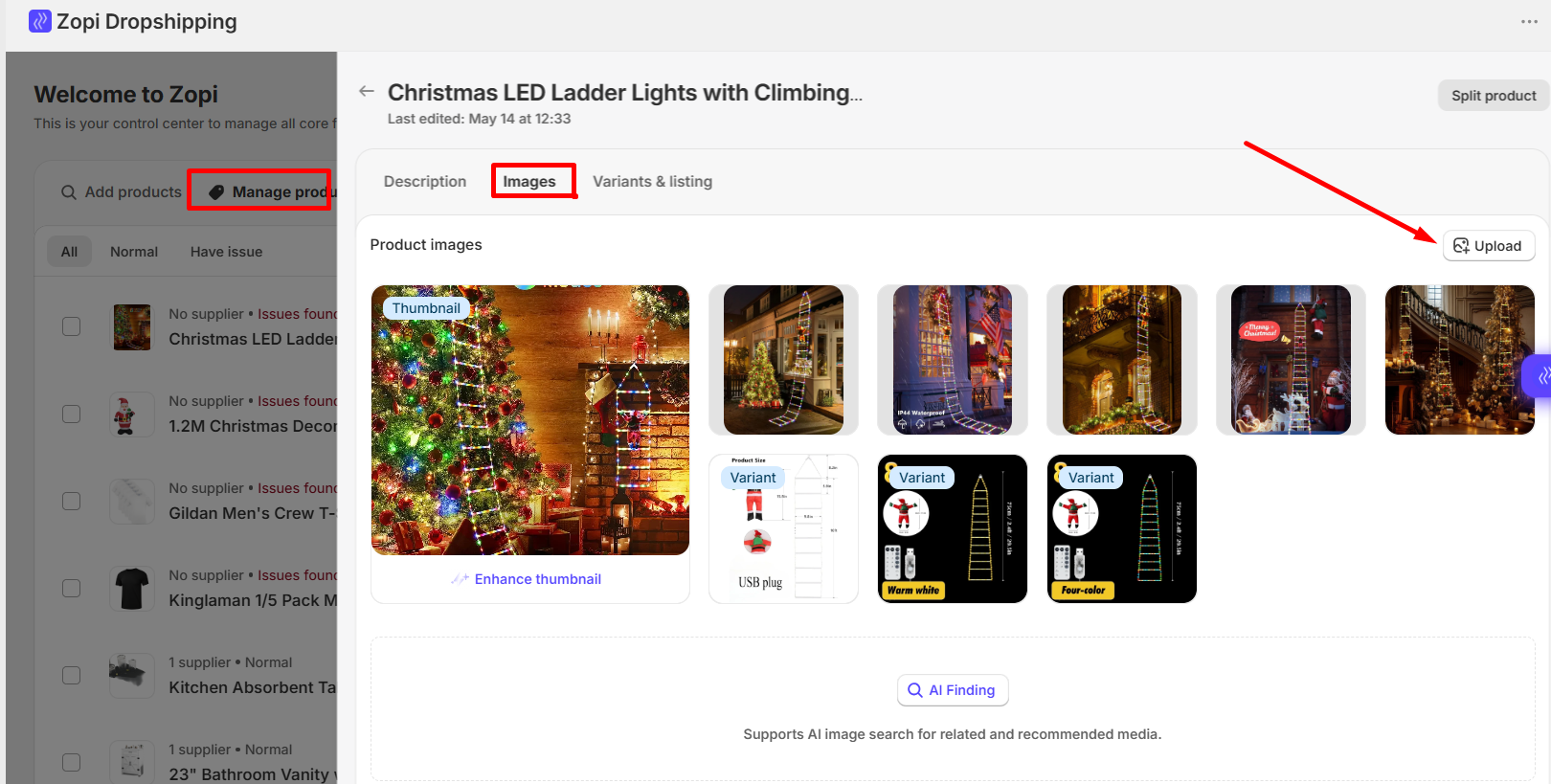
Step 3: Add Images Manually
If images are still missing:
- Go to: Zopi > Manage Products
- Open the specific
- Upload images manually
- Click Save
How to Fix Missing Variants
Step 1: Check Supplier Variants
- Confirm the missing variant exists on supplier page
- Ensure it is:
- In stock
- Selectable
Step 2: Re-import Product
Sometimes Zopi needs a fresh sync with supplier data.
- Delete old imported product (optional)
- Import again from supplier page
Step 3: Verify Variant Mapping
- Go to: Zopi > Manage Products
- Open specific products
- Review:
- Size options
- Color options
- Variant combinations
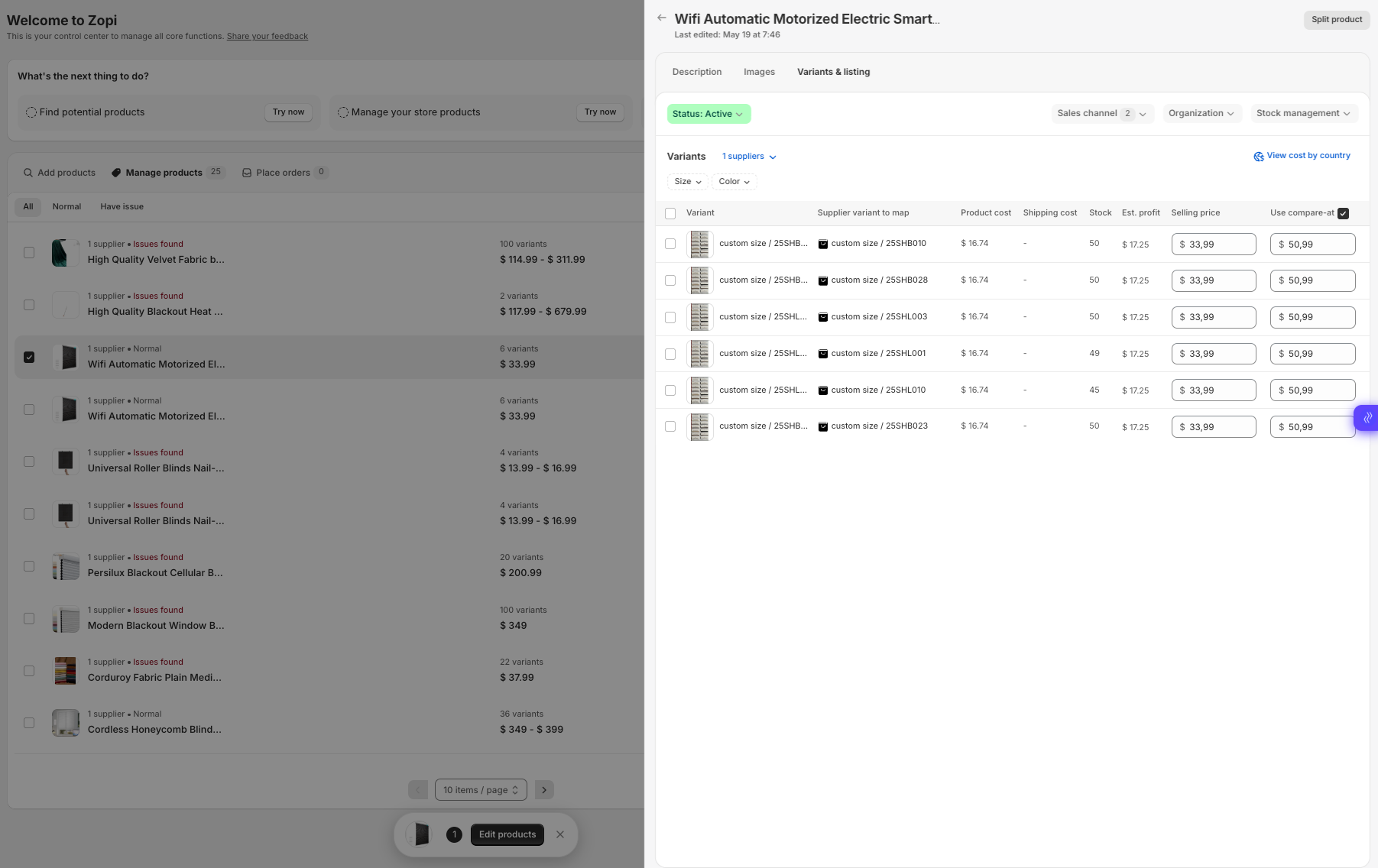
Step 4: Edit Variants Manually
You can manually:
- Rename variants
- Remove invalid variants
- Add missing options manually (if needed)
⚠️ Be careful when manually editing variants already connected to live Shopify products.
Recommended Import Workflow
For the best results, follow this workflow:
- Import product
→ From AliExpress, Temu, eBay, or Amazon - Review images
→ Remove duplicates or missing content - Check all variants
→ Size, color, stock availability - Edit product
→ Optimize title and description - Push to Shopify
→ Publish only after checking everything
Best Practices
- Import products from stable supplier listings
- Avoid products with overly complex variant structures
- Always review imported products before pushing to store
- Re-import products if supplier recently updated the listing
- Keep your browser and Zopi Chrome Extension updated
Conclusion
Missing images or variants are usually caused by supplier data issues or temporary import problems.
By reviewing the supplier page, re-importing the product, and manually fixing missing information when needed, you can ensure your product is complete before publishing it to your store.
Need Help?
If you need assistance while using Zopi:
- Contact our support team via Live Chat inside Zopi
- Visit the Zopi Help Center for more guides
- Join the Zopi Community to ask questions and learn from other users
👉 Our team is available to help you resolve issues quickly and keep your orders running smoothly.