Order Center

How to View Order Details in Zopi

Update on: 07/05/2026

Table of contents

Where to Find Orders in ZopiHow to View Order Details (Step-by-Step)Step 1: Open Orders PageStep 2: Find Your OrderStep 3: Open Order DetailsStep 4: Review Order InformationWhat Information You Can See1. Customer Information2. Product Information3. Order Status4. Supplier Details5. Tracking Information (if fulfilled)6. Payment DetailsHow to Use Order Details in Your WorkflowBest PracticesConclusionNeed Help?

Viewing order details helps you track fulfillment, check customer info, and fix issues quickly. This is essential for managing your orders smoothly.

Where to Find Orders in Zopi

All your orders are managed in one place:

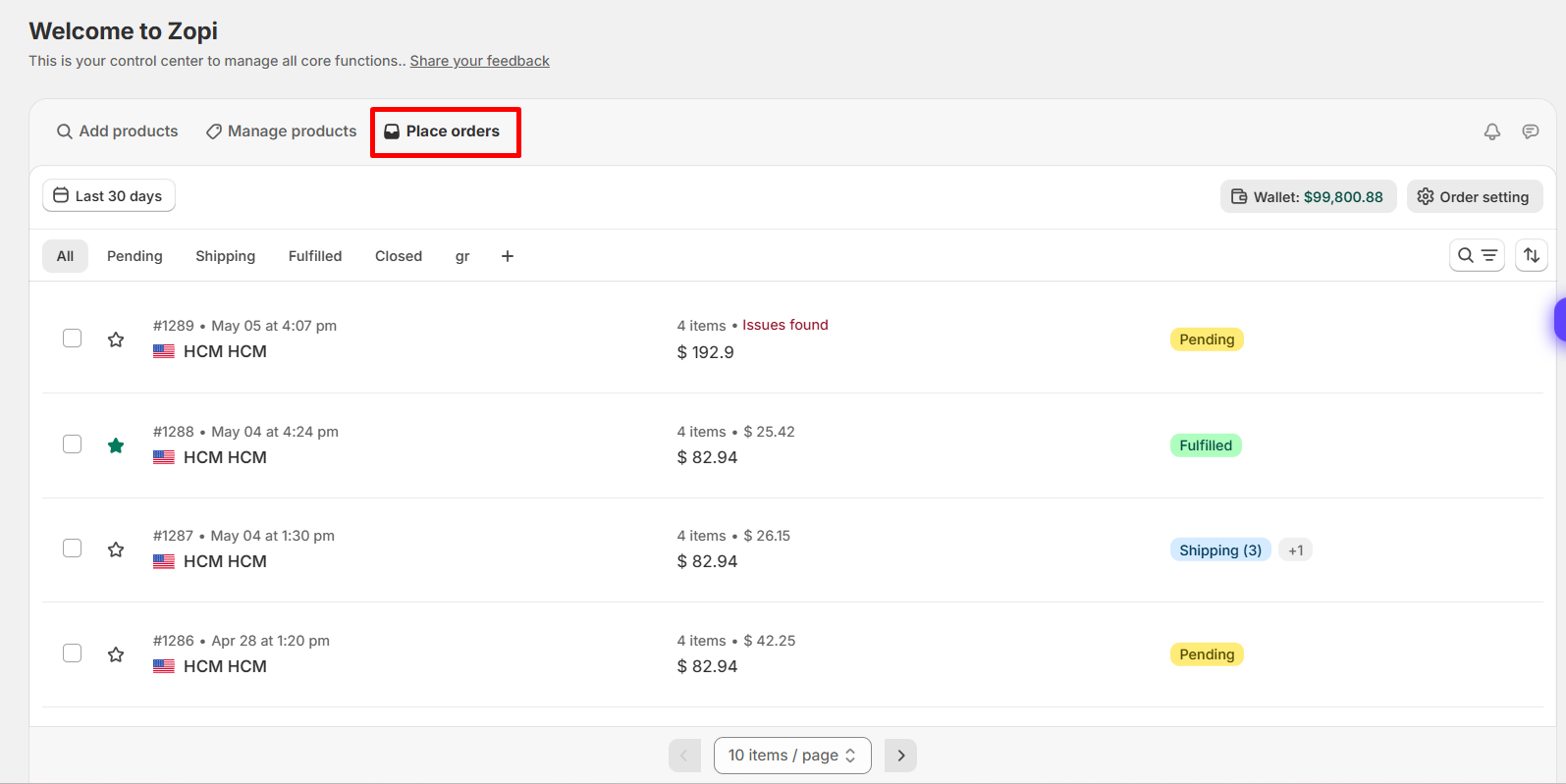
  • Go to: Zopi > Place Orders

Here you will see:

  • All incoming Shopify orders
  • Order status (Pending, Fulfilled, Failed, etc.)
  • Payment and fulfillment status

How to View Order Details (Step-by-Step)

Follow these steps:

Step 1: Open Orders Page

  • Navigate to: Zopi > Place Orders

Step 2: Find Your Order

  • Use search or filters:
    • Order number
    • Customer name
    • Order status

Step 3: Open Order Details

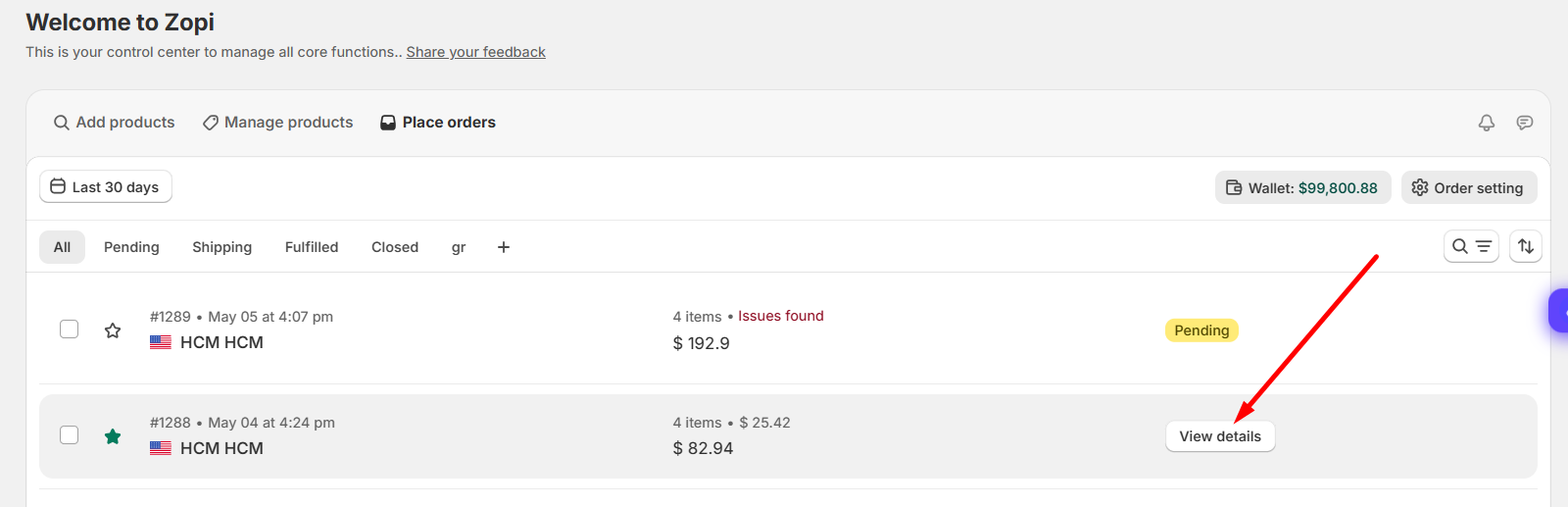
  • Click on the order row or View Details 
Step 4: Review Order Information

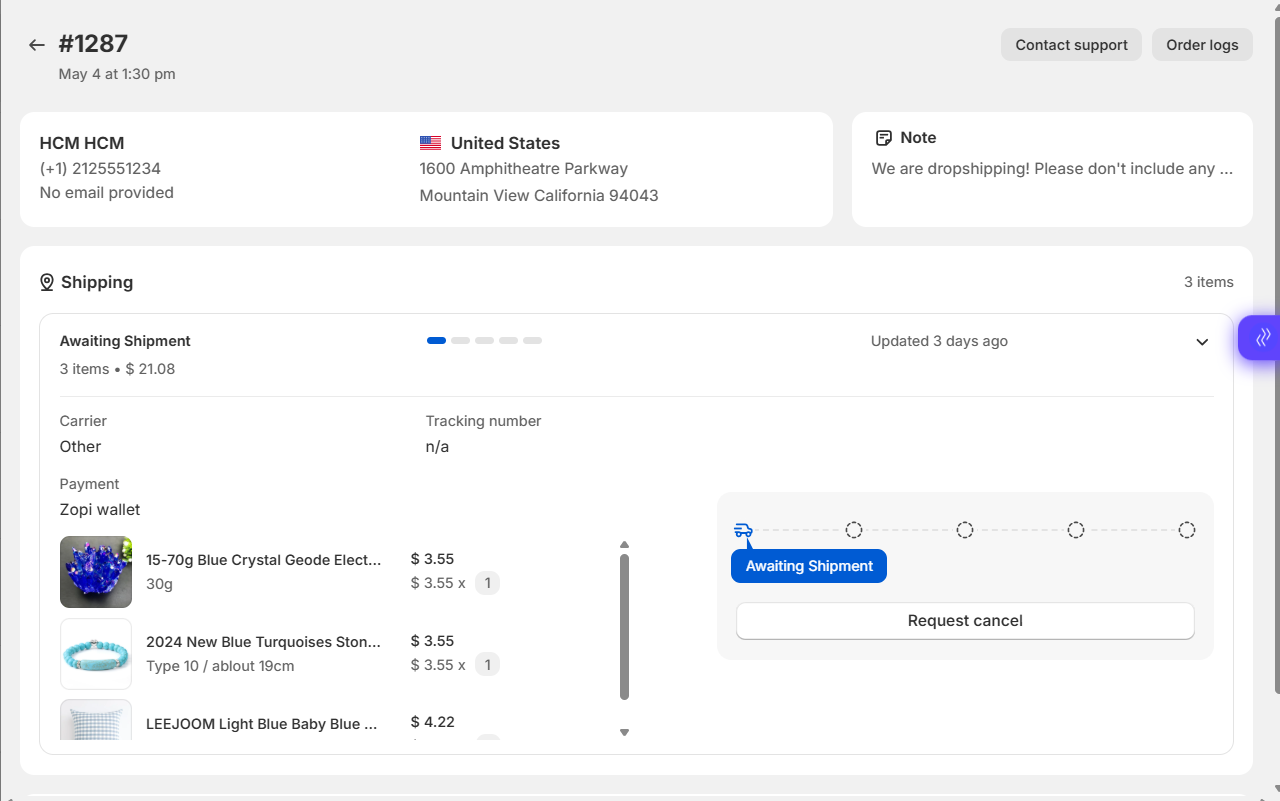
You will now see full order details (explained below)
What Information You Can See

Inside the order detail page, you can check:

1. Customer Information

  • Name
  • Shipping address
  • Contact details

2. Product Information

  • Product name
  • Variants (size, color, etc.)
  • Quantity ordered

3. Order Status

  • Payment status
  • Fulfillment status
  • Supplier status

4. Supplier Details

  • Linked supplier (AliExpress, etc.)
  • Product mapping
  • Cost price

5. Tracking Information (if fulfilled)

  • Tracking number
  • Shipping carrier
  • Delivery updates

6. Payment Details

  • Payment status (Paid / Failed)
  • Order cost

How to Use Order Details in Your Workflow

Order details are used throughout your workflow:

  1. Check new orders
    → Confirm customer info
  2. Fulfill orders
    → Click Order or Fulfill
  3. Handle issues
    → Identify payment failures or mapping issues
  4. Track shipments
    → Monitor delivery progress

Best Practices

  • Check orders daily to avoid delays
  • Always confirm customer address before fulfillment
  • Review product mapping before placing orders
  • Use filters to quickly find problematic orders
  • Monitor failed or pending orders closely

Conclusion

Viewing order details in Zopi helps you manage fulfillment, track shipments, and resolve issues quickly.

Make it a habit to review your orders regularly to keep your dropshipping operation running smoothly.

Need Help?

If you need assistance while using Zopi:

👉 Our team is available to help you resolve issues quickly and keep your orders running smoothly.

Related articles

Get the Source Order Number

After placing an order, obtaining the supplier order number is essential for effective tracking. Remember, this number may vary depending on the supplier platforms you are using. Understanding Multi-source Order Numbers I. AliExpress Order Number AliExpress Order Numbers typically appear as follows: 502370139095420, 70050660905420, 86087307282773. To locate your order number on AliExpress, follow these steps:…

Duplicate a Fulfilled Order on Shopify

Please note that Zopi will only synchronize orders with the PAID and UNFULFILLED statuses to the Orders Center page in the app. This feature allows you to fulfill orders with just a few clicks, significantly saving you time and effort. If you accidentally fulfilled an order on Shopify, you can easily rectify this by duplicating…

How Order Status Works in Zopi

In Zopi, the Order Status system helps merchants track orders throughout the entire fulfillment process, from unprocessed orders to successful deliveries or cancellations. Inside the Place Order section, Zopi organizes orders into different status tabs so merchants can quickly understand what action is needed for each order. This helps reduce fulfillment confusion, improve workflow organization,…

Subscribe
Notify of
guest

0 Comments
Inline Feedbacks
View all comments

Table of contents

Where to Find Orders in ZopiHow to View Order Details (Step-by-Step)Step 1: Open Orders PageStep 2: Find Your OrderStep 3: Open Order DetailsStep 4: Review Order InformationWhat Information You Can See1. Customer Information2. Product Information3. Order Status4. Supplier Details5. Tracking Information (if fulfilled)6. Payment DetailsHow to Use Order Details in Your WorkflowBest PracticesConclusionNeed Help?

Related articles

Duplicate a Fulfilled Order on Shopify

Please note that Zopi will only synchronize orders with the PAID and UNFULFILLED statuses to the Orders Center page in the app. This feature allows you to fulfill orders with just a few clicks, significantly saving you time and effort. If you accidentally fulfilled an order on Shopify, you can easily rectify this by duplicating…

How to Connect Your AliExpress Account with Zopi

Connecting your AliExpress account with Zopi is a crucial step that helps you manage orders and optimize your dropshipping process. With Zopi, you can easily import products from AliExpress and automate your order fulfillment. In this article, we will guide you through the steps to connect your AliExpress account with Zopi. Why is Connecting Your…

Fulfill Pending Orders – Setting Your Triggers (WHEN Rules)

Triggers are essential for determining when an automation flow should begin. In the “Fulfill Pending Orders” workflow, Zopi automatically reviews each new or pending order to assess if it can be fulfilled using the available suppliers and fulfillment options.   How It Works When a new order is synced to Zopi or a fulfillment request…

Share your thought