
Zopi allows you to update multiple products at the same time using the bulk editing feature.
Instead of editing products one by one, you can quickly apply updates across multiple listings, including:
- Product status
- Pricing behavior
- Out-of-stock settings
- Product content
- Product thumbnails
- Title prefix/suffix
👉 Bulk editing helps save time and keeps your product listings consistent.
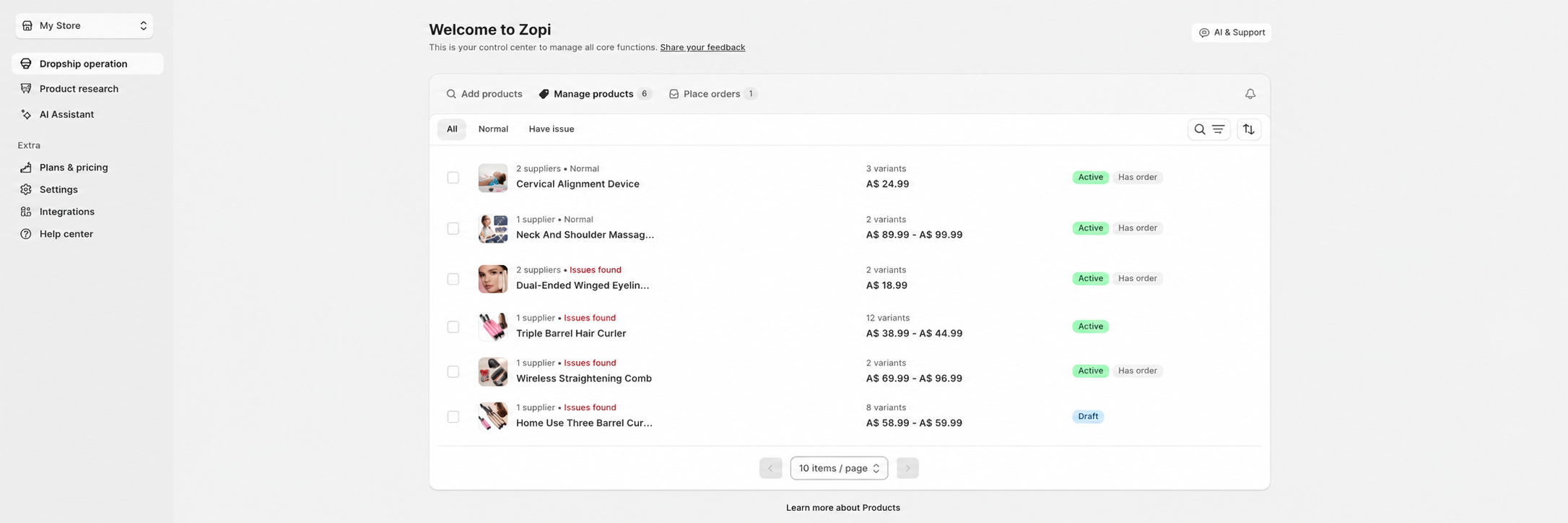
Access Manage Products
To bulk update products:
- Open Zopi
- Go to Dropship Operation => select Manage products
Or access directly:
https://ds.zopi.io/app?view=manage-product
Select Products
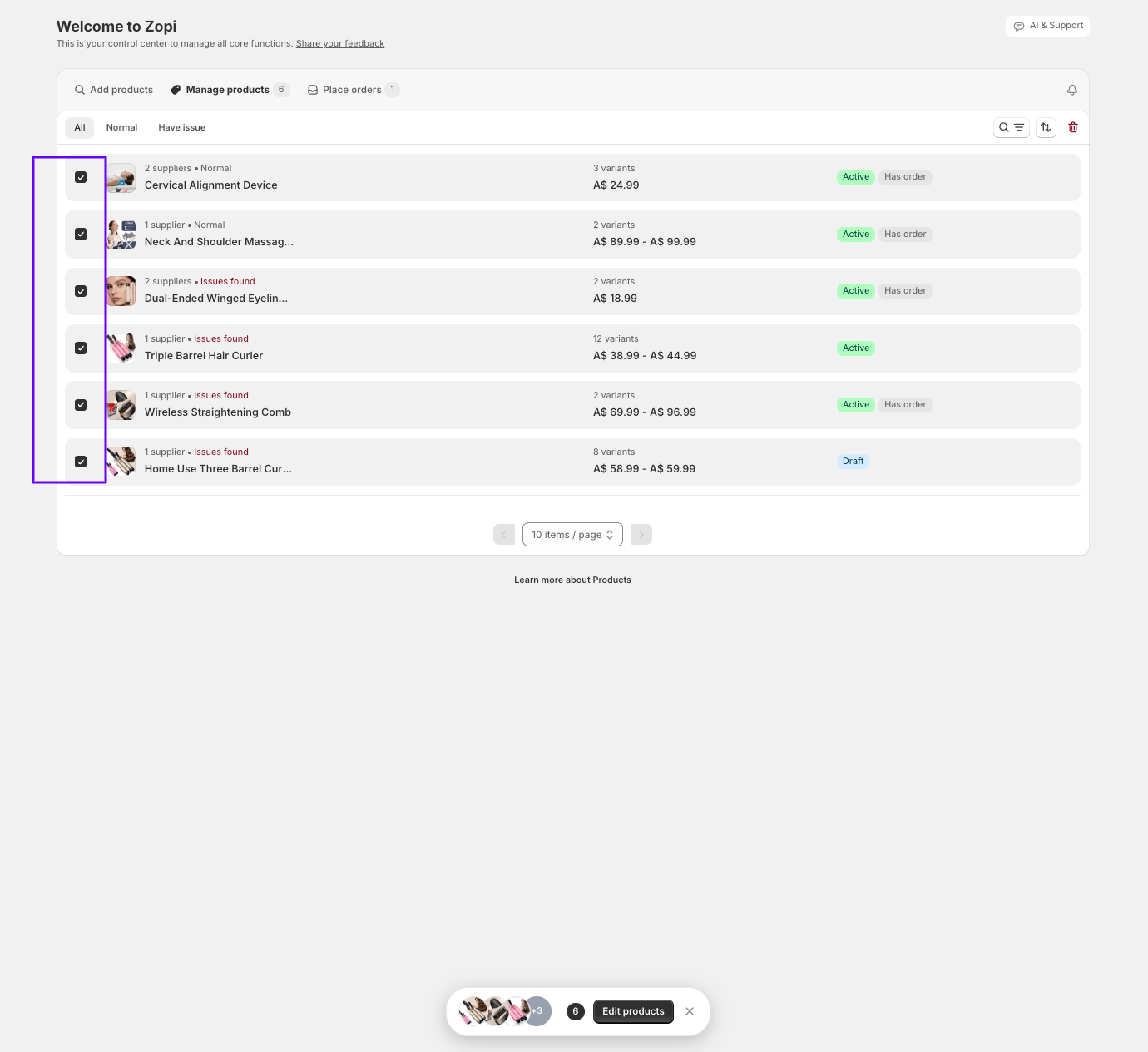
Inside Manage products:
- Select the products you want to update using the checkboxes
- Click Edit products at the bottom of the page
👉 You can select multiple products at the same time.
Open Bulk Editor
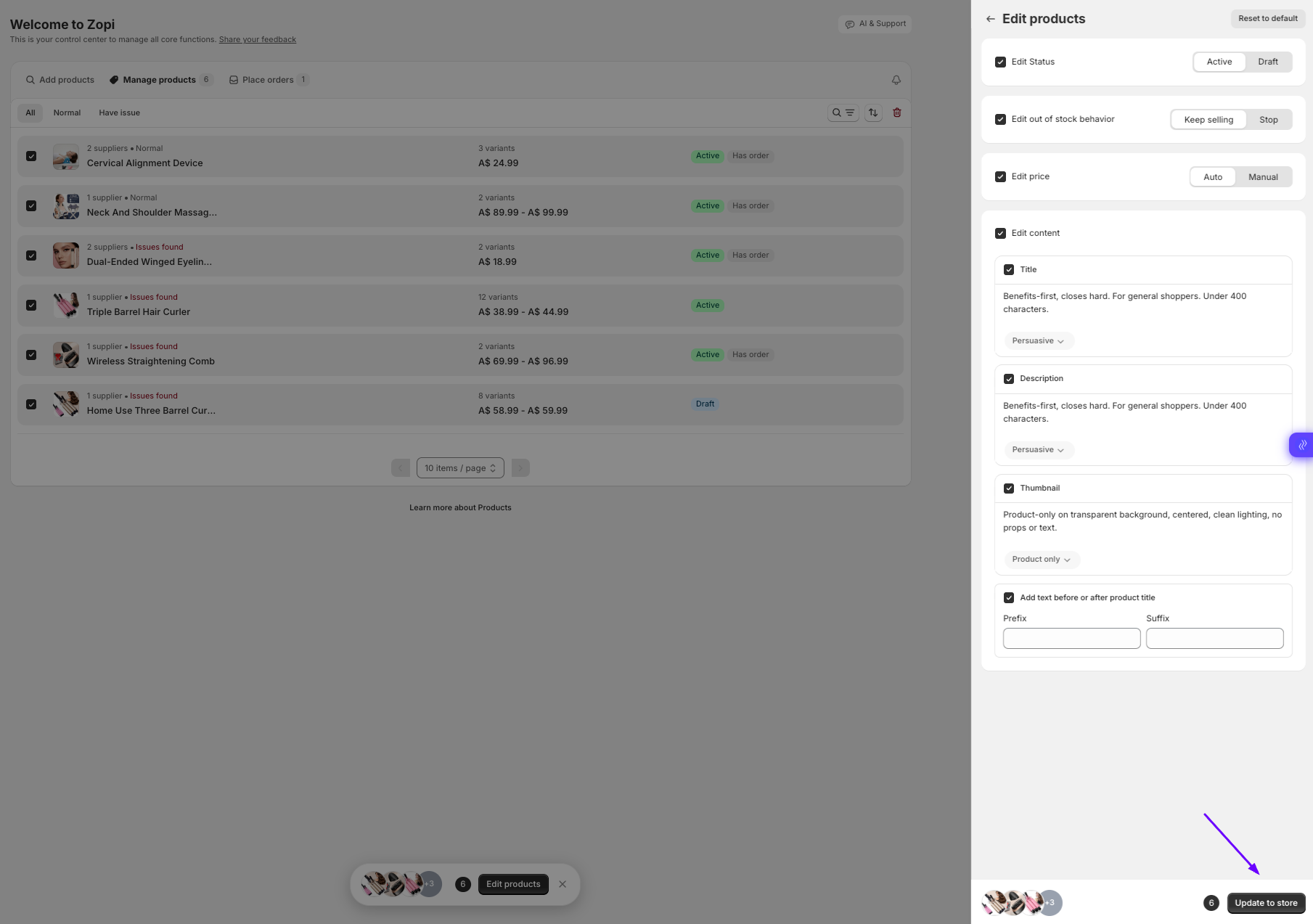
After clicking Edit products, the bulk editing panel will appear on the right side.
From here, you can configure which settings should be updated for selected products.
👉 Only enabled sections will be applied during the update.
Available Bulk Update Options
Edit Status
You can change product visibility status:
- Active
- Draft
👉 Use this to quickly publish or hide multiple products.
Edit Out-of-Stock Behavior
Available options:
- Keep selling: Customers can continue purchasing products even when inventory reaches zero.
- Stop: Products become unavailable when stock runs out.
Edit Price
Pricing options:
- Auto: Zopi automatically updates pricing based on your pricing rules.
- Manual: You manually control product pricing.
Edit Content
You can bulk update product content, including:
- Product title
- Description
- Thumbnail style
Product Title
You can optimize titles using preset styles.
Example:
- Persuasive style
- Conversion-focused wording
Product Description
You can apply bulk description formatting or optimized content styles.
👉 Helpful for improving listing consistency.
Thumbnail
You can adjust thumbnail presentation preferences.
Example:
- Product-only image
- Clean background
- No text or props
Add Prefix or Suffix
You can automatically add text before or after product titles.
Examples:
- Prefix:
HOT SALE - Suffix:
Limited Offer
👉 Useful for promotions or seasonal campaigns.
Update Products
After configuring your settings:
- Review selected options
- Click Update to store
👉 Changes will be applied to all selected products.
Best Practices
- Review selected products before bulk editing
- Use Draft mode before publishing large updates
- Keep product titles clean and readable
- Avoid excessive promotional text in titles
👉 Bulk editing is best used for operational consistency and faster store management.
Need Help?
If you need assistance while using Zopi:
- Contact our support team via Live Chat inside Zopi
- Visit the Zopi Help Center for more guides
- Join the Zopi Community to ask questions and learn from other users
👉 Our team is available to help you resolve issues quickly and keep your orders running smoothly.