
Learn the three main ways to add products into Zopi. This helps you quickly build your product list before editing and pushing them to your Shopify store.
1. Add Products Directly in Zopi
This is the most common method. You can search and import products from supported suppliers directly inside Zopi.
Steps
- Go to Zopi Dropshipping
- Open the Add Product tab
- Search for a product using:
- Keywords
- Product URL
- Image
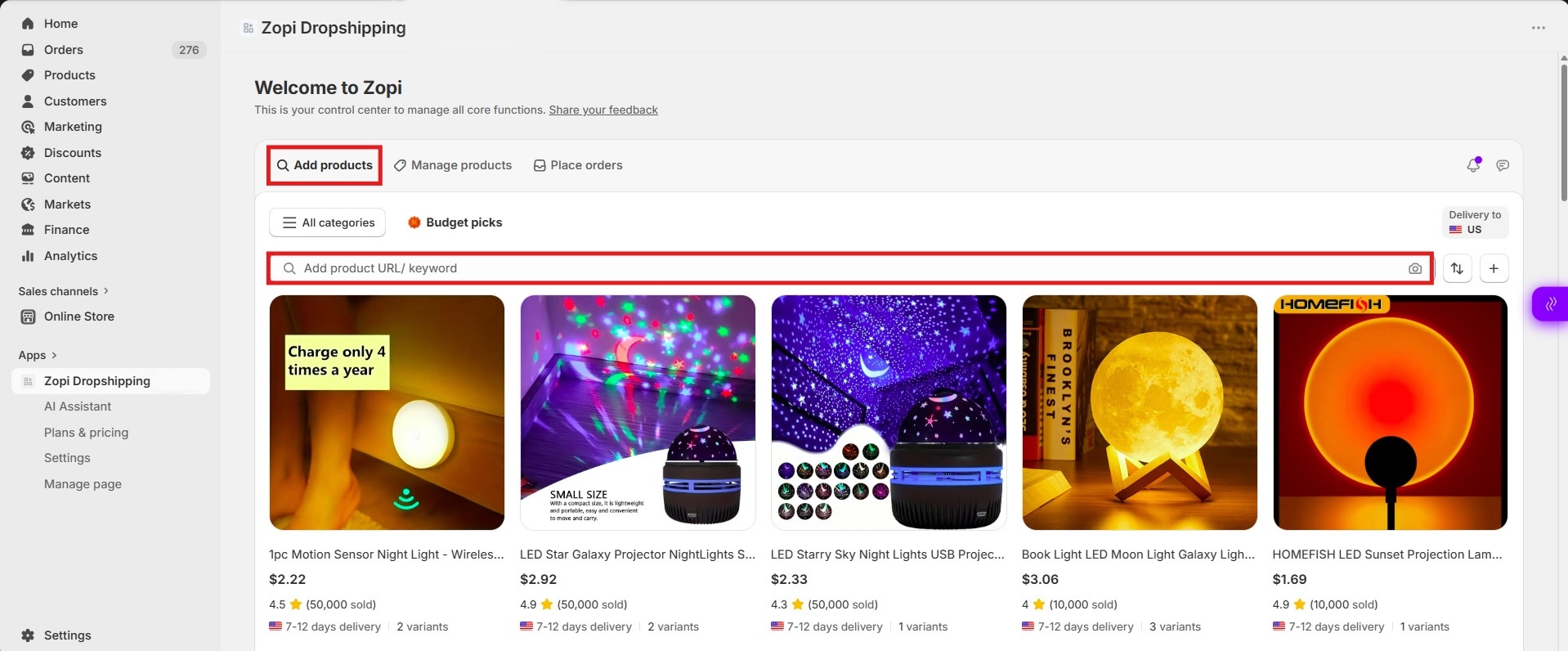
- Browse the results
- Click on the product you want
- Click Push to Store
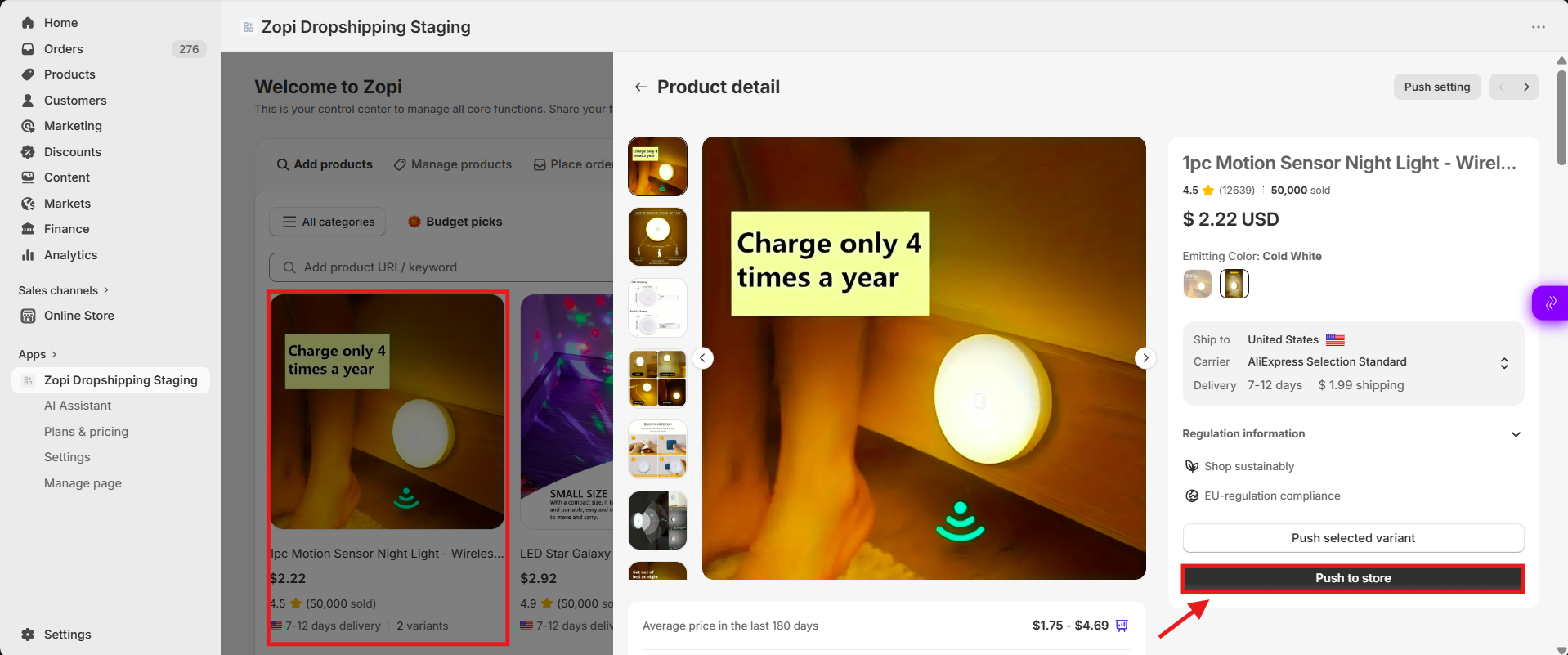
Your product will now be added to your Shopify store.
Tips
- Use specific keywords (e.g., “wireless earbuds waterproof”) for better results
- Always review product details after adding
2. Add Products from a File (CSV Upload)
This method is useful when you already have a list of supplier product links.
Before You Start
- Prepare a .csv file (Excel format)
- Each row should contain a supplier product URL
- You can include multiple supplier links in one file
Steps
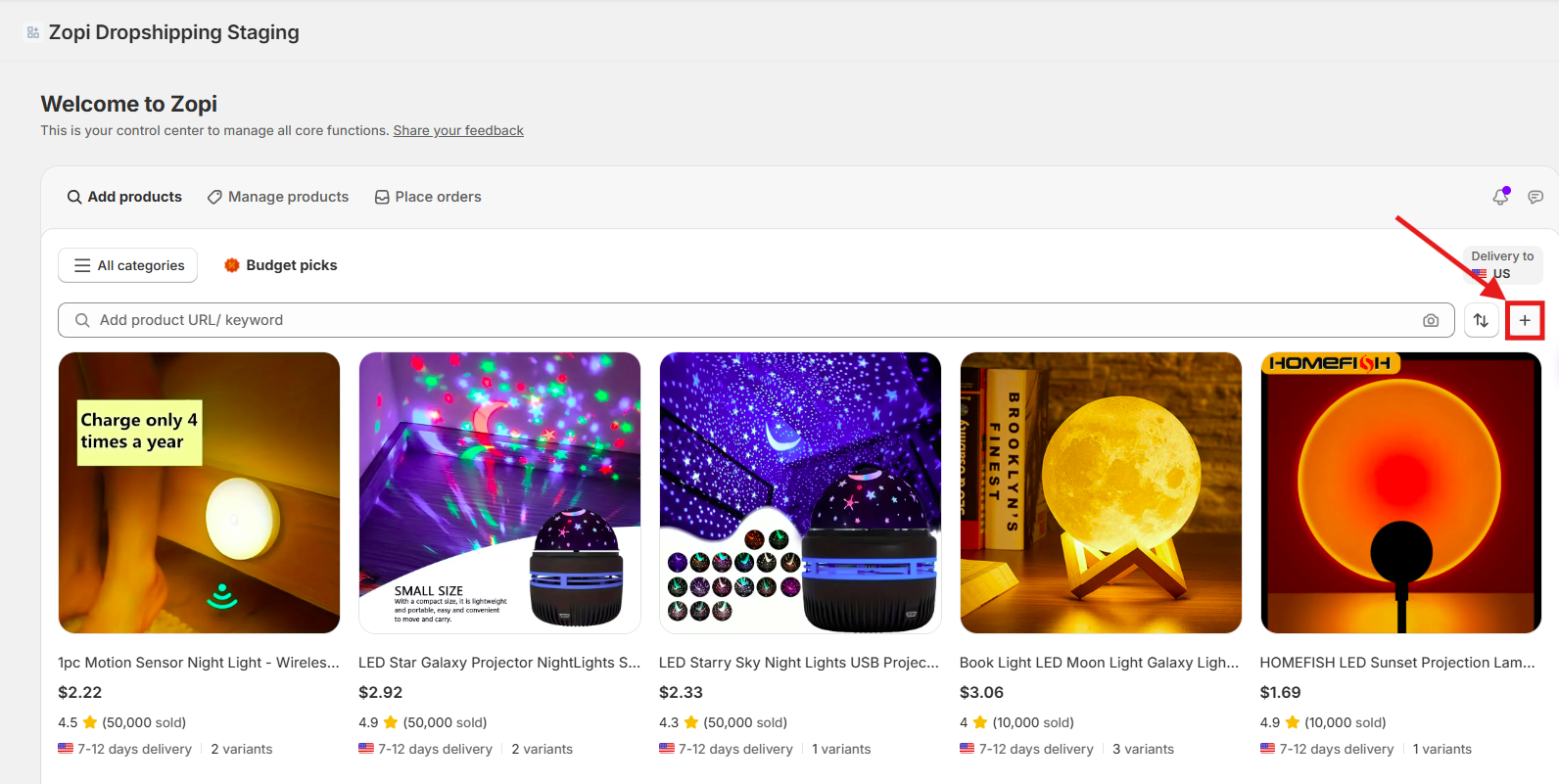
- Open the Add Product tab
- Click the + button (next to the search bar)
- Select Add from File
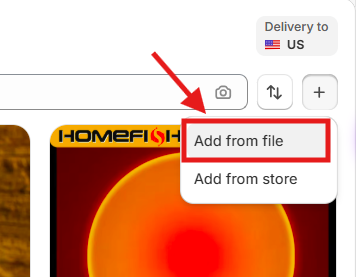
- Click Add File
- Choose your .csv file
- Click Confirm Add
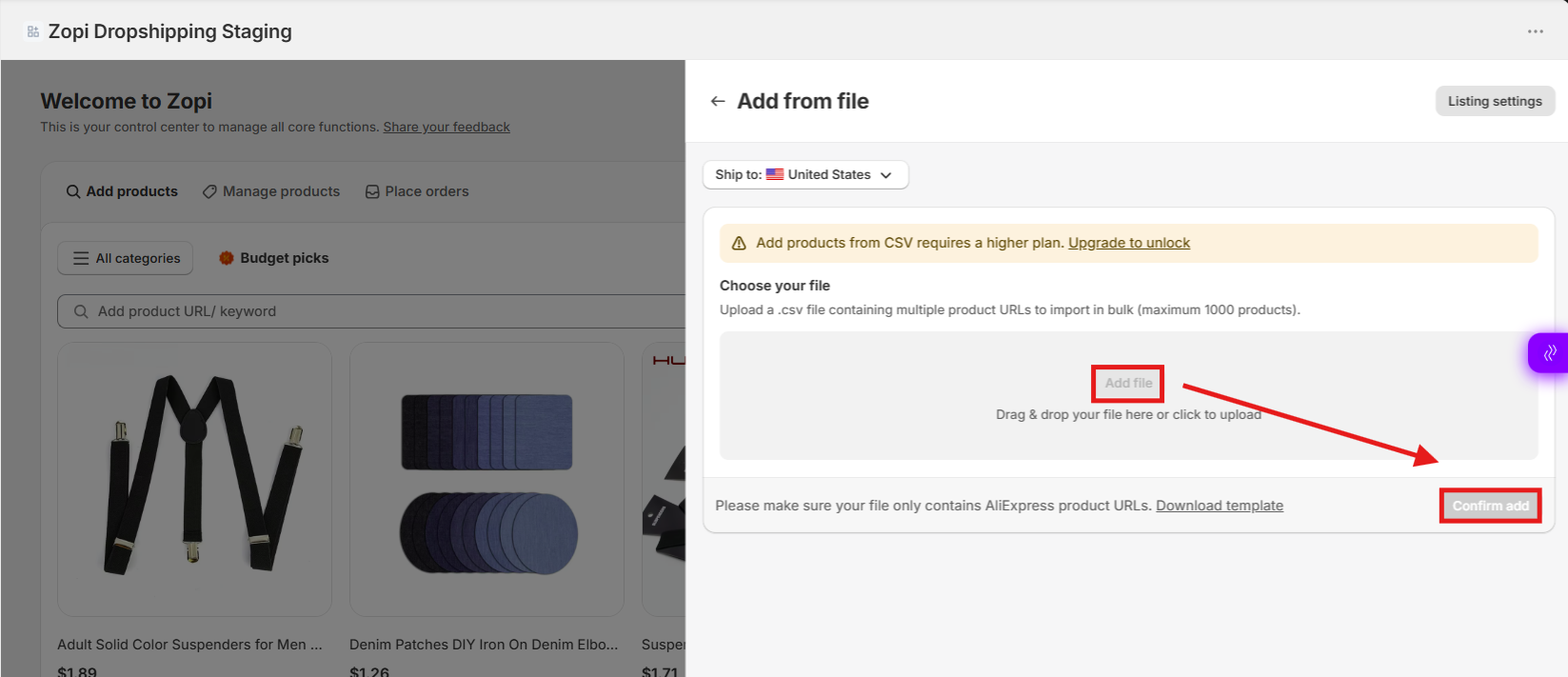
Zopi will automatically import all products from the file.
Tips
- Double-check that all URLs are valid supplier links
- Avoid duplicate links to prevent duplicate products
3. Add Products from Your Store
Use this method if you want to re-import or manage existing products from your Shopify store inside Zopi.
Steps
- Open the Add Product tab
- Click the + button
- Select Add from Store
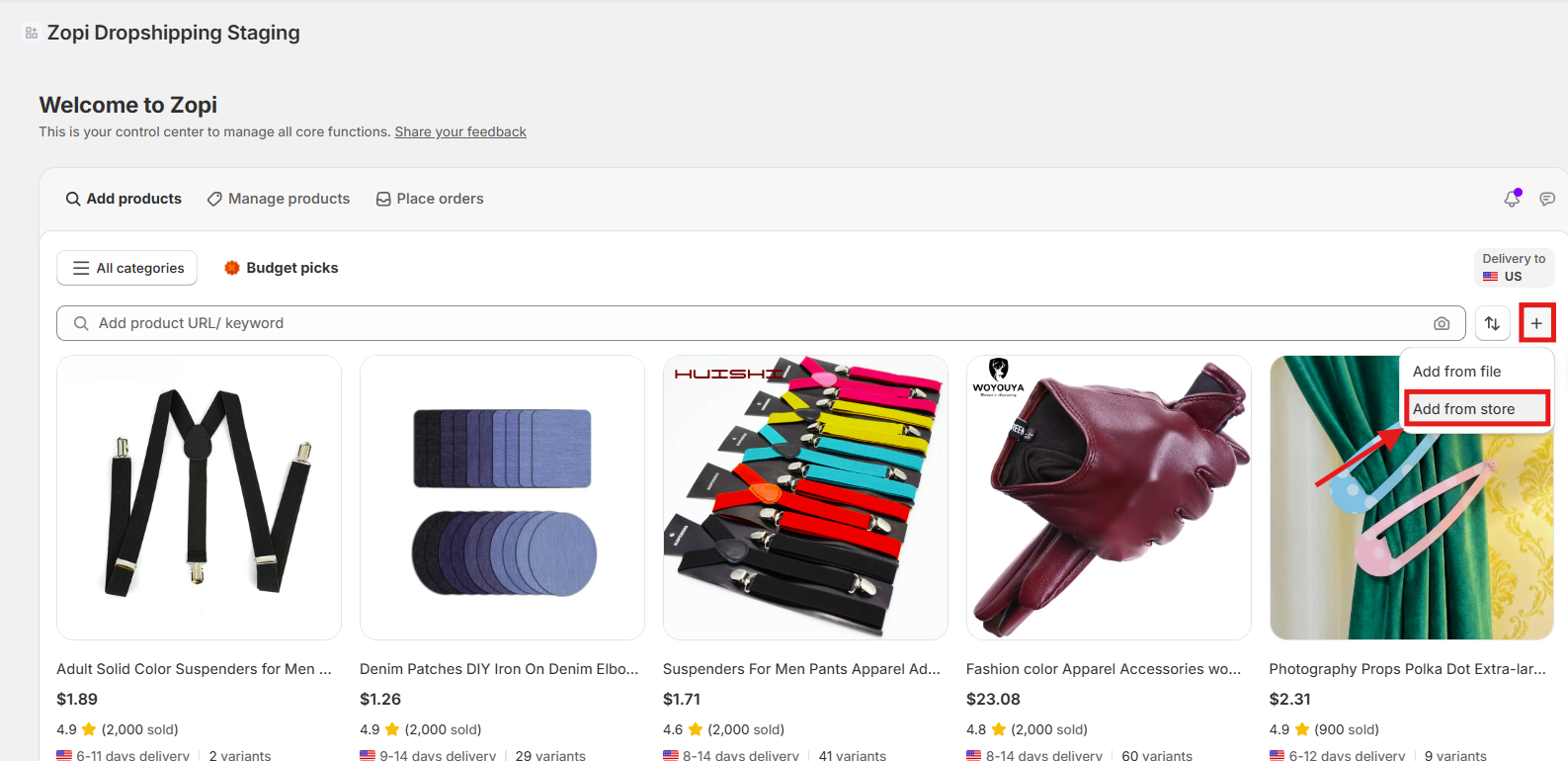
- Choose the products you want to add
- Click Confirm Add
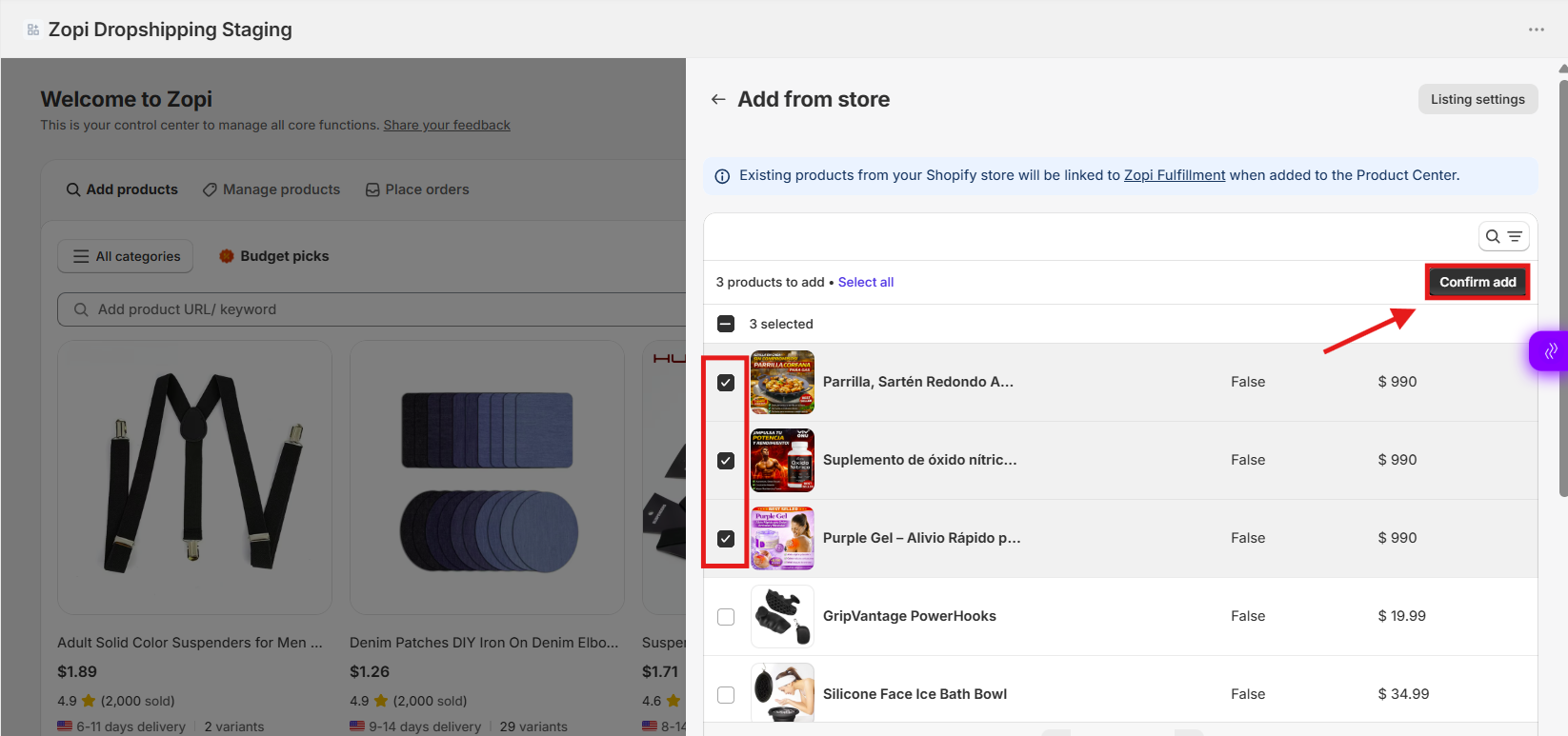
The selected products will be added into Zopi for further management (e.g., mapping suppliers, fulfillment).
Tips
- Use this when you want to connect existing Shopify products to suppliers
- Helpful for setting up automation later
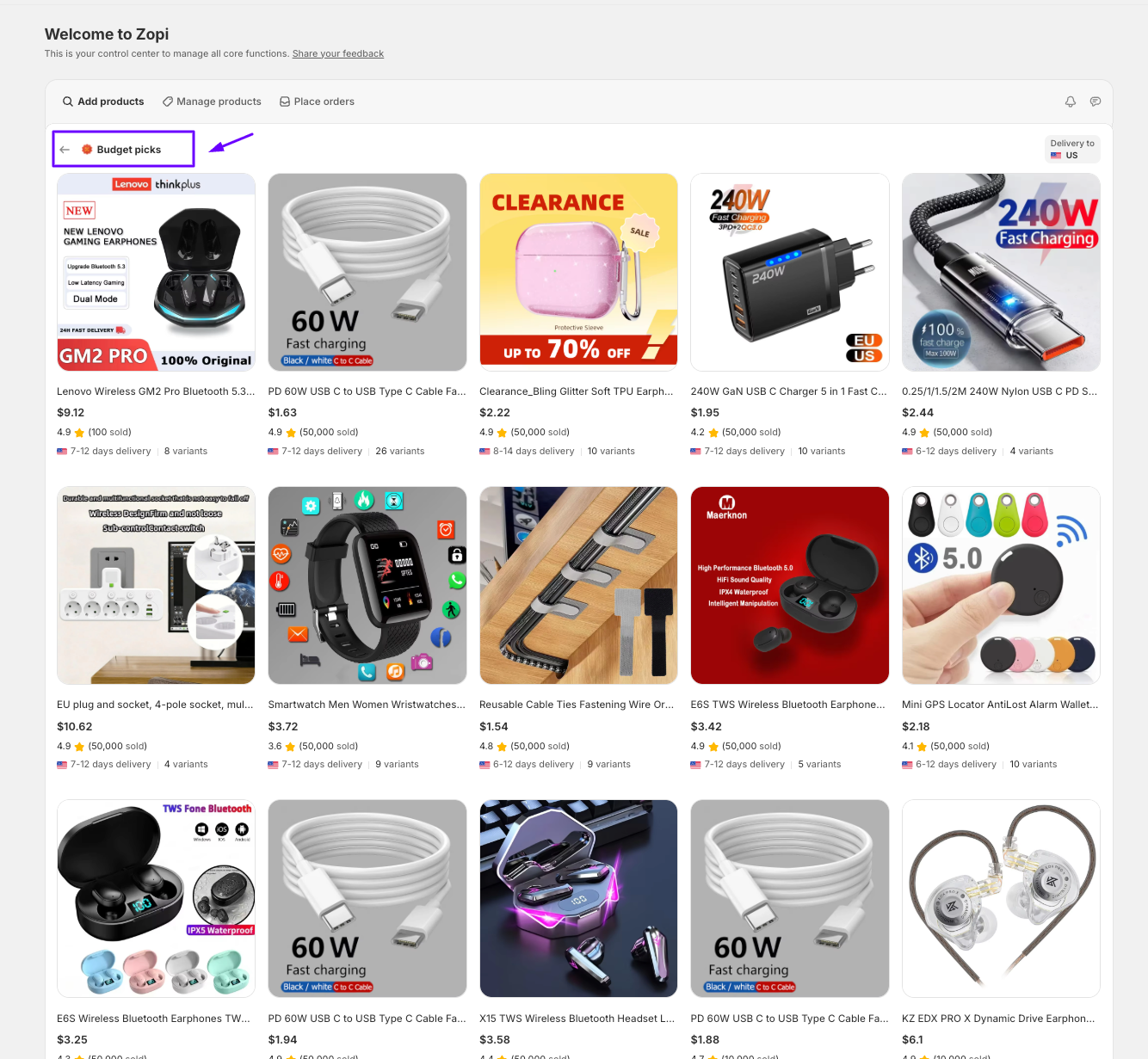
4. Explore Budget Picks
The Budget Picks section helps you discover curated product collections selected by Zopi.
These collections typically include:
- Products with strong order volume
- Attractive profit margins
- High-quality product images
- Trending or reliable items
- Products suitable for beginners
Budget Picks can help you quickly find products worth testing without spending time researching manually.
This allows you to save time when importing multiple products.
5. Bulk Push Products to Store
Zopi also supports pushing multiple products at once.
How It Works
When you select multiple products, a Bulk Push action becomes available.
Steps
- Select multiple products in your product list
- Click Push to Store
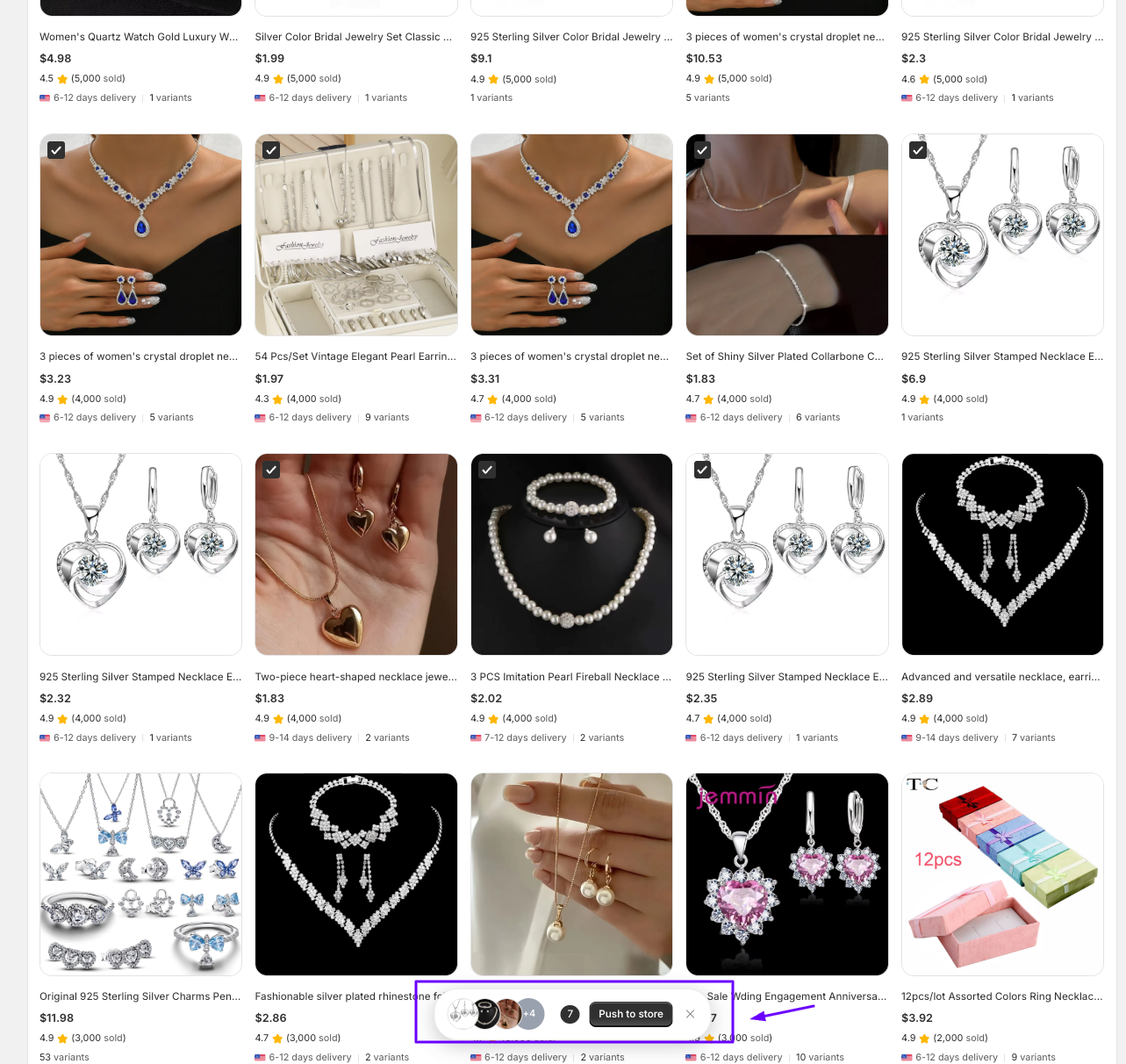
- Configure your Push Settings before publishing
- Click Push to Store
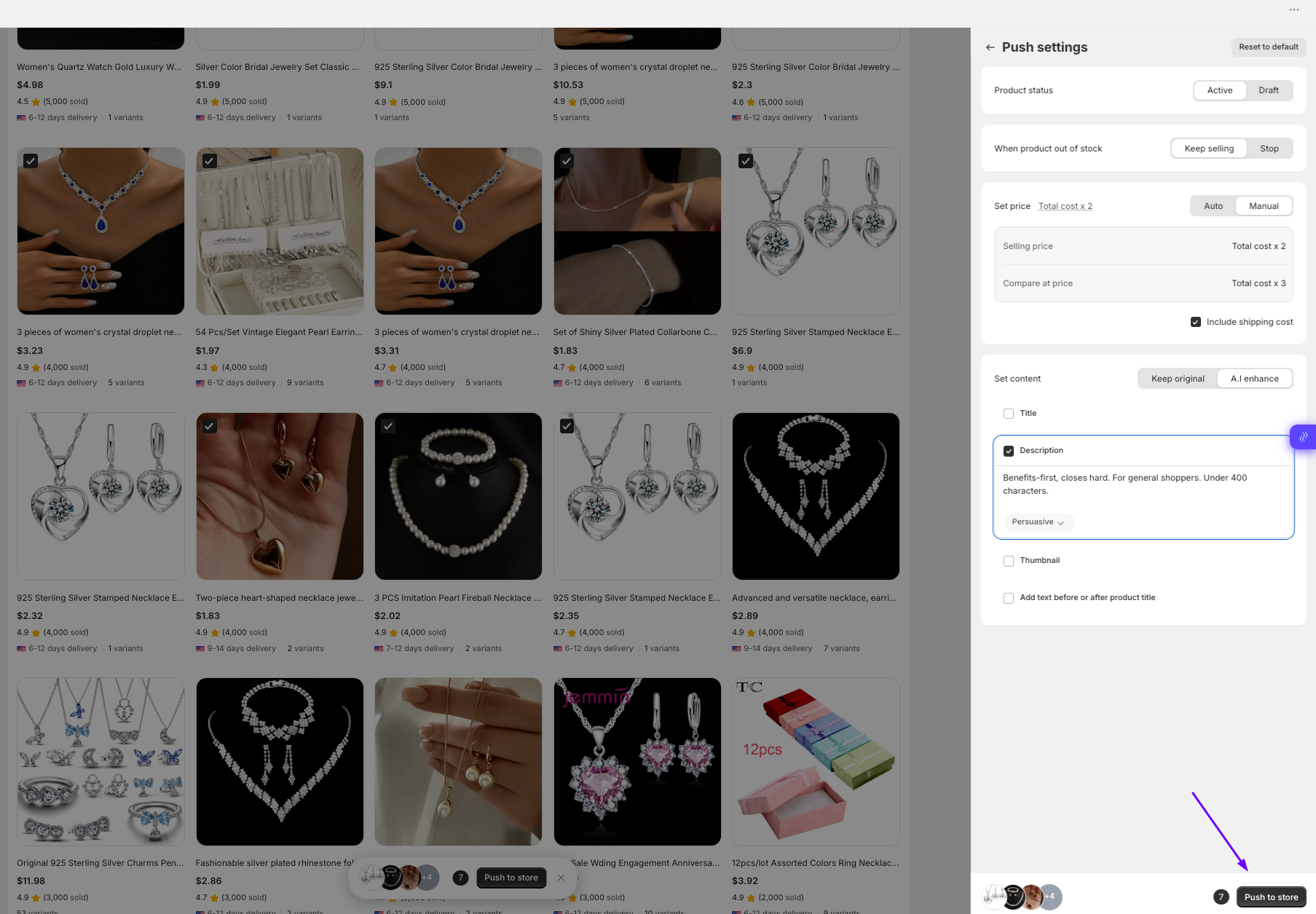
This allows you to save time when importing multiple products.
Best Practices
- Always review products before pushing them live
- Edit titles, descriptions, and pricing after import
- Map the correct supplier variants to avoid fulfillment issues
- Use Pricing Rules to automate your margins
Conclusion
Zopi gives you three flexible ways to add products:
- Search and import directly
- Upload via CSV file
- Import from your existing store
Choose the method that fits your workflow, then move on to editing, mapping suppliers, and pushing products live.
Need Help?
If you need assistance while using Zopi:
- Contact our support team via Live Chat inside Zopi
- Visit the Zopi Help Center for more guides
- Join the Zopi Community to ask questions and learn from other users
👉 Our team is available to help you resolve issues quickly and keep your orders running smoothly.