Imported & Push to store

Why Can’t I Import Products in Zopi

Update on: 15/05/2026

Table of contents

Product Import Quota ReachedHow to Check Your Remaining Product QuotaHow to FixAdd from File Feature Not AvailableHow to Check Your Current PlanCSV File ErrorsCommon CSV File IssuesBest Practices for CSV ImportConclusionNeed Help?

If you cannot import products into Zopi, the issue is usually related to your product import quota or file import requirements.

This article explains the most common reasons and how to fix them.

Product Import Quota Reached

Each Zopi subscription plan includes a different product import quota.

Once the quota is used up, it will not automatically renew.
To continue importing products, you will need to upgrade your plan.

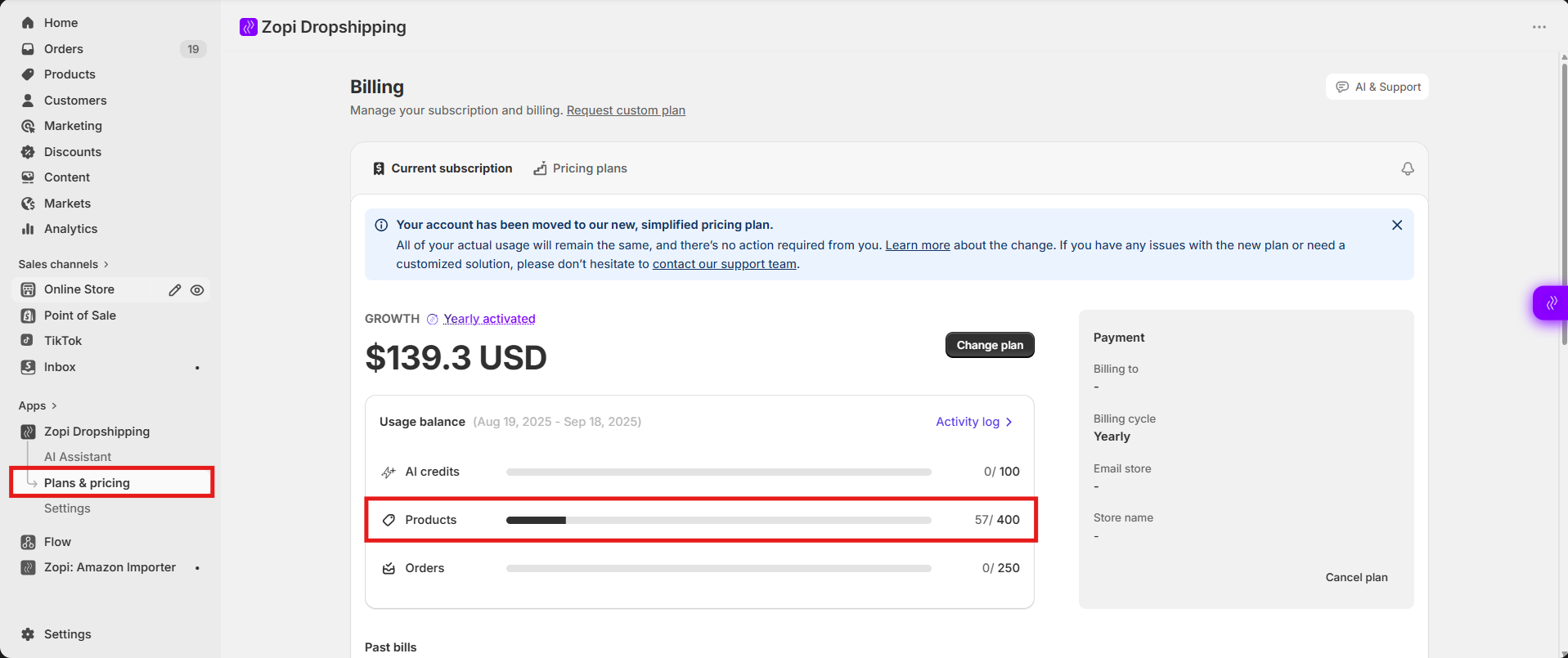
How to Check Your Remaining Product Quota

  1. Open Zopi > Plan & Pricing
  2. Check the Product Quota section.
  3. Review:
    • Total imported products
    • Remaining product quota

How to Fix

If your quota has reached the limit, you can upgrade your current plan or delete imported products to restore the quota before importing more products.

Add from File Feature Not Available

The Add from File feature is only available for users on the Explorer plan or higher.

If you are using a lower plan, you may not be able to:

  • Upload CSV files
  • Import products in bulk from files

How to Check Your Current Plan

  1. Open Zopi > Plan & Pricing
  2. Review your current subscription plan

If your current plan does not support this feature, you will need to upgrade to use Add from File.

CSV File Errors

If you receive an error while importing from a file, the issue may be related to the CSV file format or content.

Common CSV File Issues

Invalid File Format

Make sure your file:

  • Uses the .csv format
  • Is not corrupted

Too Many Products

The maximum supported limit is:

  • Up to 1000 products per file

If your file exceeds the limit:

  • Split the file into smaller batches
  • Upload them separately

Best Practices for CSV Import

  • Use one supplier link per row
  • Double-check links before uploading
  • Test with a small file first before importing large batches

Conclusion

If you cannot import products in Zopi, the issue is usually caused by:

  • Reaching your product import quota
  • Using a plan that does not support file import
  • CSV file formatting or link errors

Checking your plan, quota usage, and file format can help resolve most import issues quickly.

Need Help?

If you need assistance while using Zopi:

👉 Our team is available to help you resolve issues quickly and keep your orders running smoothly.

Related articles

How to Add Products in Zopi (Simple Mode)

Learn the three main ways to add products into Zopi. This helps you quickly build your product list before editing and pushing them to your Shopify store. 1. Add Products Directly in Zopi This is the most common method. You can search and import products from supported suppliers directly inside Zopi. Steps Go to Zopi…

How to Import Products from AliExpress via Link in Zopi

Importing products by link is the fastest way to bring a product you found on AliExpress into your Shopify store. This helps you move quickly from product discovery to selling. When to Use This Method Use this method when: You are browsing AliExpress and find a potential product You already have a product URL You…

Set Pricing Rules and Assign Cent

Setting the price for the products you sell in your store is crucial for ensuring profitability. Your selling price must always exceed the cost charged by your supplier. At Zopi, you can leverage the Pricing Rules feature to automate your product pricing effectively. Follow the steps below to set it up quickly and efficiently. Set…

Subscribe
Notify of
guest

0 Comments
Inline Feedbacks
View all comments

Table of contents

Product Import Quota ReachedHow to Check Your Remaining Product QuotaHow to FixAdd from File Feature Not AvailableHow to Check Your Current PlanCSV File ErrorsCommon CSV File IssuesBest Practices for CSV ImportConclusionNeed Help?

Related articles

Set Pricing Rules and Assign Cent

Setting the price for the products you sell in your store is crucial for ensuring profitability. Your selling price must always exceed the cost charged by your supplier. At Zopi, you can leverage the Pricing Rules feature to automate your product pricing effectively. Follow the steps below to set it up quickly and efficiently. Set…

How to Filter Products Before Add in Zopi

Filtering products before import helps you find better products faster and avoid importing low-quality or unsuitable items into your store. This guide explains how to use product filters in Zopi to narrow down products by price, orders, shipping location, ratings, and more. Why Product Filtering Matters Not every supplier product is suitable for your store….

How to Edit a Product Before Pushing to Your Store in Zopi

Editing your product before publishing helps you improve quality, pricing, and conversion. This step ensures your product looks professional and is ready to sell. When Should You Edit a Product? You should always edit a product before pushing it to your Shopify store. Imported products (from AliExpress, Temu, eBay, Amazon) often have: Messy titles Low-quality…

Share your thought