
Zopi is introducing a new option in Order Tracking settings that allows you to customize the Tracking URL included in your email notifications. This enhancement enables you to replace generic carrier links with your store’s branded tracking page URL. As a result, every shipping confirmation email will direct customers back to your store, ensuring a consistent and professional post-purchase experience.
- Brand Consistency: Keep customers engaged with your store by keeping them on your domain.
- Enhanced Customer Experience: Provide a unified, branded tracking page instead of redirecting to various carrier sites.
- Flexibility: Link to your tracking page or a trusted third-party service.
How to Set a Custom Tracking URL in Email
Follow these steps to set up your custom tracking URL:
1. Access Order Tracking Settings
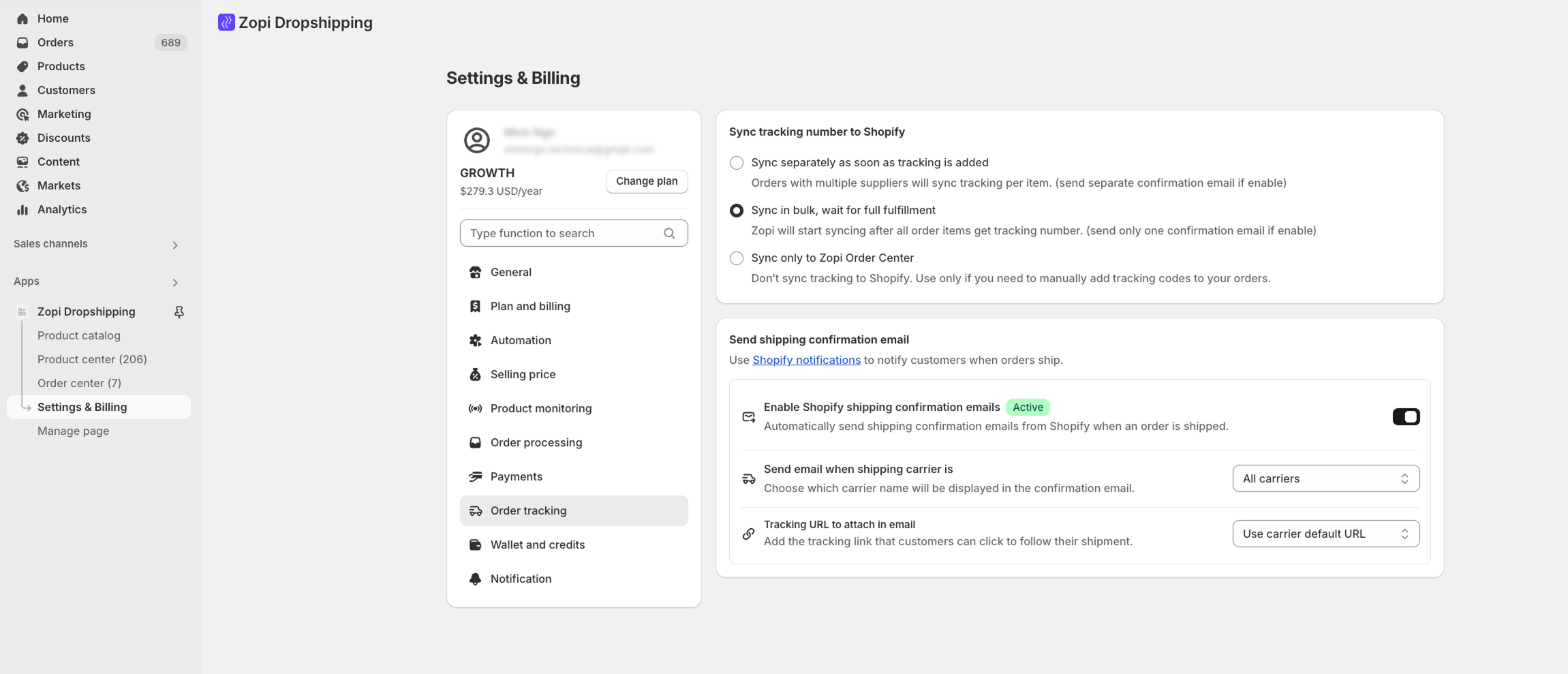
Go to Settings & Billing → Order Tracking.
2. Locate Tracking URL Option
In the section Send shipping confirmation email, find Tracking URL to attach to email.
3. Select Custom URL Option
From the dropdown, choose Use custom URL.
(By default, it’s set to Use carrier default URL.)
4. Enter Your Custom Link
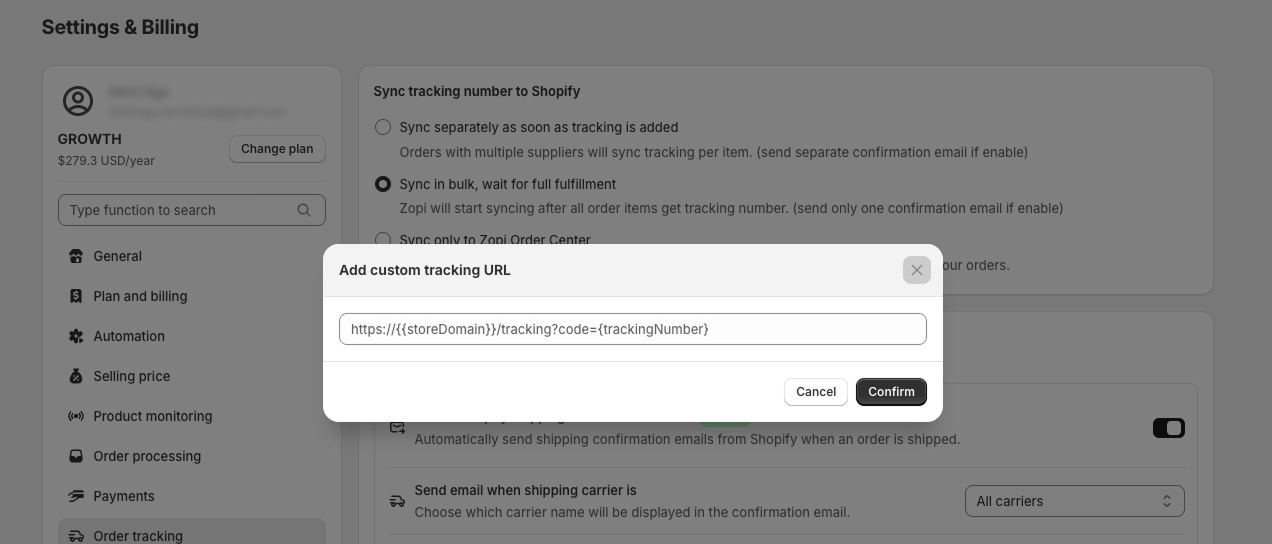
A pop-up will appear → Add custom tracking URL.
Paste your store’s tracking page, for example: https://{{storeDomain}}/tracking?code={trackingNumber}
5. Confirm and Save
Click Confirm to apply your custom URL.
Make sure you save the settings so that all future shipping confirmation emails will include this link.
- Always include the variable
{tracking_number}to ensure customers can track their orders accurately. - You can revert to Use carrier default URL at any time if needed.
- Ensure that Shopify shipping confirmation emails are enabled for this feature to function correctly.
By customizing your tracking URL, you enhance your brand’s visibility and provide a seamless customer experience. Try this feature today to keep your customers engaged and informed!