
Zopi AI Assistant can be connected through multiple messaging channels, allowing you to interact with the assistant using your preferred platform.
Currently, you can connect the assistant using:
- Zopi Built-in Chat
- Telegram
👉 Once connected, you can send operational tasks directly to the assistant.
Access AI Assistant
To access AI Assistant:
- Open Zopi
- Click AI Assistant from the left sidebar
Path: Zopi > AI Assistant
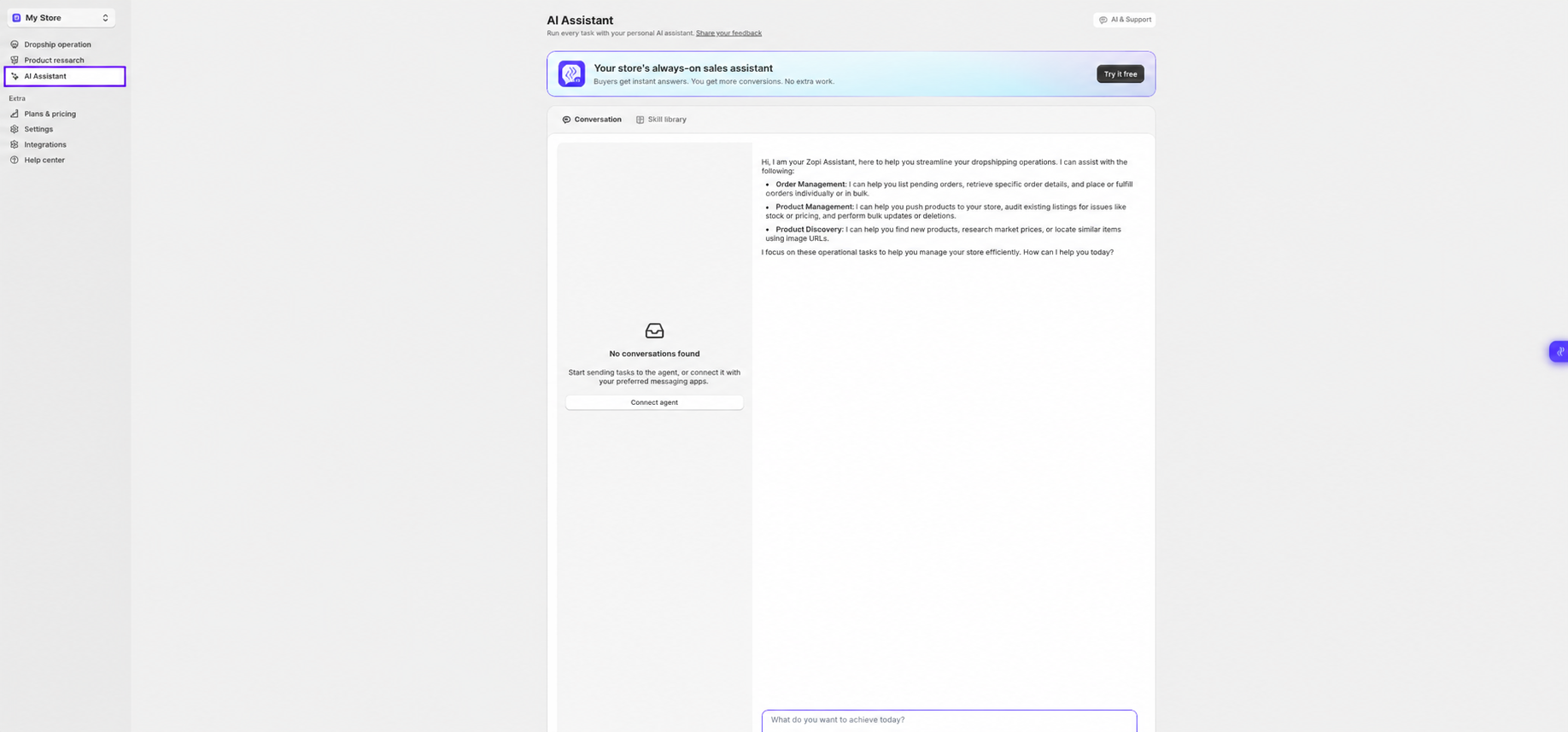
Available Connection Methods
Inside the AI Assistant page, click Connect agent to view available connection options.
Currently supported:
- Zopi built-in chat
- Telegram
👉 You can use one or multiple connected channels depending on your workflow.
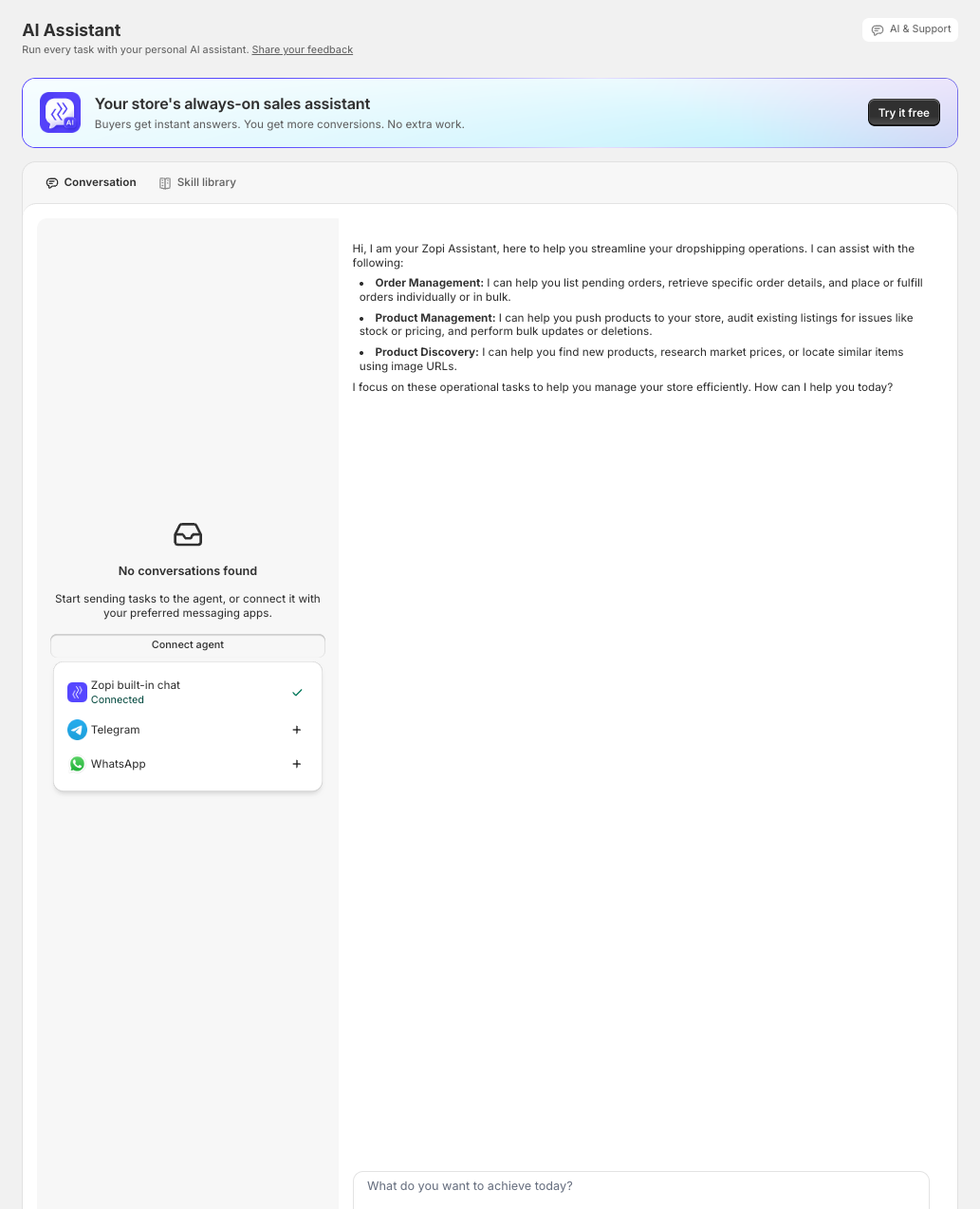
Connect via Zopi Built-in Chat
Zopi Built-in Chat is enabled by default inside the Zopi interface.
Once connected:
- You can chat directly inside Zopi
- No external setup is required
👉 This is the fastest way to start using AI Assistant.
Connect via Telegram
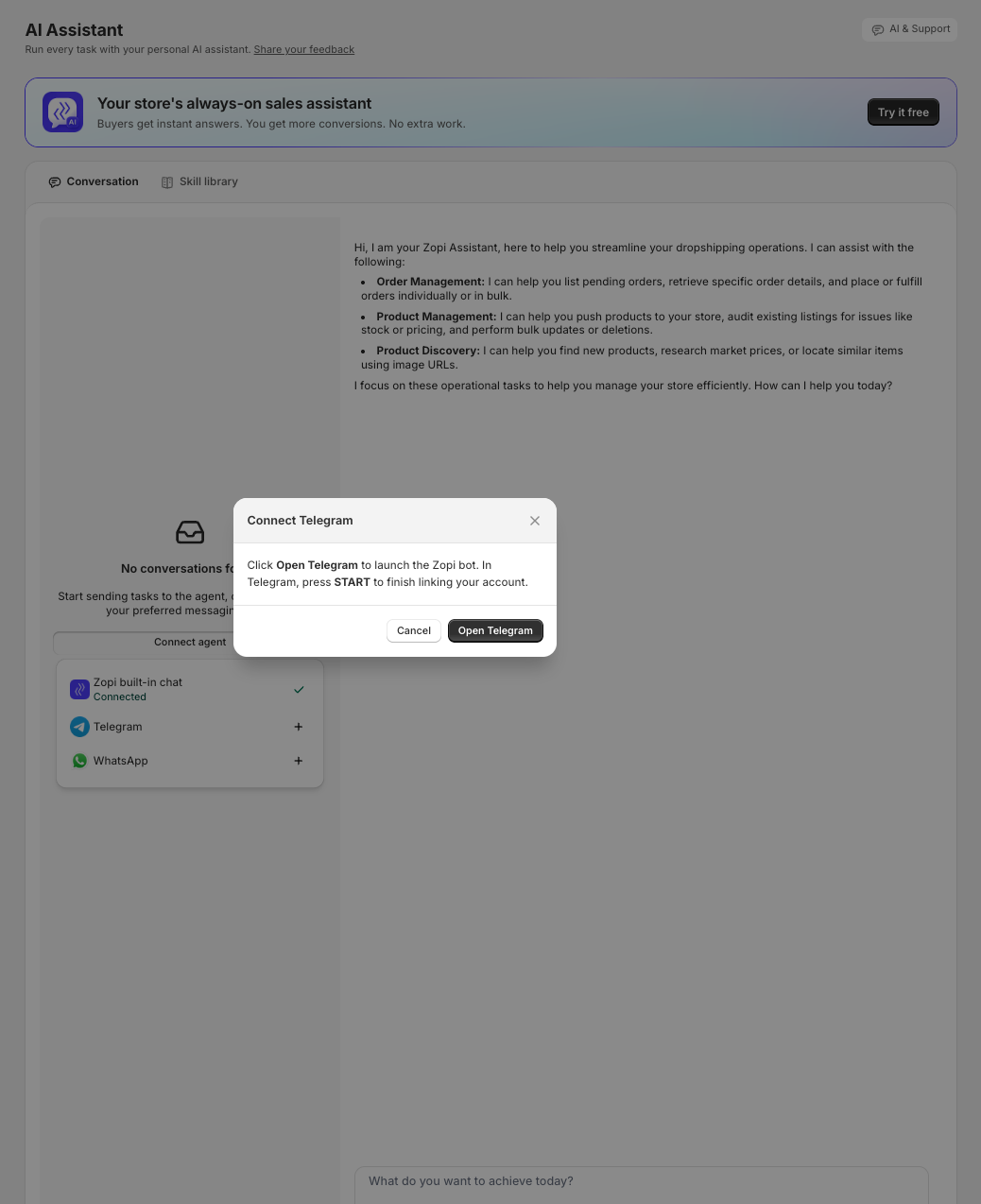
To connect Telegram:
- Click Connect agent
- Select Telegram
- Click Open Telegram
A Telegram window will open.
Complete Telegram Connection
Inside Telegram:
- Open the Zopi bot
- Click START
- Complete the account linking process
👉 After successful connection, you can interact with AI Assistant directly from Telegram.
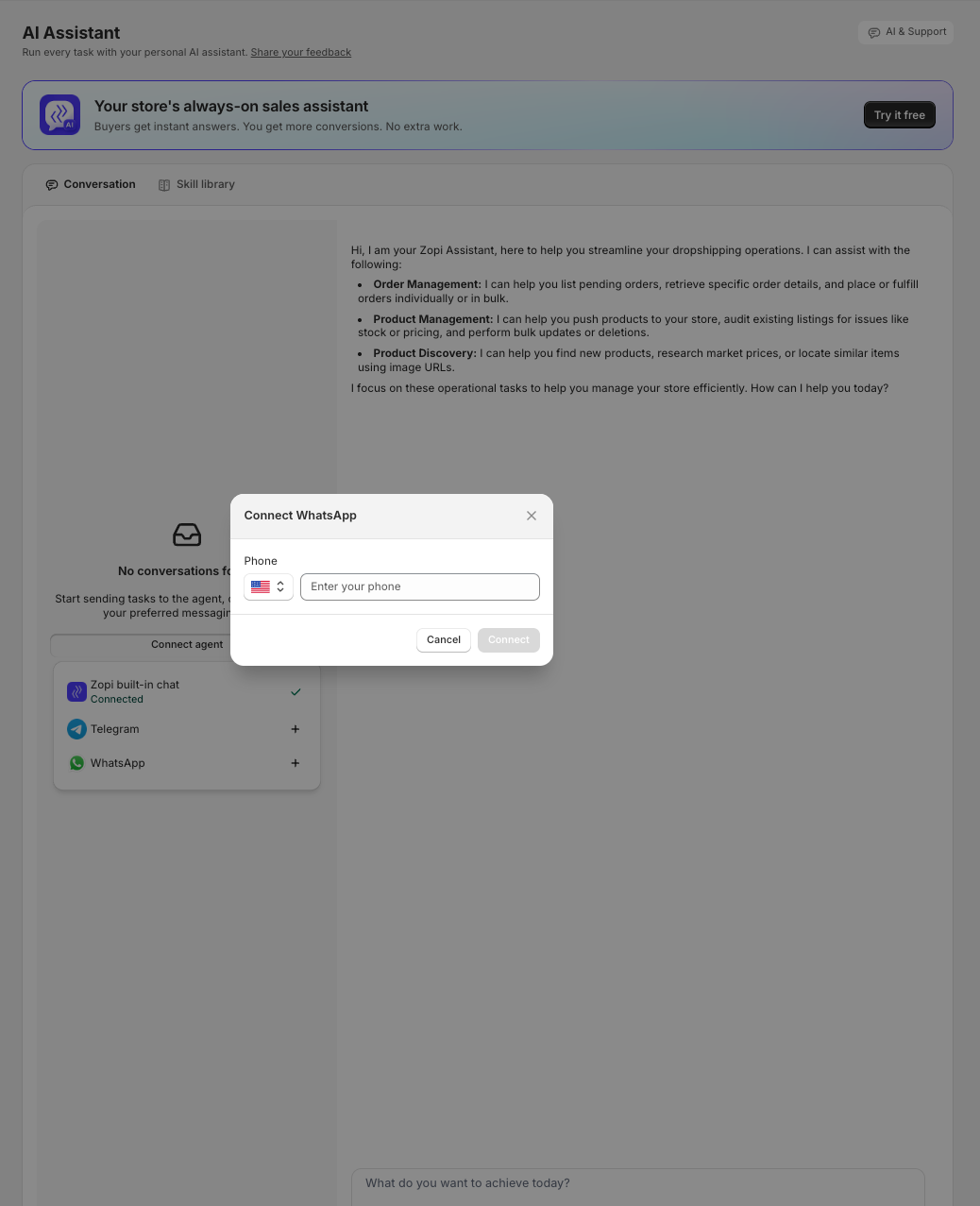
Connect via WhatsApp
To connect WhatsApp:
- Click Connect agent
- Select WhatsApp
- Enter your phone number
- Click Connect
👉 Make sure:
- Your phone number includes the correct country code
- Your WhatsApp account is active
After verification, your WhatsApp account will be linked to AI Assistant.
Manage Connected Channels
You can manage connected channels directly from the Connect agent panel.
From here, you can:
- View connected platforms
- Connect additional channels
- Switch communication methods
👉 Multiple channels can be connected at the same time.
Best Practices
- Use Built-in Chat for fastest access inside Zopi
- Use Telegram or WhatsApp for mobile workflows
- Keep at least one backup communication channel connected
Need Help?
If you need assistance while using Zopi:
- Contact our support team via Live Chat inside Zopi
- Visit the Zopi Help Center for more guides
- Join the Zopi Community to ask questions and learn from other users
👉 Our team is available to help you resolve issues quickly and keep your orders running smoothly.