What is Zopi? - All-in-one Dropshipping solution

How to Set Pricing Rules in Zopi

Update on: 07/05/2026

Table of contents

1. Access Pricing Rules2. Pricing Formula (Set Your Markup)How It WorksExampleSteps to Set Pricing FormulaWhy Use Multiple Rules?3. Update Store Selling Price (Adjust Price Endings)What You Can DoSteps4. Apply Pricing Rules to ProductsStepsBest PracticesConclusionNeed Help?

Pricing Rules help you automatically calculate your product prices based on supplier costs. This saves time and keeps your margins consistent across all products.

1. Access Pricing Rules

Follow these steps to open the Pricing Rules settings:

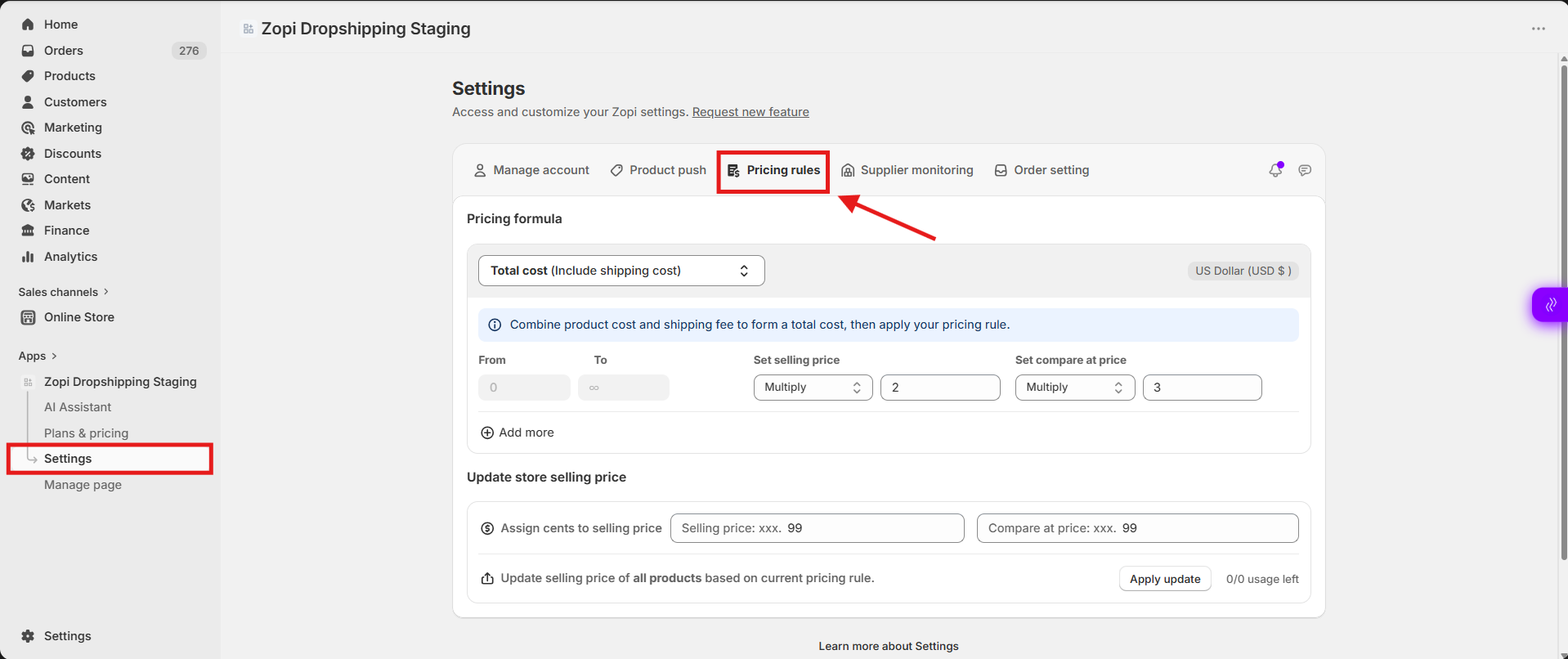
  1. Go to Zopi Dropshipping
  2. Click Settings
  3. Open the Pricing Rules tab

2. Pricing Formula (Set Your Markup)

This section lets you define how your Selling Price and Compare-at Price are calculated from the supplier cost.

How It Works

  • You apply a multiplier to the product cost
  • Zopi will automatically calculate prices when importing or updating products

Example

  • Multiply 2x → Selling Price
  • Multiply 3x → Compare-at Price

If a product costs $10:

  • Selling Price = $20
  • Compare-at Price = $30

Steps to Set Pricing Formula

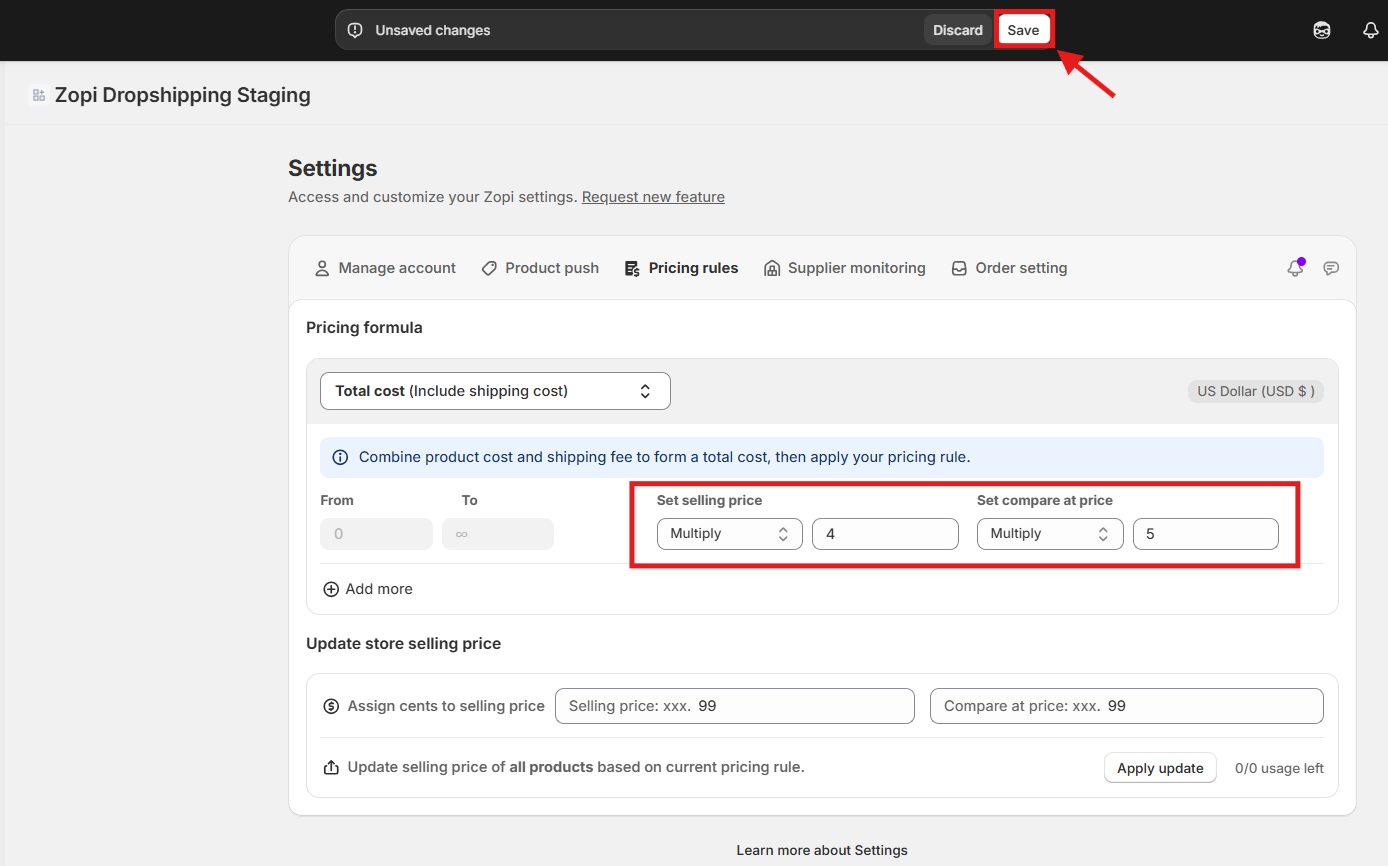
  1. In Pricing Rules, go to Pricing Formula
  2. Enter your multiplier for:
    • Selling Price
    • Compare-at Price
  3. (Optional) Click Add More Pricing Rule
  4. Define different rules for different price ranges
  5. Save your settings

Why Use Multiple Rules?

You can apply different strategies based on cost. For example:

  • Low-cost items → higher markup
  • High-cost items → lower markup

3. Update Store Selling Price (Adjust Price Endings)

This section lets you control how your final prices look in your store.

What You Can Do

  • Set price endings like:
    • .99 (e.g., $19.99)
    • .50 (e.g., $19.50)

This helps improve conversion by making prices look more appealing.

Steps

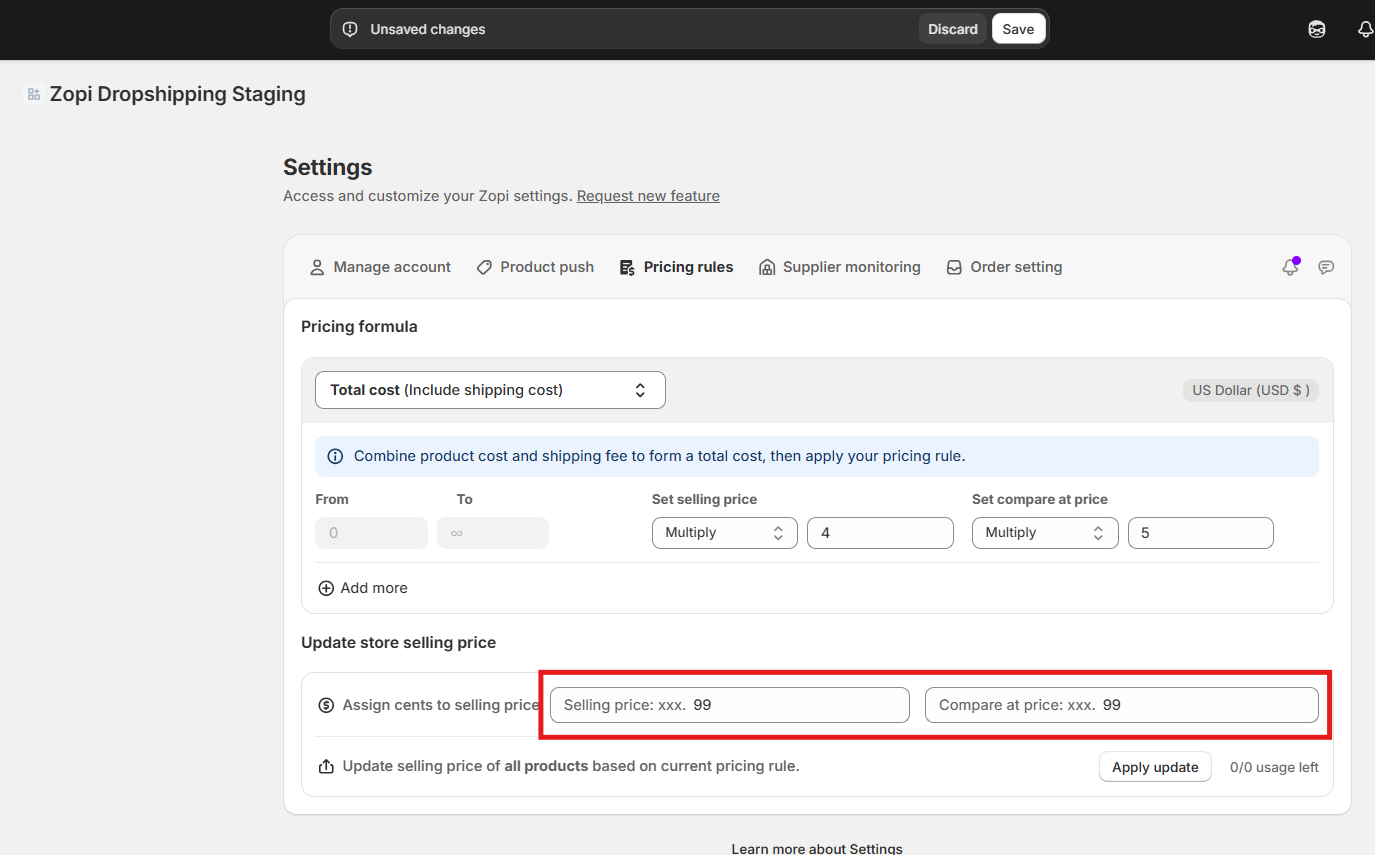
  1. Go to Update Store Selling Price
  2. Set Assign cents to:
    • Selling Price
    • Compare-at Price
  3. Choose your preferred format (e.g., .99)
  4. Save your settings

4. Apply Pricing Rules to Products

After setting your rules, you need to apply them to update product prices.

Steps

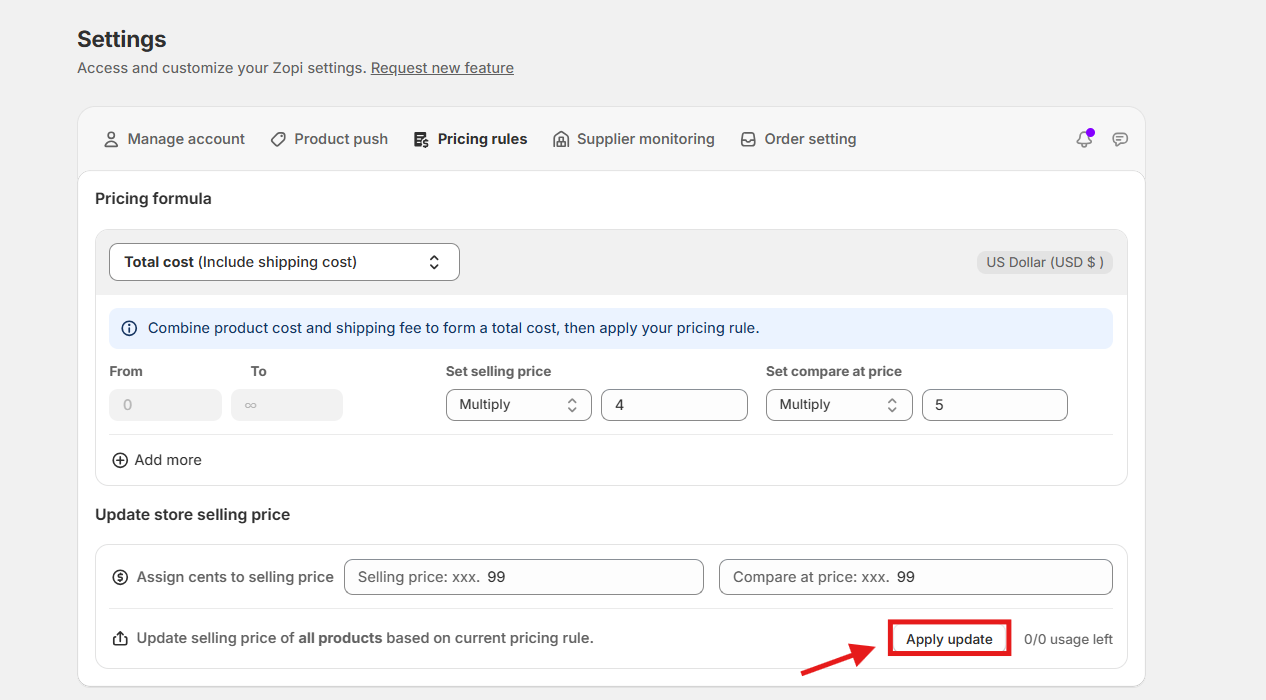
  1. In Pricing Rules, scroll to:
    Update selling price of all products based on current pricing rule
  2. Click Apply Update

Zopi will update all product prices based on your current rules.
Best Practices

  • Use .99 pricing to make products look cheaper
  • Avoid very high markups on expensive products
  • Review pricing after applying rules to ensure profitability
  • Combine pricing rules with supplier mapping for accurate costs

Conclusion

Pricing Rules in Zopi help you:

  • Automatically calculate product prices
  • Maintain consistent profit margins
  • Improve price presentation

Set your formula once, apply it, and let Zopi handle pricing at scale.

Need Help?

If you need assistance while using Zopi:

👉 Our team is available to help you resolve issues quickly and keep your orders running smoothly.

Related articles

What You Can Customize in Private Labeling

One of the biggest advantages of Private Labeling is full control over how your product looks and feels. Zopi offers extensive customization options so your product reflects your unique brand identity.   What is Customization in Private Labeling? Customization covers all brand-related elements, including: Product printing Brand labels Custom packaging Inserts or instruction cards Stickers,…

Set Up Notifications in Zopi

Keeping track of your supplier products and orders is essential for smooth operations. With the Zopi Notification feature, you can receive real-time updates about important information related to products, suppliers, and orders. Here’s what’s new in notifications as of March 25, 2024. A New Look User Interface The user interface (UI) has been redesigned for…

Maximize Zopi Extension Advanced Features: Save Hours Every Day with Advanced Tools

If you’re running a dropshipping business, finding ways to work smarter—not harder—is key to scaling successfully. The Zopi extension advanced features provide powerful, time-saving tools that help you automate tasks, stay ahead of competitors, and streamline your daily workflow. In this article, you’ll discover how to make the most of these advanced features and create…

Subscribe
Notify of
guest

0 Comments
Inline Feedbacks
View all comments

Table of contents

1. Access Pricing Rules2. Pricing Formula (Set Your Markup)How It WorksExampleSteps to Set Pricing FormulaWhy Use Multiple Rules?3. Update Store Selling Price (Adjust Price Endings)What You Can DoSteps4. Apply Pricing Rules to ProductsStepsBest PracticesConclusionNeed Help?

Related articles

Switch your AliExpress account

Zopi enables you to easily change your connected AliExpress account whenever needed. Please note that switching to a new AliExpress account will result in Zopi ceasing to sync order data between your previous and new accounts. How to Change Your AliExpress Account There are two effective methods to switch to a new AliExpress account. Follow…

Install the new Zopi Extension 2025

Zopi Extension 2025 is your comprehensive solution for product research, store insights, and effortless product imports. With AI-driven analysis and historical trend data, Zopi empowers you to identify successful AliExpress and Temu products while offering valuable insights into publicly accessible Shopify store data—without compromising private user information. By installing the Zopi Extension, you can unlock…

The New Product Analysis feature

Are you eager to analyze a product’s potential but feel overwhelmed by the multitude of research tools available? Our new Product Analysis feature streamlines this process for you. Read on to learn how it works! What is Zopi – Product Hunter? Product Hunter is a powerful tool designed to monitor and evaluate essential product metrics,…

Share your thought