Order Center Troubleshooting & FAQs

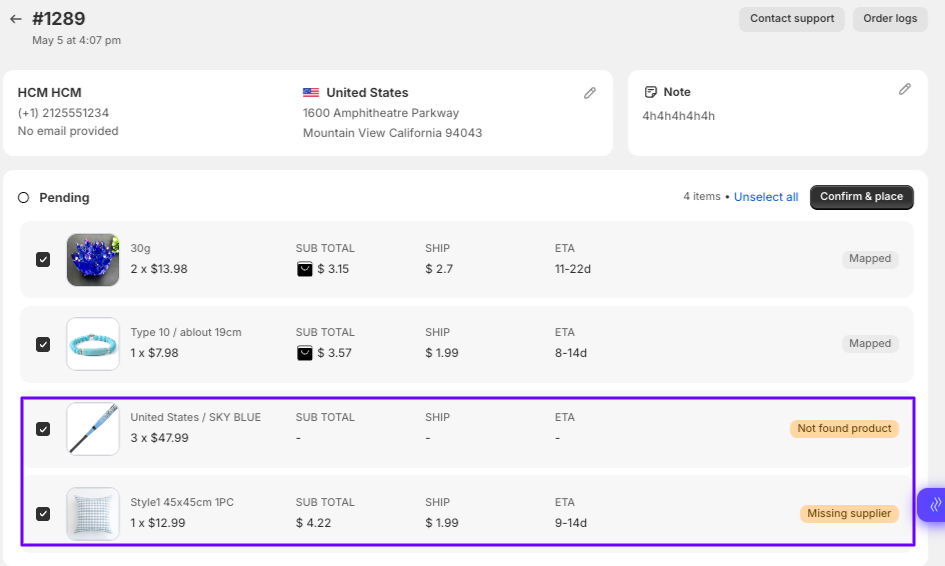
Why Can’t I Place an Order in Zopi?

Update on: 07/05/2026

Table of contents

What This Issue MeansCommon Reasons You Can’t Place an Order1. Product Not Mapped to a Supplier2. Variant Mapping Issue3. Product Out of Stock4. Payment Method Issue5. Supplier Account (AliExpress)6. Shipping Not AvailableHow to Fix It (Step-by-Step)Step 1: Check Order DetailsStep 2: Verify Product MappingStep 3: Check VariantsStep 4: Check Stock AvailabilityStep 5: Verify Payment MethodStep 6: Check Supplier AccountStep 7: Retry OrderRecommended WorkflowBest PracticesConclusionNeed Help?

If you’re unable to place an order, it usually means something is missing or misconfigured in your setup. This guide helps you quickly identify the cause and fix it so you can continue fulfilling orders.

What This Issue Means

When you cannot place an order in Zopi, it means the system is unable to send the order to the supplier.

As a result:

  • The order stays in Pending or Failed status
  • No order is created on the supplier platform
  • No tracking number is generated

Common Reasons You Can’t Place an Order

Here are the most common causes:

1. Product Not Mapped to a Supplier

  • The product is not linked to a valid supplier (AliExpress, etc.)
  • Zopi doesn’t know where to send the order

2. Variant Mapping Issue

  • Variants (size, color) are not matched correctly
  • Missing or invalid variant mapping

3. Product Out of Stock

  • Supplier product is unavailable
  • Selected variant is sold out

4. Payment Method Issue

  • No valid payment method
  • Insufficient balance
  • Payment failed

5. Supplier Account (AliExpress)

  • Not logged in
  • Account restricted or requires verification

6. Shipping Not Available

  • The supplier does not ship to your customer’s country
  • The selected shipping method is invalid

How to Fix It (Step-by-Step)

Follow these steps to resolve the issue:

Step 1: Check Order Details

  • Go to: Zopi > Place Orders
  • Open the order
  • Review the error message or status

Step 2: Verify Product Mapping

  • Go to: Zopi > Manage Products
  • Open the product
  • Ensure it is linked to a supplier

👉 If not, re-import or remap the product

Step 3: Check Variants

  • Inside product editor
  • Confirm all variants are properly mapped
  • Fix missing or incorrect options

Step 4: Check Stock Availability

  • Visit supplier’s product page
  • Confirm product/variant is in stock

Step 5: Verify Payment Method

  • Ensure:
    • A valid card is available
    • Sufficient balance
    • No restrictions from the bank

Step 6: Check Supplier Account

  • Log in to your supplier account (e.g., AliExpress)
  • Complete any required verification

Step 7: Retry Order

  • Go back to: Zopi > Place Orders
  • Click Order or Retry

To avoid order placement issues:

  1. Import product from supported supplier
  2. Edit product properly
  3. Ensure supplier mapping is correct
  4. Push to store
  5. Receive order
  6. Check payment method
  7. Place order via Zopi

Best Practices

  • Always use fully supported suppliers (e.g., AliExpress)
  • Double-check variant mapping before selling
  • Keep your payment method active and funded
  • Test order placement before scaling
  • Monitor your Zopi > Orders page daily

Conclusion

If you cannot place an order in Zopi, it’s usually due to mapping, payment, or supplier issues.

By checking order details and fixing the root cause, you can quickly resume order fulfillment and avoid delays.

Need Help?

If you need assistance while using Zopi:

👉 Our team is available to help you resolve issues quickly and keep your orders running smoothly.

Related articles

How to Create Custom Order Status Views in Zopi

Managing large volumes of orders can quickly become overwhelming, especially when you need to track specific orders across different fulfillment stages. With Custom Order Status Views in Zopi, merchants can organize and monitor orders more efficiently by creating personalized order views based on starred labels. This feature helps dropshippers quickly identify priority orders, group specific…

Zopi Order Automation – Complete Guide

Order Automation helps you automate the order workflow from syncing orders to fulfilling them automatically. With proper setup, you can reduce manual work and speed up order processing. How to Access Order Automation Follow these steps to open Order Automation settings: Step 1: Open Zopi Dashboard Step 2: Open Place Order Step 3: Open Automation…

Duplicate a Fulfilled Order on Shopify

Please note that Zopi will only synchronize orders with the PAID and UNFULFILLED statuses to the Orders Center page in the app. This feature allows you to fulfill orders with just a few clicks, significantly saving you time and effort. If you accidentally fulfilled an order on Shopify, you can easily rectify this by duplicating…

Subscribe
Notify of
guest

0 Comments
Inline Feedbacks
View all comments

Table of contents

What This Issue MeansCommon Reasons You Can’t Place an Order1. Product Not Mapped to a Supplier2. Variant Mapping Issue3. Product Out of Stock4. Payment Method Issue5. Supplier Account (AliExpress)6. Shipping Not AvailableHow to Fix It (Step-by-Step)Step 1: Check Order DetailsStep 2: Verify Product MappingStep 3: Check VariantsStep 4: Check Stock AvailabilityStep 5: Verify Payment MethodStep 6: Check Supplier AccountStep 7: Retry OrderRecommended WorkflowBest PracticesConclusionNeed Help?

Related articles

Cancel An Order and Refund/Return Policy on AliExpress

Sometimes, you may need to cancel a dropshipping order. This could be due to a customer changing their mind or discovering that your supplier is out of stock. Here’s how to cancel an order on AliExpress and handle refund requests. How to Cancel an Order from AliExpress Steps to Cancel an Order successfully cancel an…

Why I should not request fulfillment on Shopify?

You should NOT mark orders as fulfilled directly on Shopify (i.e., by manually marking an order as fulfilled in Shopify’s admin) if you want Zopi to manage the automated fulfillment process with your supplier. Here’s why: Zopi Triggers Fulfillment Actions Zopi is designed to automate the order process with your supplier. When an order is…

Change the Quantity of an Order

If your customer wants to change the order quantity after it has been received in your store, please follow the solutions below before placing the order in Zopi. How to Change the Quantity of an Order To effectively change the quantity of an order, you will need to make adjustments directly in your Shopify store….

Share your thought