
Importing products one by one can take a lot of time, especially when you are building or scaling your store.
With Zopi, you can import multiple products at once using different methods depending on your workflow.
This article will show you 3 ways to import multiple products into your Shopify store using Zopi.
Import Multiple Products from Zopi Search
This method is best when you are browsing products directly inside Zopi and want to push several products to your store at the same time.
Steps to Import Multiple Products
- Open Zopi > Add Product
- Search for the products you want to import.
- Select multiple products by checking the product boxes.
- After selecting products, a selected product bar will appear at the bottom center of the screen.
- Click Push to Store.
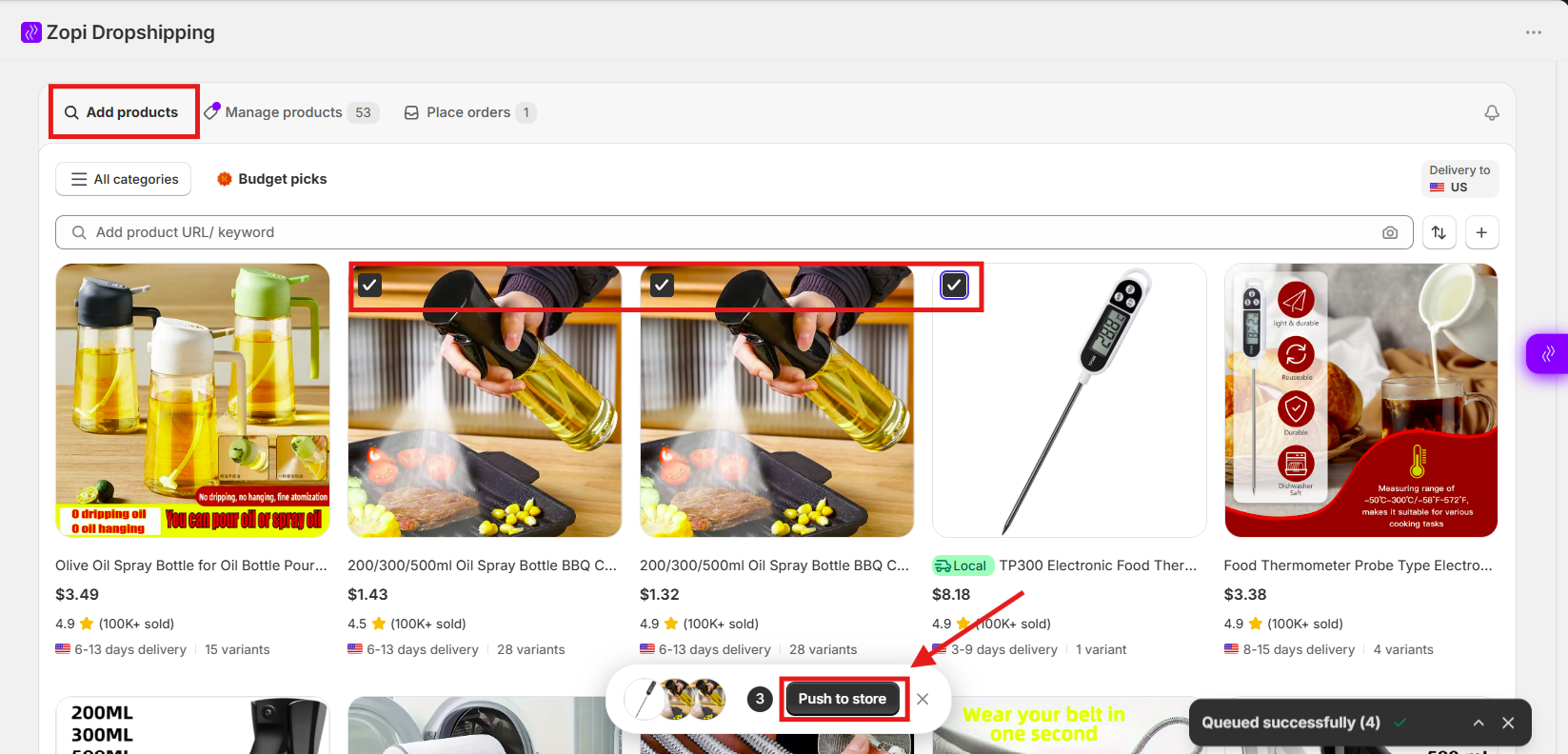
- A popup window will appear showing the push settings.
- Adjust the product settings if needed, such as:
Product status
When product out of stock
Set price
Set content - Click Push to Store again to confirm.
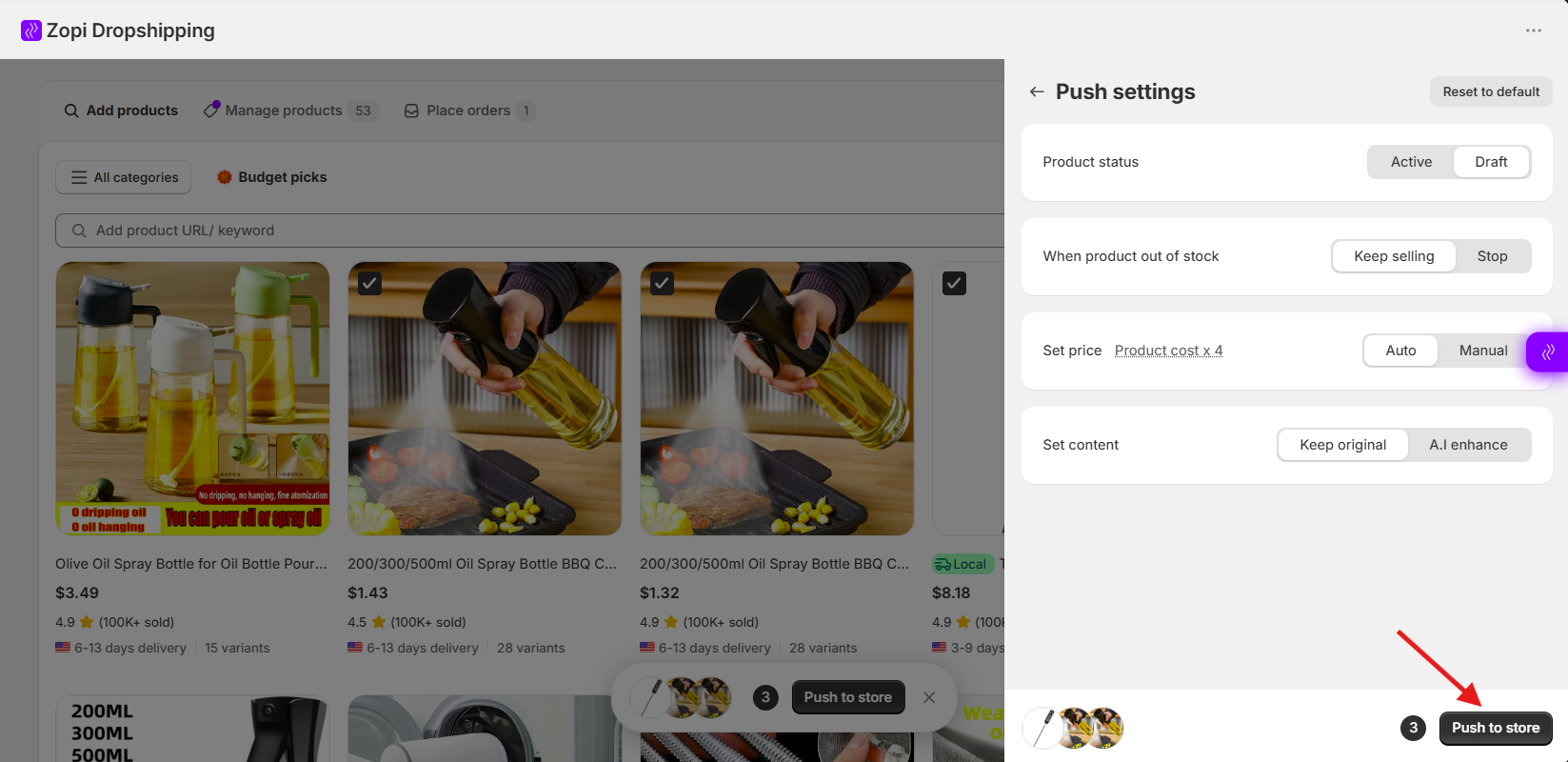
Your selected products will then be imported into your Shopify store.
Import Products Using a CSV File
This method is useful when you already have a list of supplier product links and want to import products in bulk.
You can import up to 1000 products at one time using a CSV file.
Prepare Your CSV File
Before importing:
- Create a .csv file.
- Add supplier product links into the file.
- Save the file to your device.
Steps to Import from File
- Open Zopi > Add Product
- Click the + icon next to the search bar.
- Select Add from File.
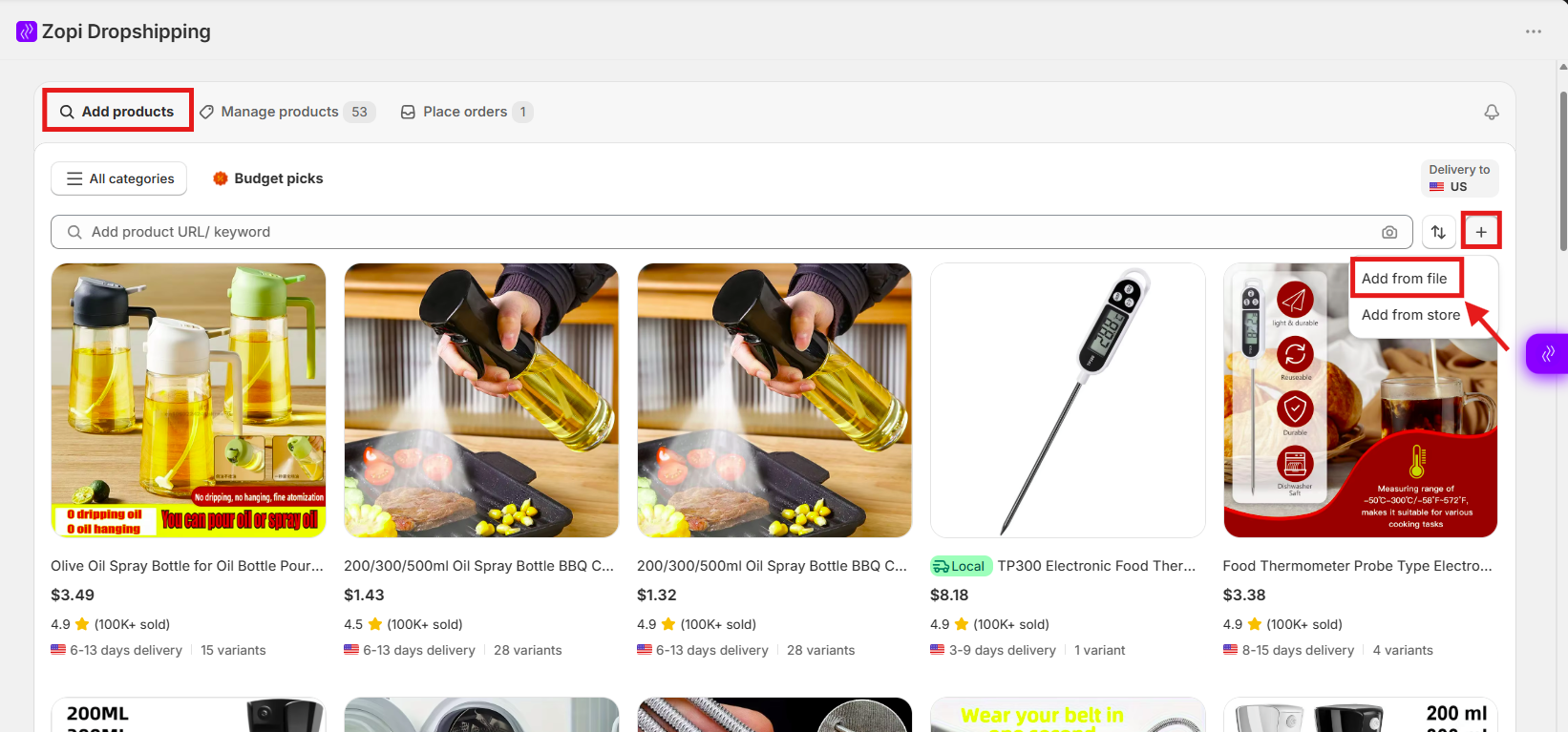
- Click Add File.
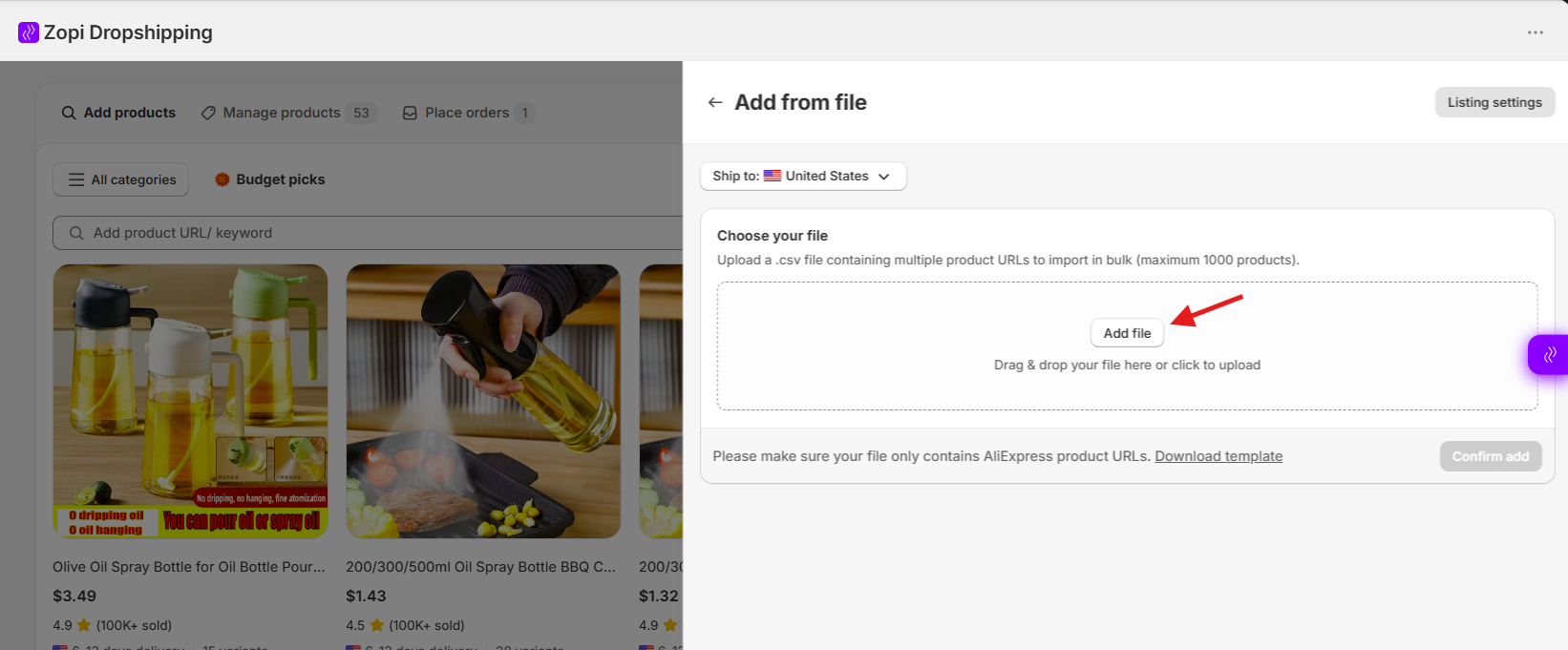
- Choose your CSV file.
- Click Confirm Add.
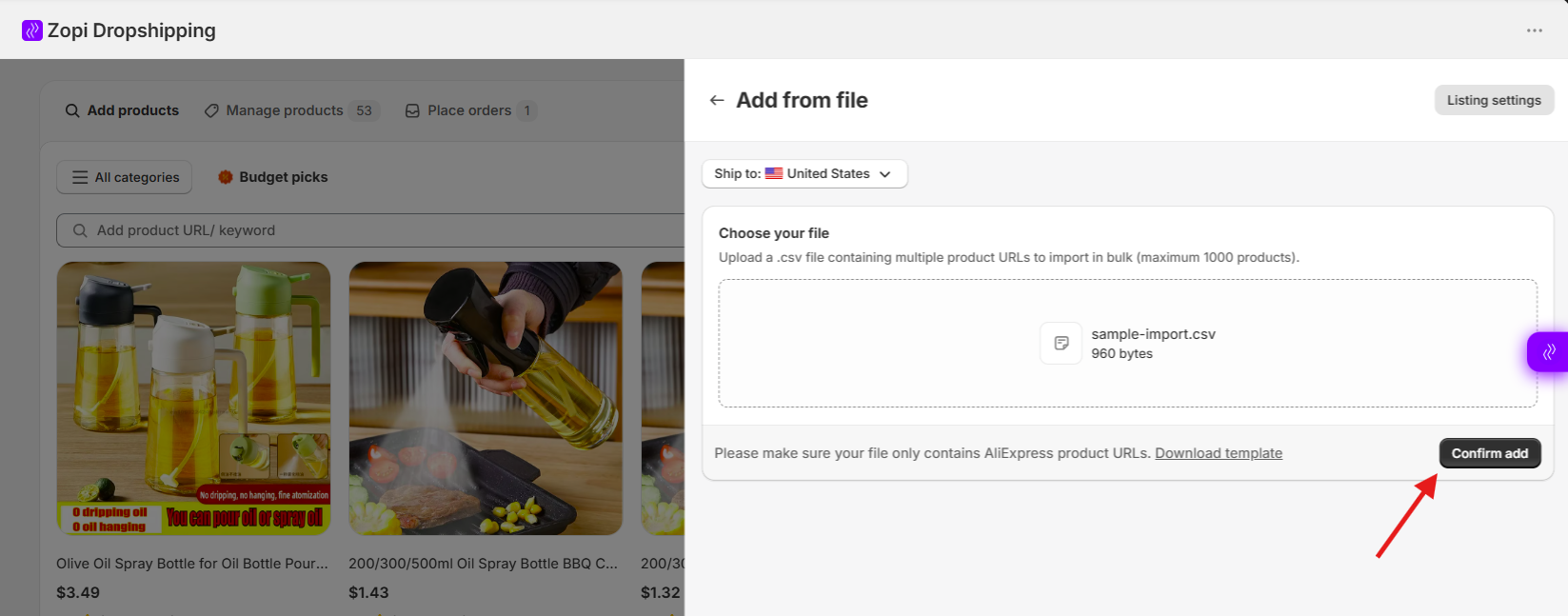
Zopi will start processing the supplier links and import the products into your product list.
Tips
- Double-check supplier links before uploading.
- Remove duplicate URLs from the CSV file.
- Keep the file format as .csv to avoid upload errors.
Import Multiple Products from Your Store
This method allows you to add multiple existing store products into Zopi for management and fulfillment.
Steps to Import Products from Store
- Open Zopi > Add Product
- Click the + icon next to the search bar.
- Select Add from Store.
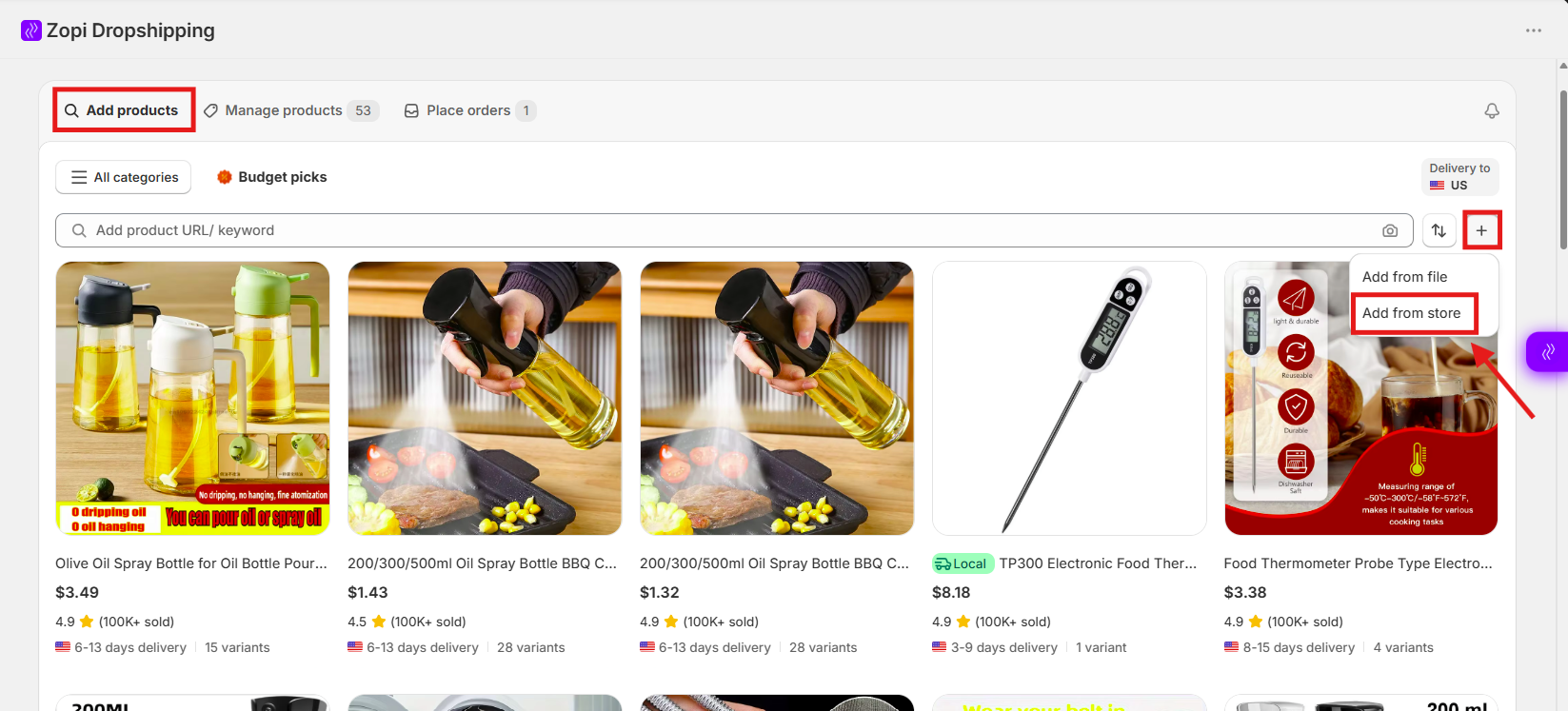
- Select multiple products from your Shopify store.
- Click Confirm Add.
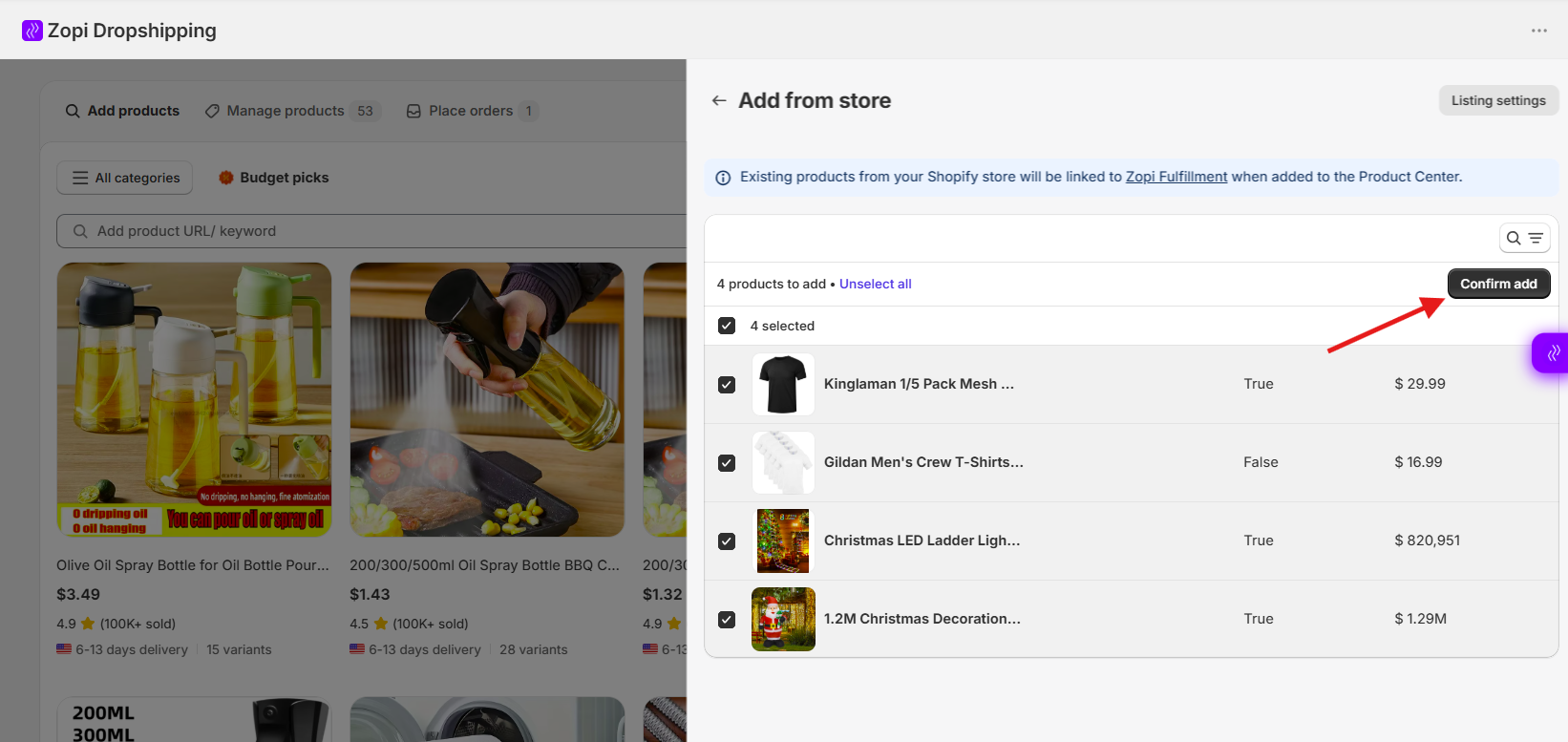
The selected store products will then be added to your Zopi product list.
When to Use This Method
This method is helpful if:
- You already have products in Shopify
- You want to manage fulfillment through Zopi
- You want to connect existing products with suppliers
Best Practices
- Import products in smaller batches if you want to review them carefully before publishing.
- Check product variants and pricing after importing.
- Use clear supplier links to avoid incorrect product mapping.
- Review imported products before enabling automatic fulfillment.
Conclusion
Zopi provides multiple ways to import products in bulk depending on your workflow:
- Select products directly from Zopi search
- Upload supplier links using a CSV file
- Import existing products from your Shopify store
Using bulk import features can help you save time and manage products more efficiently.