Order Center Troubleshooting & FAQs

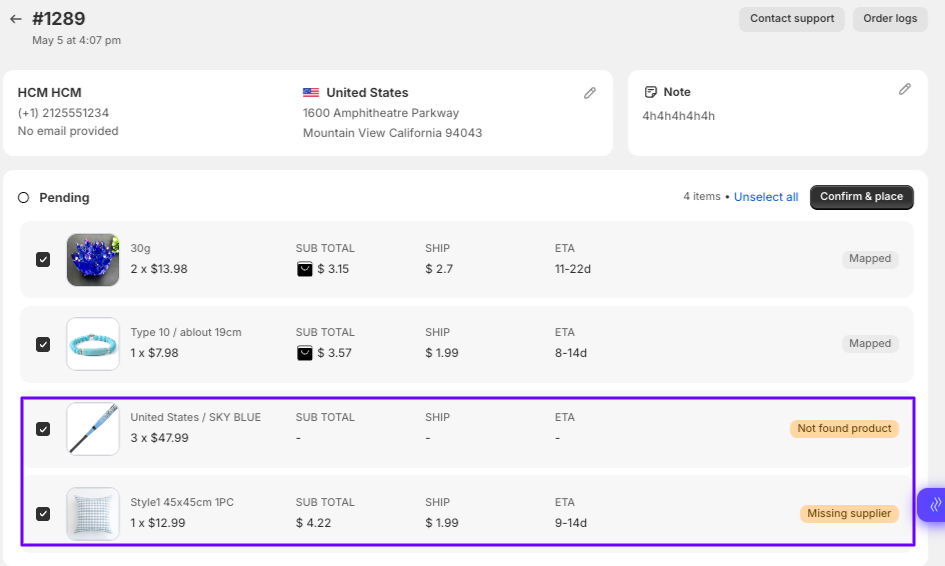
Why Can’t I Place an Order in Zopi?

Update on: 07/05/2026

Table of contents

What This Issue MeansCommon Reasons You Can’t Place an Order1. Product Not Mapped to a Supplier2. Variant Mapping Issue3. Product Out of Stock4. Payment Method Issue5. Supplier Account (AliExpress)6. Shipping Not AvailableHow to Fix It (Step-by-Step)Step 1: Check Order DetailsStep 2: Verify Product MappingStep 3: Check VariantsStep 4: Check Stock AvailabilityStep 5: Verify Payment MethodStep 6: Check Supplier AccountStep 7: Retry OrderRecommended WorkflowBest PracticesConclusionNeed Help?

If you’re unable to place an order, it usually means something is missing or misconfigured in your setup. This guide helps you quickly identify the cause and fix it so you can continue fulfilling orders.

What This Issue Means

When you cannot place an order in Zopi, it means the system is unable to send the order to the supplier.

As a result:

  • The order stays in Pending or Failed status
  • No order is created on the supplier platform
  • No tracking number is generated

Common Reasons You Can’t Place an Order

Here are the most common causes:

1. Product Not Mapped to a Supplier

  • The product is not linked to a valid supplier (AliExpress, etc.)
  • Zopi doesn’t know where to send the order

2. Variant Mapping Issue

  • Variants (size, color) are not matched correctly
  • Missing or invalid variant mapping

3. Product Out of Stock

  • Supplier product is unavailable
  • Selected variant is sold out

4. Payment Method Issue

  • No valid payment method
  • Insufficient balance
  • Payment failed

5. Supplier Account (AliExpress)

  • Not logged in
  • Account restricted or requires verification

6. Shipping Not Available

  • The supplier does not ship to your customer’s country
  • The selected shipping method is invalid

How to Fix It (Step-by-Step)

Follow these steps to resolve the issue:

Step 1: Check Order Details

  • Go to: Zopi > Place Orders
  • Open the order
  • Review the error message or status

Step 2: Verify Product Mapping

  • Go to: Zopi > Manage Products
  • Open the product
  • Ensure it is linked to a supplier

👉 If not, re-import or remap the product

Step 3: Check Variants

  • Inside product editor
  • Confirm all variants are properly mapped
  • Fix missing or incorrect options

Step 4: Check Stock Availability

  • Visit supplier’s product page
  • Confirm product/variant is in stock

Step 5: Verify Payment Method

  • Ensure:
    • A valid card is available
    • Sufficient balance
    • No restrictions from the bank

Step 6: Check Supplier Account

  • Log in to your supplier account (e.g., AliExpress)
  • Complete any required verification

Step 7: Retry Order

  • Go back to: Zopi > Place Orders
  • Click Order or Retry

To avoid order placement issues:

  1. Import product from supported supplier
  2. Edit product properly
  3. Ensure supplier mapping is correct
  4. Push to store
  5. Receive order
  6. Check payment method
  7. Place order via Zopi

Best Practices

  • Always use fully supported suppliers (e.g., AliExpress)
  • Double-check variant mapping before selling
  • Keep your payment method active and funded
  • Test order placement before scaling
  • Monitor your Zopi > Orders page daily

Conclusion

If you cannot place an order in Zopi, it’s usually due to mapping, payment, or supplier issues.

By checking order details and fixing the root cause, you can quickly resume order fulfillment and avoid delays.

Need Help?

If you need assistance while using Zopi:

👉 Our team is available to help you resolve issues quickly and keep your orders running smoothly.

Related articles

How to get SKU, GTIN, Barcode Numbers for Dropshipping?

Before we explore how to obtain SKU, GTIN, and Barcode Numbers, it’s essential to understand what each of these terms means: 1. SKU (Stock Keeping Unit) SKU is an internal code utilized by retailers to efficiently track inventory. Each product is assigned a unique SKU code, which helps distinguish it from other products. This system…

How to solve AliExpress order failed due to system errors?

If you see the message Re-order or contact us for support due to system errors, it means that the product is either out of stock or no longer available on AliExpress. This guide outlines straightforward steps to help you address this issue and ensure seamless order fulfillment. Steps to Resolve AliExpress Order Issues Navigate to…

Duplicate a Fulfilled Order on Shopify

Please note that Zopi will only synchronize orders with the PAID and UNFULFILLED statuses to the Orders Center page in the app. This feature allows you to fulfill orders with just a few clicks, significantly saving you time and effort. If you accidentally fulfilled an order on Shopify, you can easily rectify this by duplicating…

Subscribe
Notify of
guest

0 Comments
Inline Feedbacks
View all comments

Table of contents

What This Issue MeansCommon Reasons You Can’t Place an Order1. Product Not Mapped to a Supplier2. Variant Mapping Issue3. Product Out of Stock4. Payment Method Issue5. Supplier Account (AliExpress)6. Shipping Not AvailableHow to Fix It (Step-by-Step)Step 1: Check Order DetailsStep 2: Verify Product MappingStep 3: Check VariantsStep 4: Check Stock AvailabilityStep 5: Verify Payment MethodStep 6: Check Supplier AccountStep 7: Retry OrderRecommended WorkflowBest PracticesConclusionNeed Help?

Related articles

How to make sure orders are not auto-fulfilled by Shopify?

To enable automatic order fulfillment on Zopi, make sure that Automatically fulfill the order’s line items is unchecked in your Shopify settings. Steps to Adjust Shopify Settings for Order Fulfillment From your Shopify admin, go to Settings > General. Find the Order processing section. Under After an order has been paid, choose Do not automatically…

Order Center: Now More Powerful and User-Friendly Than Ever

Zopi’s Order Center has been upgraded to give you better visibility and control over your fulfillment workflow. With a cleaner structure and smarter tracking tools, managing orders is now faster and more intuitive than ever. This update focuses on three major improvements: New order tabs for quicker navigation Clearer fulfillment statuses at a glance Flexible…

Bulk Fulfill Orders

Zopi streamlines your ordering process, allowing you to place bulk orders with your suppliers in just a few clicks. Follow this comprehensive guide to efficiently navigate the bulk ordering process and fulfill your orders quickly. How to Fulfill Orders in Bulk Log in to Zopi and navigate to the Order Center page, then select the…

Share your thought