Imported & Push to store

How to Edit a Product Before Pushing to Your Store in Zopi

Update on: 07/05/2026

Table of contents

When Should You Edit a Product?How to Edit Product in ZopiStep 1: Go to Zopi Dropshipping Step 2: Open Manage productsStep 3: Update Product InformationStep 4: Save ChangesStep 5: Push to StoreKey Fields You Should Always ReviewRecommended WorkflowBest PracticesConclusionNeed Help?

Editing your product before publishing helps you improve quality, pricing, and conversion. This step ensures your product looks professional and is ready to sell.

When Should You Edit a Product?

You should always edit a product before pushing it to your Shopify store.

Imported products (from AliExpress, Temu, eBay, Amazon) often have:

  • Messy titles
  • Low-quality descriptions
  • Unoptimized images
  • Incorrect pricing

Editing helps you:

  • Increase conversion rate
  • Build a consistent brand
  • Avoid supplier-related issues

How to Edit Product in Zopi

Follow these steps:

Step 1: Go to Zopi Dropshipping 

  • Navigate to: Zopi Dropshipping

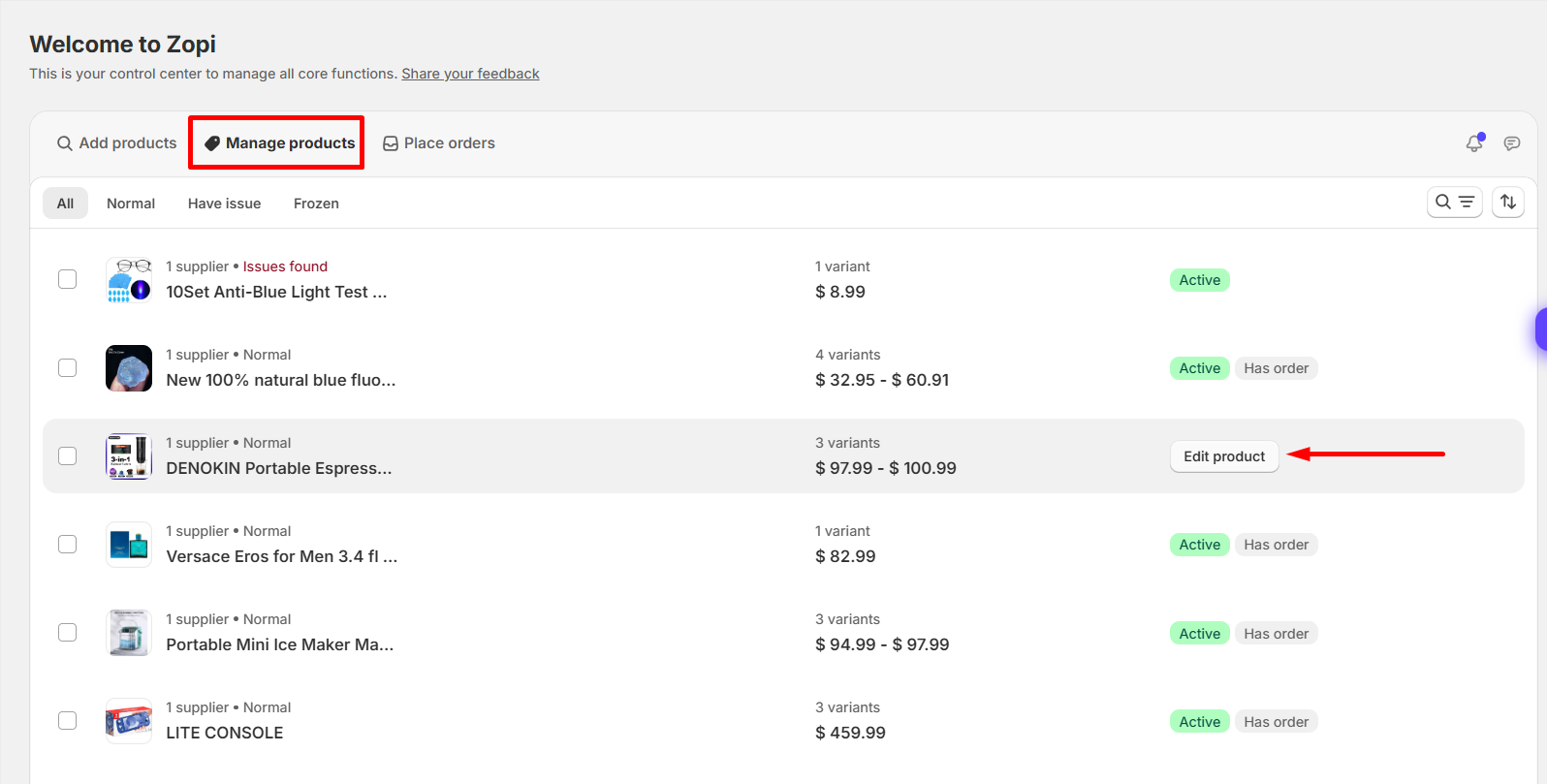
Step 2: Open Manage products

  • Find the product you want to edit
  • Click Edit product

Step 3: Update Product Information

You will see multiple sections:

1. Description

  • Replace the supplier title with a clean, readable name
  • Keep the title short and clear
  • Rewrite content for your customers
  • Focus on benefits, not just features
  • Remove supplier branding or irrelevant info

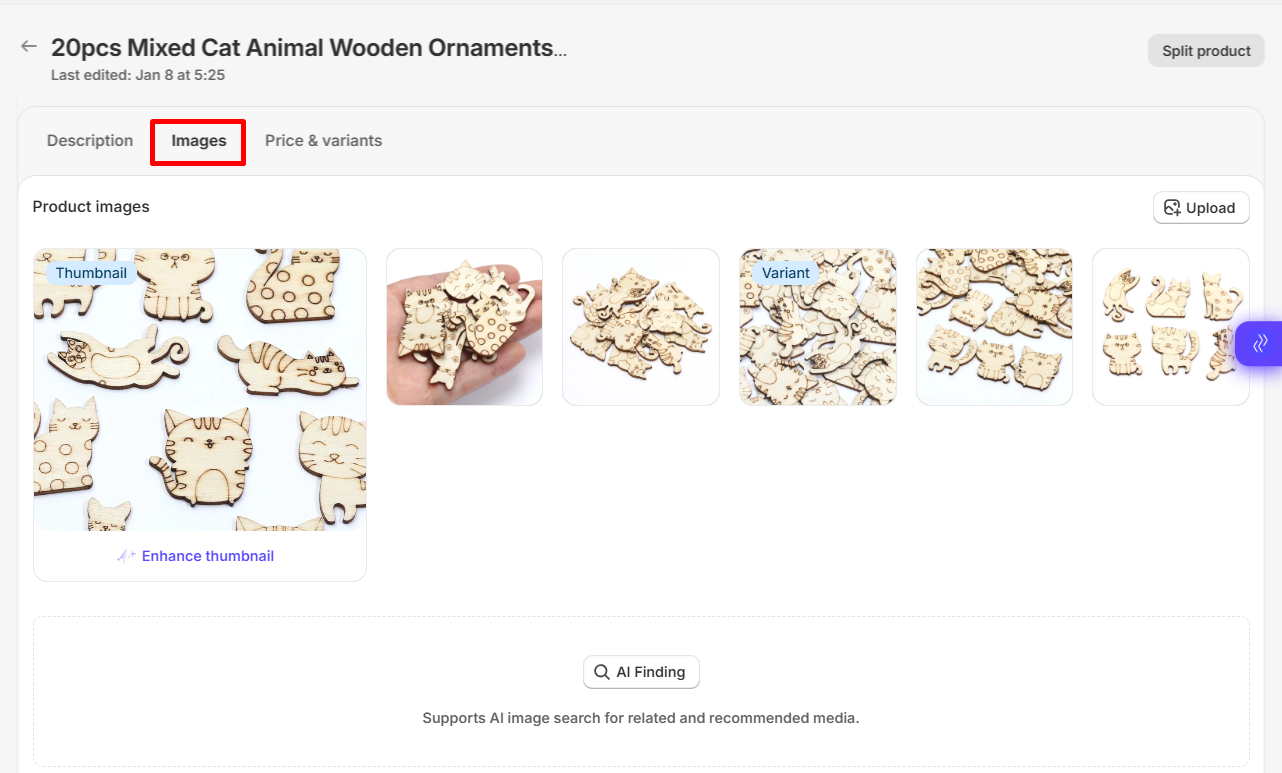
2. Images

  • Remove low-quality or duplicate images
  • Keep clean, high-resolution visuals
  • Avoid images with watermarks or Chinese text
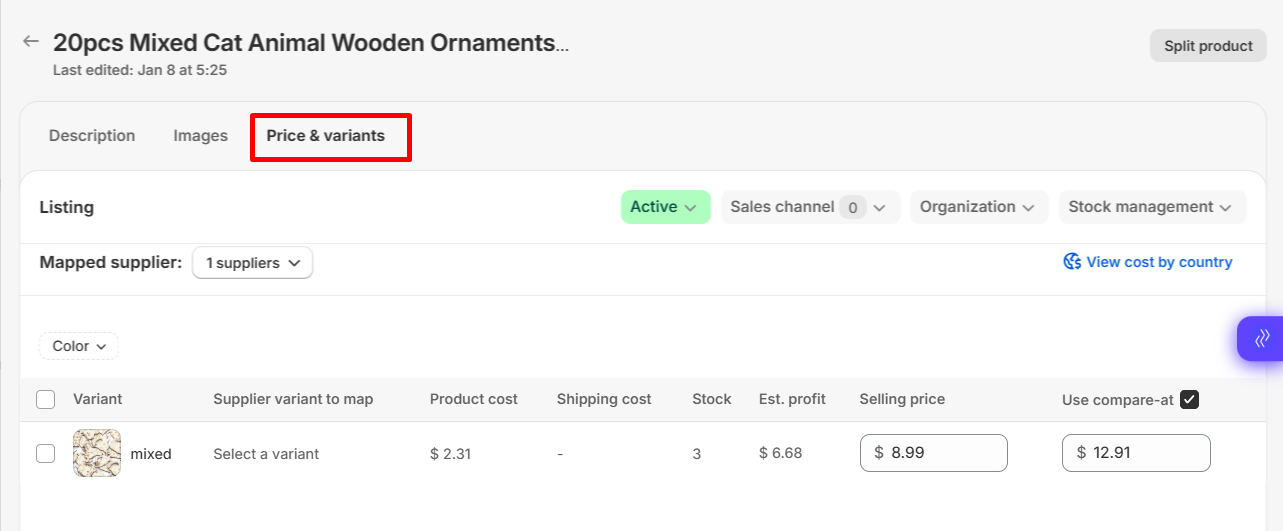
3. Price & variants

  • Review size, color, and options
  • Rename variants if needed (e.g., “Red XL” → “Red – XL”)
  • Set your selling price
  • Apply pricing rules if configured

Step 4: Save Changes

  • Click Save to update your product

Step 5: Push to Store

  • Click Push to Store when ready
  • Product will be published to Shopify

Key Fields You Should Always Review

Before pushing, double-check:

  • Title → Clear and customer-friendly
  • Description → Easy to read, benefit-focused
  • Images → Clean and high quality
  • Variants → Correct and easy to understand
  • Pricing → Profitable and competitive

Follow this flow every time:

  1. Import product
    → From supported source
  2. Edit product
    → Clean up content in Zopi
  3. Save changes
  4. Push to store
  5. Start selling & fulfill orders

Best Practices

  • Use simple English in titles and descriptions
  • Highlight key benefits in bullet points
  • Keep product pages clean and consistent
  • Test pricing before scaling
  • Use Zopi AI tools (if available) to optimize content faster

Conclusion

  • Editing your product before pushing is a critical step in your Zopi workflow.
  • It helps you create better listings, improve trust, and increase sales.
  • Always review and optimize your product before publishing to your store.

Need Help?

If you need assistance while using Zopi:

👉 Our team is available to help you resolve issues quickly and keep your orders running smoothly.

Related articles

How to Import Multiple Products in Zopi

Importing products one by one can take a lot of time, especially when you are building or scaling your store. With Zopi, you can import multiple products at once using different methods depending on your workflow. This article will show you 3 ways to import multiple products into your Shopify store using Zopi. Import Multiple…

Map Product to a Supplier with Better Profit Margins

In dropshipping, finding the right supplier can have a direct impact on your profitability. A lower product cost, faster shipping time, or more reliable supplier can help you improve customer satisfaction while increasing your profit margins. Instead of manually searching through multiple supplier platforms and comparing similar products one by one, Zopi’s Run Auto Find…

Set Pricing Rules and Assign Cent

Setting the price for the products you sell in your store is crucial for ensuring profitability. Your selling price must always exceed the cost charged by your supplier. At Zopi, you can leverage the Pricing Rules feature to automate your product pricing effectively. Follow the steps below to set it up quickly and efficiently. Set…

Subscribe
Notify of
guest

0 Comments
Inline Feedbacks
View all comments

Table of contents

When Should You Edit a Product?How to Edit Product in ZopiStep 1: Go to Zopi Dropshipping Step 2: Open Manage productsStep 3: Update Product InformationStep 4: Save ChangesStep 5: Push to StoreKey Fields You Should Always ReviewRecommended WorkflowBest PracticesConclusionNeed Help?

Related articles

How to Add Products in Zopi (Simple Mode)

Learn the three main ways to add products into Zopi. This helps you quickly build your product list before editing and pushing them to your Shopify store. 1. Add Products Directly in Zopi This is the most common method. You can search and import products from supported suppliers directly inside Zopi. Steps Go to Zopi…

How to Import Products Using the Zopi Chrome Extension

The Zopi Chrome Extension allows you to quickly import products from supported supplier platforms directly into your Shopify dropshipping workflow. This guide explains how to install the extension, import products, and prepare them for your store. What the Zopi Chrome Extension Does The Zopi Chrome Extension helps you: Import products faster Analyze supplier products View…

Can I Import Products from Temu or Other Platforms into Zopi?

Zopi supports importing products from multiple supplier platforms, allowing you to build your Shopify store more flexibly. This guide explains which platforms are supported, how importing works, and what limitations you should know before importing products. Supported Platforms in Zopi You can import products into Zopi from: AliExpress Temu eBay Amazon These products can be…

Share your thought