Imported & Push to store

How to Import Multiple Products in Zopi

Update on: 15/05/2026

Table of contents

Import Multiple Products from Zopi SearchSteps to Import Multiple ProductsImport Products Using a CSV FilePrepare Your CSV FileSteps to Import from FileTipsImport Multiple Products from Your StoreSteps to Import Products from StoreWhen to Use This MethodBest PracticesConclusion

Importing products one by one can take a lot of time, especially when you are building or scaling your store.
With Zopi, you can import multiple products at once using different methods depending on your workflow.

This article will show you 3 ways to import multiple products into your Shopify store using Zopi.

This method is best when you are browsing products directly inside Zopi and want to push several products to your store at the same time.

Steps to Import Multiple Products

  • Open Zopi > Add Product
  • Search for the products you want to import.
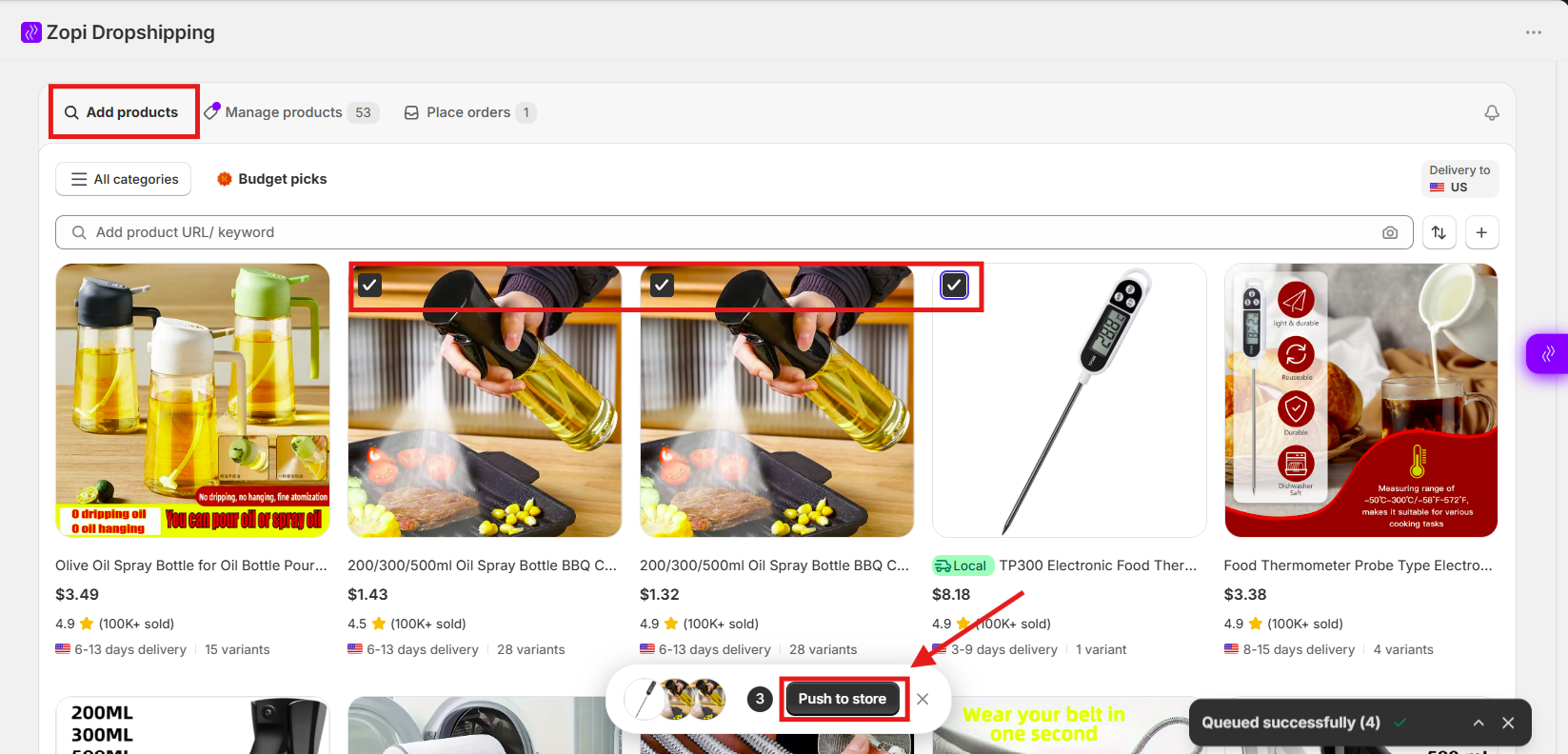
  • Select multiple products by checking the product boxes.
  • After selecting products, a selected product bar will appear at the bottom center of the screen.
  • Click Push to Store.

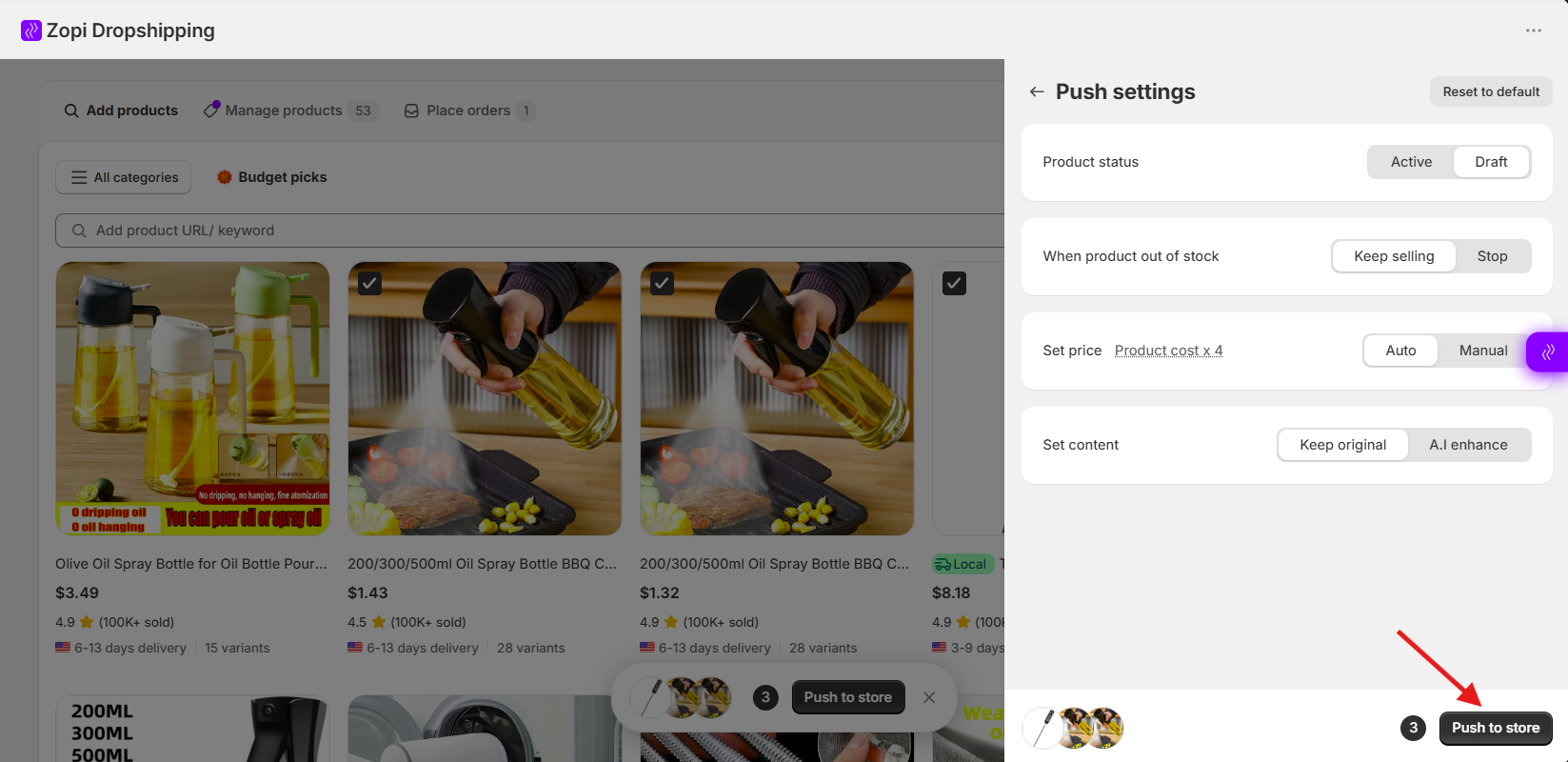
  • A popup window will appear showing the push settings.
  • Adjust the product settings if needed, such as:
    Product status
    When product out of stock
    Set price
    Set content 
  • Click Push to Store again to confirm.

Your selected products will then be imported into your Shopify store.

Import Products Using a CSV File

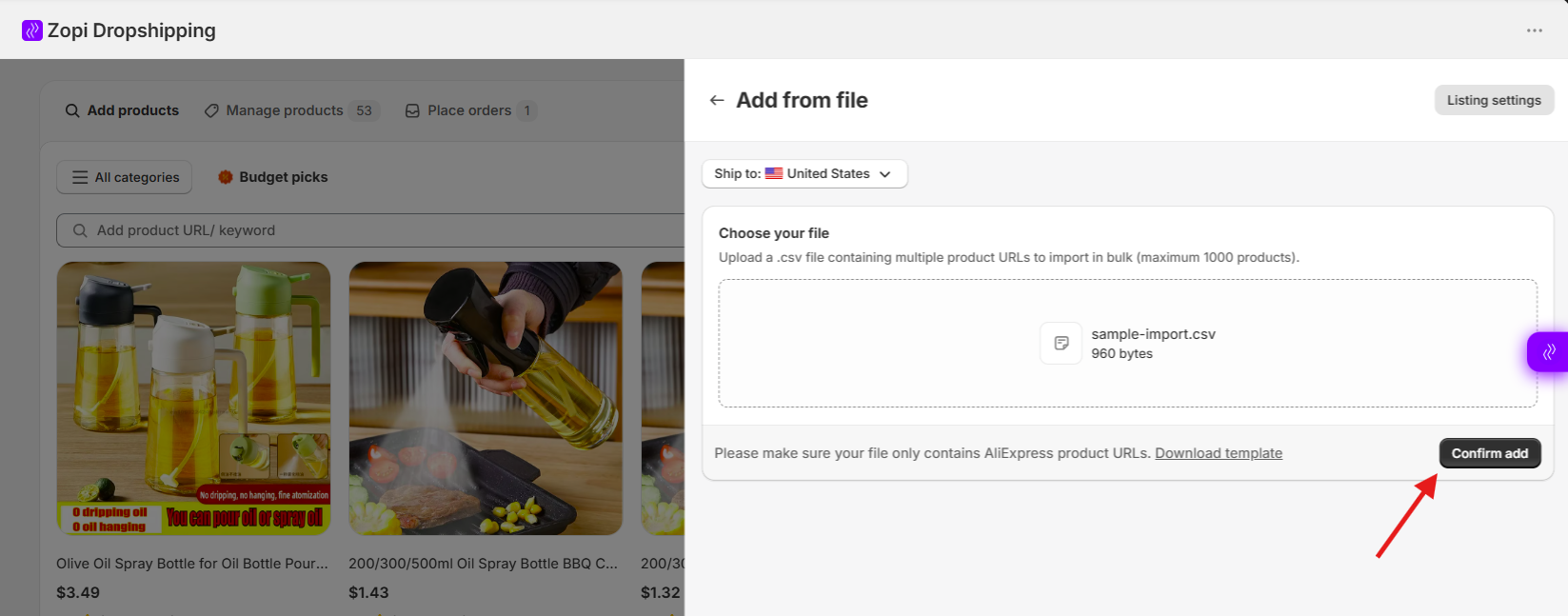
This method is useful when you already have a list of supplier product links and want to import products in bulk.

You can import up to 1000 products at one time using a CSV file.

Prepare Your CSV File

Before importing:

  • Create a .csv file.
  • Add supplier product links into the file.
  • Save the file to your device.

Steps to Import from File

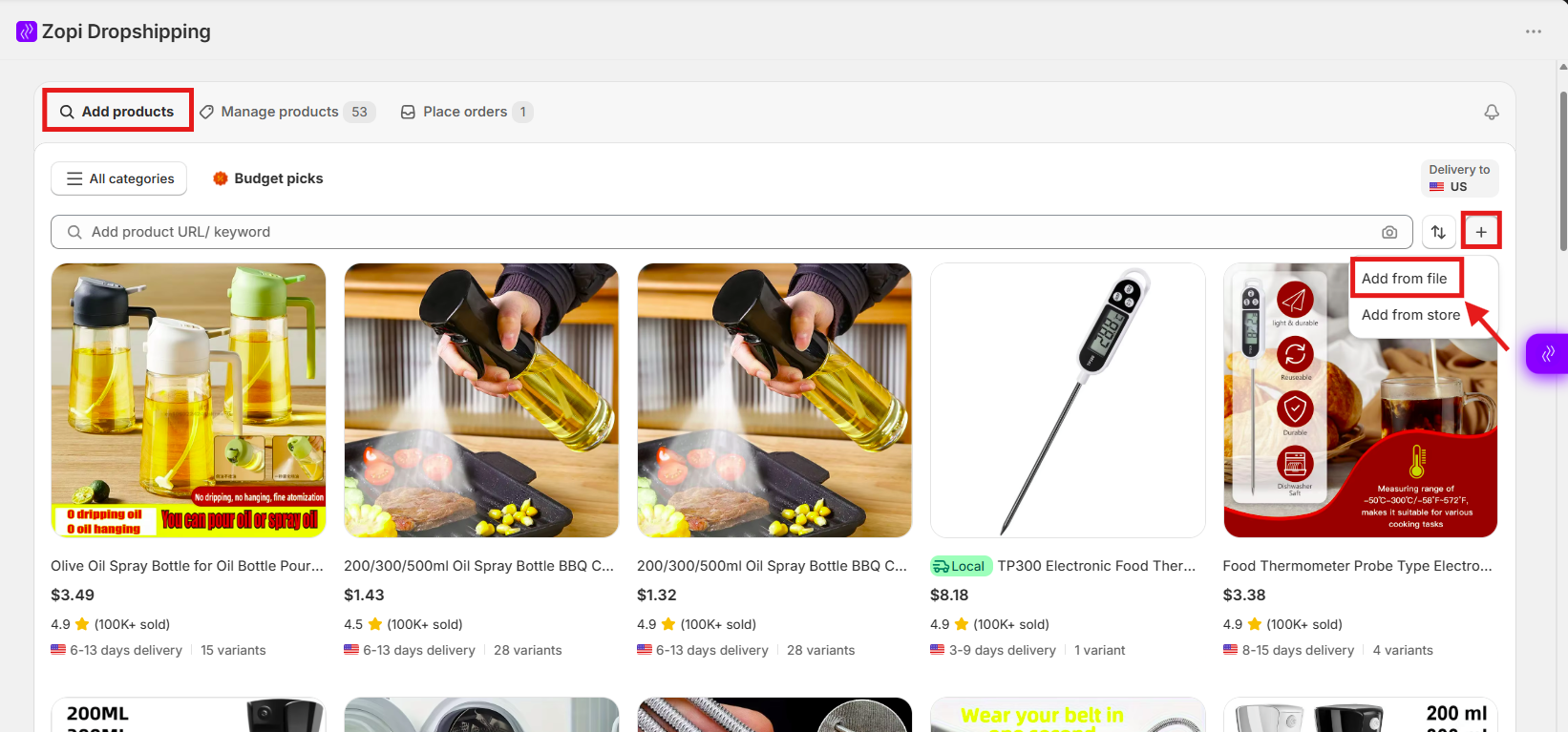
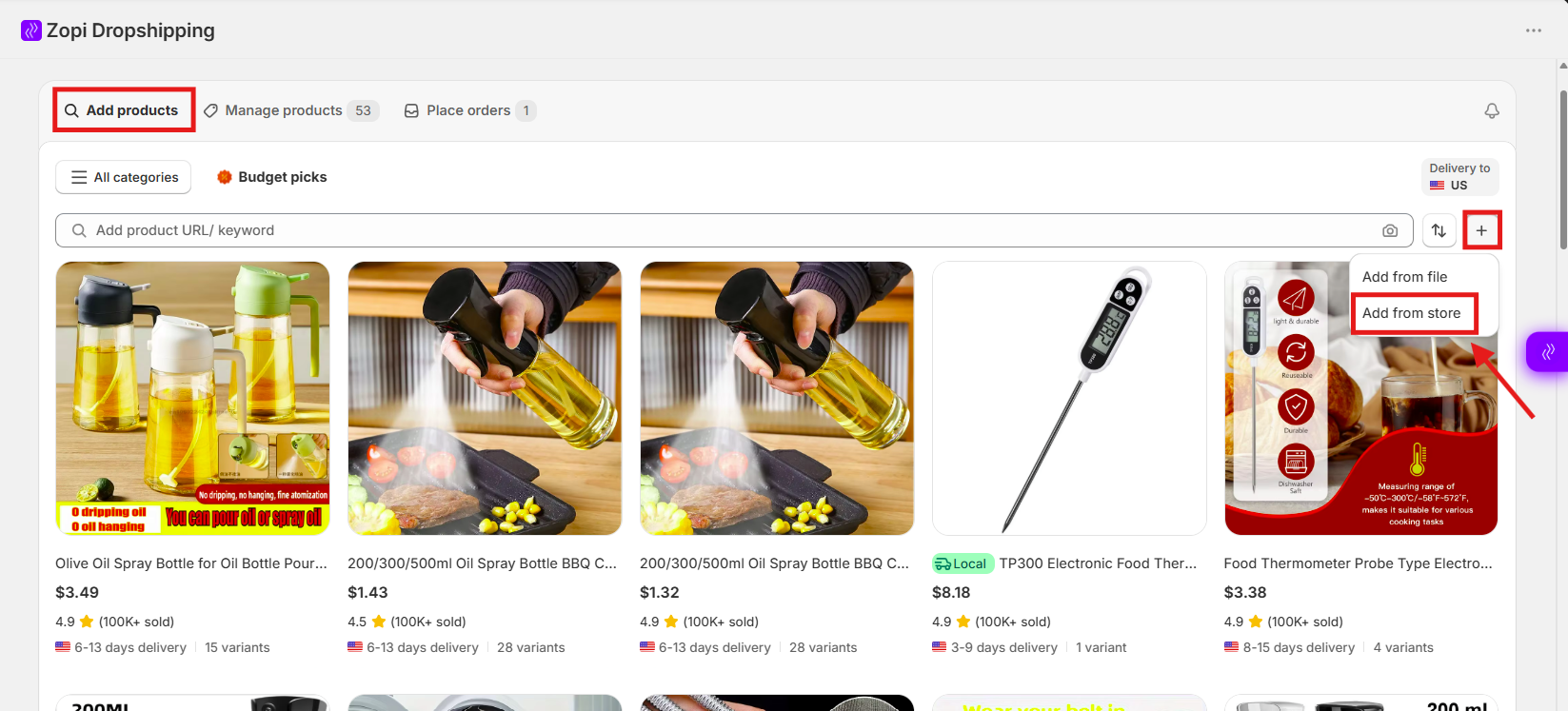
  • Open Zopi > Add Product
  • Click the + icon next to the search bar.
  • Select Add from File.

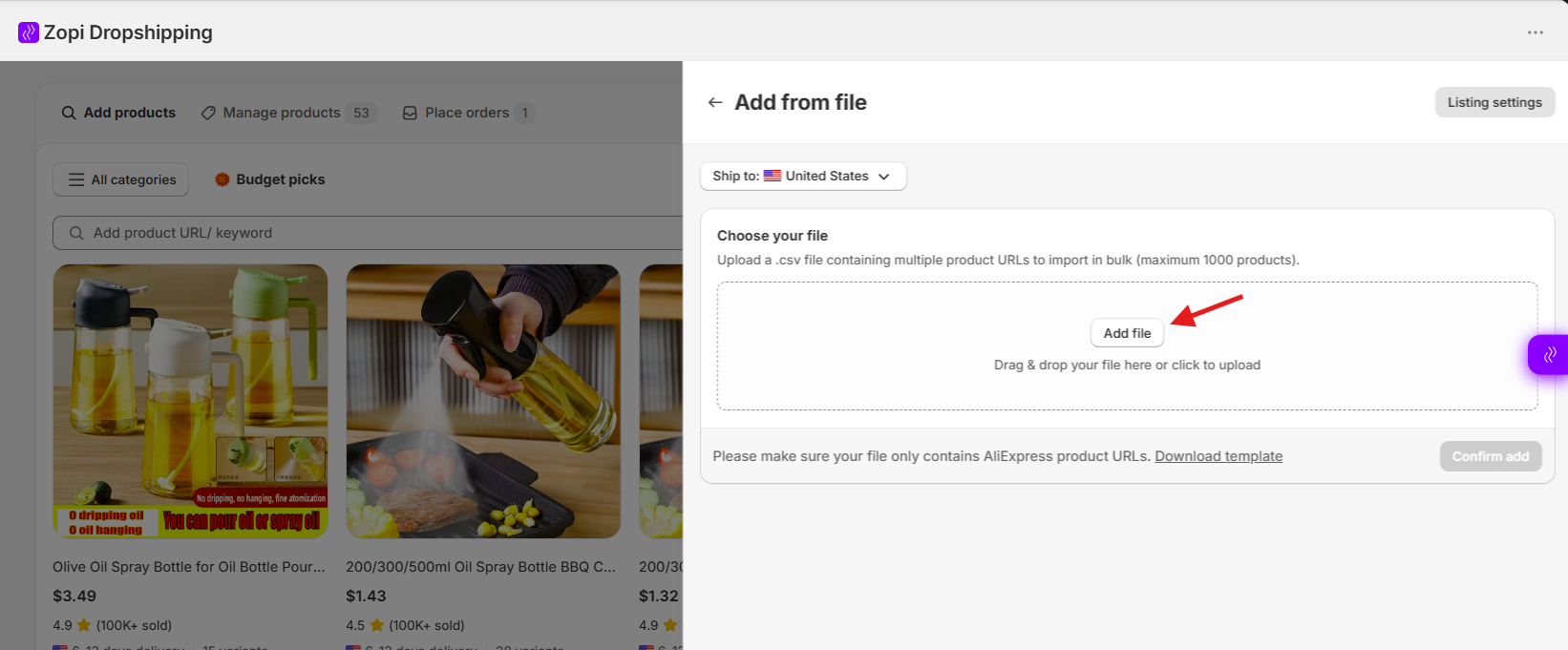
  • Click Add File.

  • Choose your CSV file.
  • Click Confirm Add.

Zopi will start processing the supplier links and import the products into your product list.

Tips

  • Double-check supplier links before uploading.
  • Remove duplicate URLs from the CSV file.
  • Keep the file format as .csv to avoid upload errors.

Import Multiple Products from Your Store

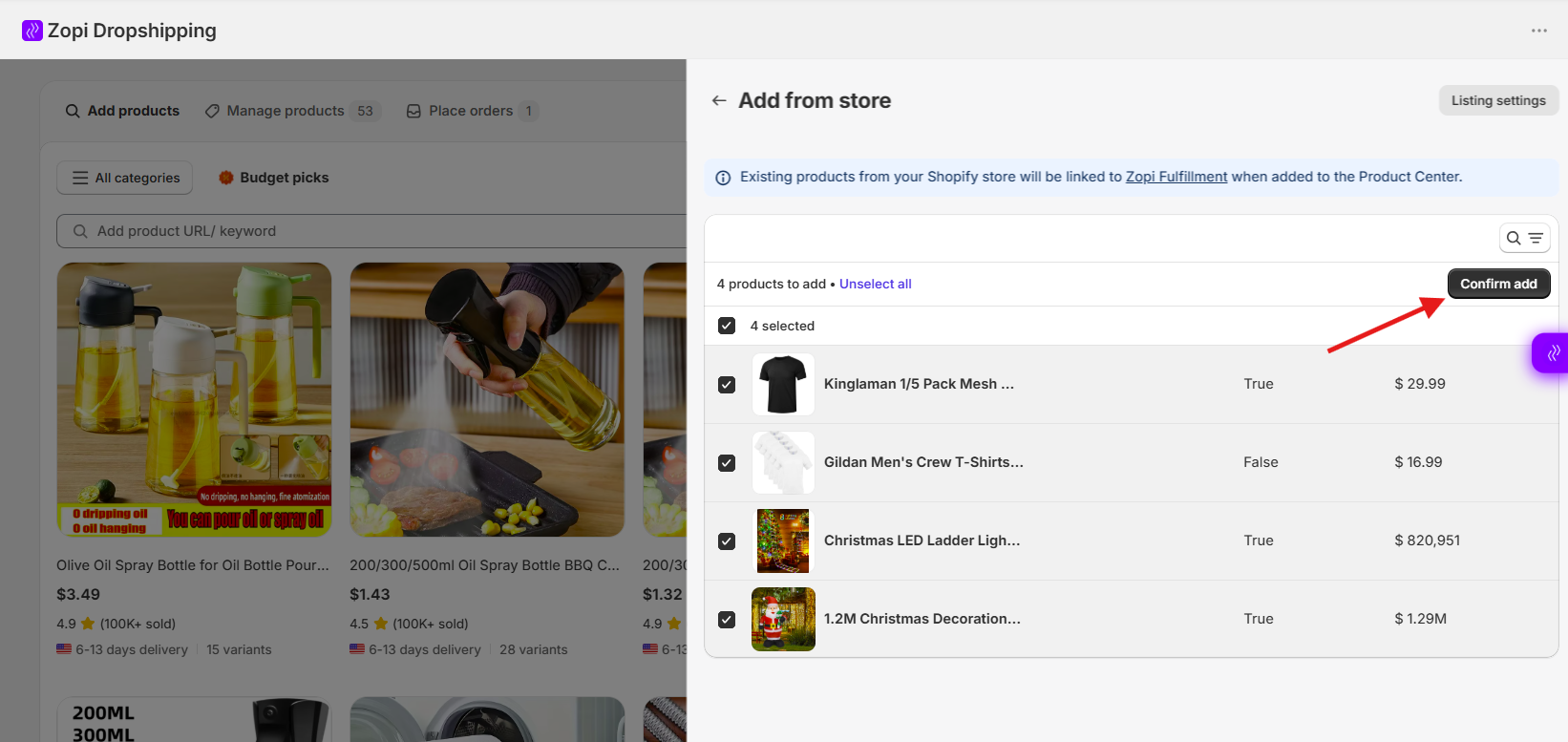
This method allows you to add multiple existing store products into Zopi for management and fulfillment.

Steps to Import Products from Store

  • Open Zopi > Add Product
  • Click the + icon next to the search bar.
  • Select Add from Store.

  • Select multiple products from your Shopify store.
  • Click Confirm Add.

The selected store products will then be added to your Zopi product list.

When to Use This Method

This method is helpful if:

  • You already have products in Shopify
  • You want to manage fulfillment through Zopi
  • You want to connect existing products with suppliers

Best Practices

  • Import products in smaller batches if you want to review them carefully before publishing.
  • Check product variants and pricing after importing.
  • Use clear supplier links to avoid incorrect product mapping.
  • Review imported products before enabling automatic fulfillment.

Conclusion

Zopi provides multiple ways to import products in bulk depending on your workflow:

  • Select products directly from Zopi search
  • Upload supplier links using a CSV file
  • Import existing products from your Shopify store

Using bulk import features can help you save time and manage products more efficiently.

Related articles

Customize Product Details

After importing a new product to the Product Center page, you can easily edit the product details using the AI Enhance feature. Follow the steps below to effectively customize your product details for better visibility and sales. Steps to Customize Your Product Details Log in to Zopi > Product Center. Click the product name, and a…

How to Import Products from AliExpress via Link in Zopi

Importing products by link is the fastest way to bring a product you found on AliExpress into your Shopify store. This helps you move quickly from product discovery to selling. When to Use This Method Use this method when: You are browsing AliExpress and find a potential product You already have a product URL You…

Why Can’t I Import Products in Zopi

If you cannot import products into Zopi, the issue is usually related to your product import quota or file import requirements. This article explains the most common reasons and how to fix them. Product Import Quota Reached Each Zopi subscription plan includes a different product import quota. Once the quota is used up, it will…

Subscribe
Notify of
guest

0 Comments
Inline Feedbacks
View all comments

Table of contents

Import Multiple Products from Zopi SearchSteps to Import Multiple ProductsImport Products Using a CSV FilePrepare Your CSV FileSteps to Import from FileTipsImport Multiple Products from Your StoreSteps to Import Products from StoreWhen to Use This MethodBest PracticesConclusion

Related articles

Why Can’t I Import Products in Zopi

If you cannot import products into Zopi, the issue is usually related to your product import quota or file import requirements. This article explains the most common reasons and how to fix them. Product Import Quota Reached Each Zopi subscription plan includes a different product import quota. Once the quota is used up, it will…

Product Imported but Missing Images or Variants

Sometimes a product imports successfully into Zopi, but some images or variants (size, color, etc.) are missing. This guide explains why it happens and how to fix it before pushing the product to your Shopify store. Why Images or Variants Go Missing When Zopi imports a product from suppliers like AliExpress, Temu, eBay, or Amazon,…

Troubleshooting Product Import Issues in Zopi: Common Problems and How to Fix Them

Introduction Importing products is one of the most important steps in building a successful dropshipping store. With Zopi, you can streamline this process—but occasionally, you might run into some roadblocks. In this guide, you’ll learn: Why you might be unable to import products in Zopi How to solve common import issues What to do when…

Share your thought