Order Center

Order Not Synced from Shopify to Zopi

Update on: 21/05/2026

Table of contents

Order Sync RequirementsCorrect Order Status ExampleWhy Orders Are Not SyncedHow to Mark an Order as Paid in ShopifyStep 1: Open Shopify OrdersStep 2: Open the OrderStep 3: Mark the Order as PaidWhat Happens After Marking as PaidBest PracticesConclusionNeed Help?

If your Shopify orders are not showing in Zopi, the issue is usually related to the order status in Shopify.

For an order to sync successfully to Zopi, it must meet specific conditions in Shopify first.

Order Sync Requirements

Before an order can sync from Shopify to Zopi, it must have both of these statuses in Shopify:

  • Paid
  • Unfulfilled

If one or both statuses are missing, Zopi cannot synchronize the order.

Correct Order Status Example

Payment Status Fulfillment Status Sync to Zopi
Paid Unfulfilled ✅ Yes
Pending Unfulfilled ❌ No
Paid Fulfilled ❌ Order processed incorrectly

Why Orders Are Not Synced

In most cases, orders are not synced because they have not been marked as Paid yet in Shopify.

This commonly happens when:

  • The order was created manually
  • The customer used a manual payment method
  • The order is still pending payment
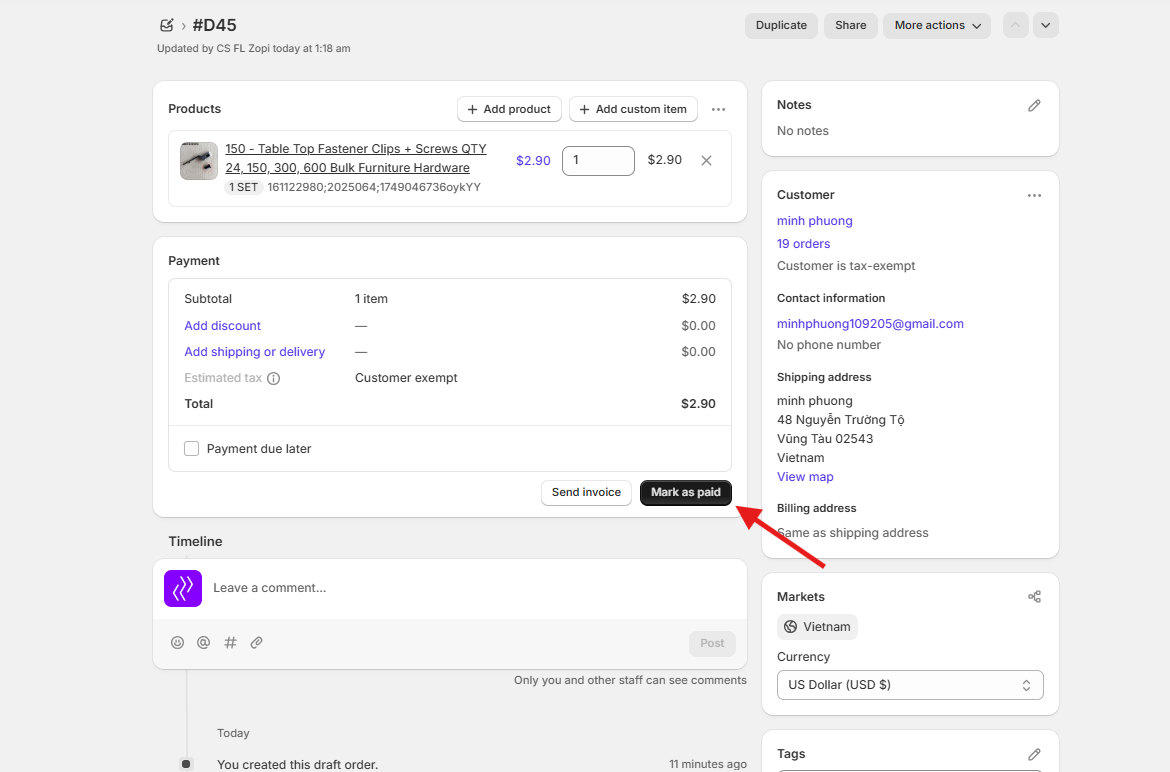
  • The order was created in the Drafts section

Once the order is marked as paid, Zopi can sync it automatically.

How to Mark an Order as Paid in Shopify

Follow these steps to update the order status in Shopify:

Step 1: Open Shopify Orders

In Shopify admin, go to:

Shopify > Orders

Step 2: Open the Order

Click the order that is not synced to Zopi.

If you cannot find the order in the Orders section, check the Drafts section instead.

Step 3: Mark the Order as Paid

Click one of these buttons:

  • Mark as paid
  • Collect payment

This will update the payment status of the order.

What Happens After Marking as Paid

After the order is marked as Paid, the order will automatically sync to:

Zopi > Place Order

You can then continue fulfilling the order normally in Zopi.

Best Practices

To avoid order sync issues:

  • Make sure all orders are marked as Paid
  • Keep the fulfillment status as Unfulfilled before importing to Zopi
  • Regularly check draft orders in Shopify
  • Avoid manually fulfilling orders before syncing them to Zopi

Conclusion

For Shopify orders to sync correctly to Zopi, they must be:

  • Paid
  • Unfulfilled

If your order is missing in Zopi, first check the payment status in Shopify and mark the order as paid if needed. Once updated, the order should automatically appear in the Zopi Place Order section.

Need Help?

If you need assistance while using Zopi:

👉 Our team is available to help you resolve issues quickly and keep your orders running smoothly.

Related articles

Get the Source Order Number

After placing an order, obtaining the supplier order number is essential for effective tracking. Remember, this number may vary depending on the supplier platforms you are using. Understanding Multi-source Order Numbers I. AliExpress Order Number AliExpress Order Numbers typically appear as follows: 502370139095420, 70050660905420, 86087307282773. To locate your order number on AliExpress, follow these steps:…

How to Fulfill Orders with Zopi

Fulfilling orders efficiently is crucial for maintaining customer satisfaction and streamlining your dropshipping operations. When a customer places an order in your Shopify store, Zopi automatically syncs it to the Order Center. From there, you can process and fulfill the order based on the source: AliExpress, Zopi Suppliers: Fulfillment via API (faster, fully automated). Temu,…

How AI Assistant Helps Manage Orders

Zopi AI Assistant helps simplify order management by assisting with operational tasks directly inside Zopi. Instead of manually checking and processing orders one by one, you can ask the assistant to help retrieve order information, review pending orders, and support fulfillment workflows. 👉 AI Assistant focuses on helping you manage orders faster and more efficiently….

Subscribe
Notify of
guest

0 Comments
Inline Feedbacks
View all comments

Table of contents

Order Sync RequirementsCorrect Order Status ExampleWhy Orders Are Not SyncedHow to Mark an Order as Paid in ShopifyStep 1: Open Shopify OrdersStep 2: Open the OrderStep 3: Mark the Order as PaidWhat Happens After Marking as PaidBest PracticesConclusionNeed Help?

Related articles

How to Fulfill Orders with Zopi

Fulfilling orders efficiently is crucial for maintaining customer satisfaction and streamlining your dropshipping operations. When a customer places an order in your Shopify store, Zopi automatically syncs it to the Order Center. From there, you can process and fulfill the order based on the source: AliExpress, Zopi Suppliers: Fulfillment via API (faster, fully automated). Temu,…

Meet Special Customs Clearance Requirements

To comply with customs regulations, it is essential to ensure that all orders to Brazil, Korea, or Chile include specific customs clearance information in the Customer info section. Without this crucial information, orders cannot be successfully placed with your suppliers. Country Filed in Customer Detail What Information to Fill In Brazil CPF An 11-digit number…

How to Earn Cashback with Zopi

The Zopi Cashback Program rewards you for fulfilling orders through Zopi — helping you boost your profit margins as your sales grow. This guide explains how the program works, how cashback is calculated, and how to qualify for higher rewards.   What Is Zopi Cashback? Zopi Cashback is a reward program that gives you a…

Share your thought