Imported & Push to store Zopi Extension

How to Import Products Using the Zopi Chrome Extension

Update on: 22/05/2026

Table of contents

What the Zopi Chrome Extension DoesSupported PlatformsHow to Install the Chrome ExtensionStep 1: Open Chrome Web StoreStep 2: Install ExtensionStep 3: Log In to Your Zopi AccountStep 4: Connect Your Shopify StoreHow to Import Products Using the ExtensionStep 1: Open a Supported Supplier WebsiteStep 2: Open a Product PageStep 3: Open Zopi Chrome ExtensionStep 4: Review Product InformationStep 5: Import ProductWhat Happens After ImportRecommended next steps:Recommended WorkflowBest PracticesConclusion

The Zopi Chrome Extension allows you to quickly import products from supported supplier platforms directly into your Shopify dropshipping workflow.

This guide explains how to install the extension, import products, and prepare them for your store.

What the Zopi Chrome Extension Does

The Zopi Chrome Extension helps you:

  • Import products faster
  • Analyze supplier products
  • View product insights while browsing suppliers
  • Send products directly to your Zopi Imported List

Instead of copying product information manually, you can import products with just a few clicks.

Supported Platforms

The Chrome Extension supports importing from:

  • AliExpress
  • Temu
  • eBay
  • Amazon

⚠️ Feature availability may differ by platform.

Example:

  • AliExpress supports more automation features
  • Other platforms may support import-only workflows

How to Install the Chrome Extension

Follow these steps:

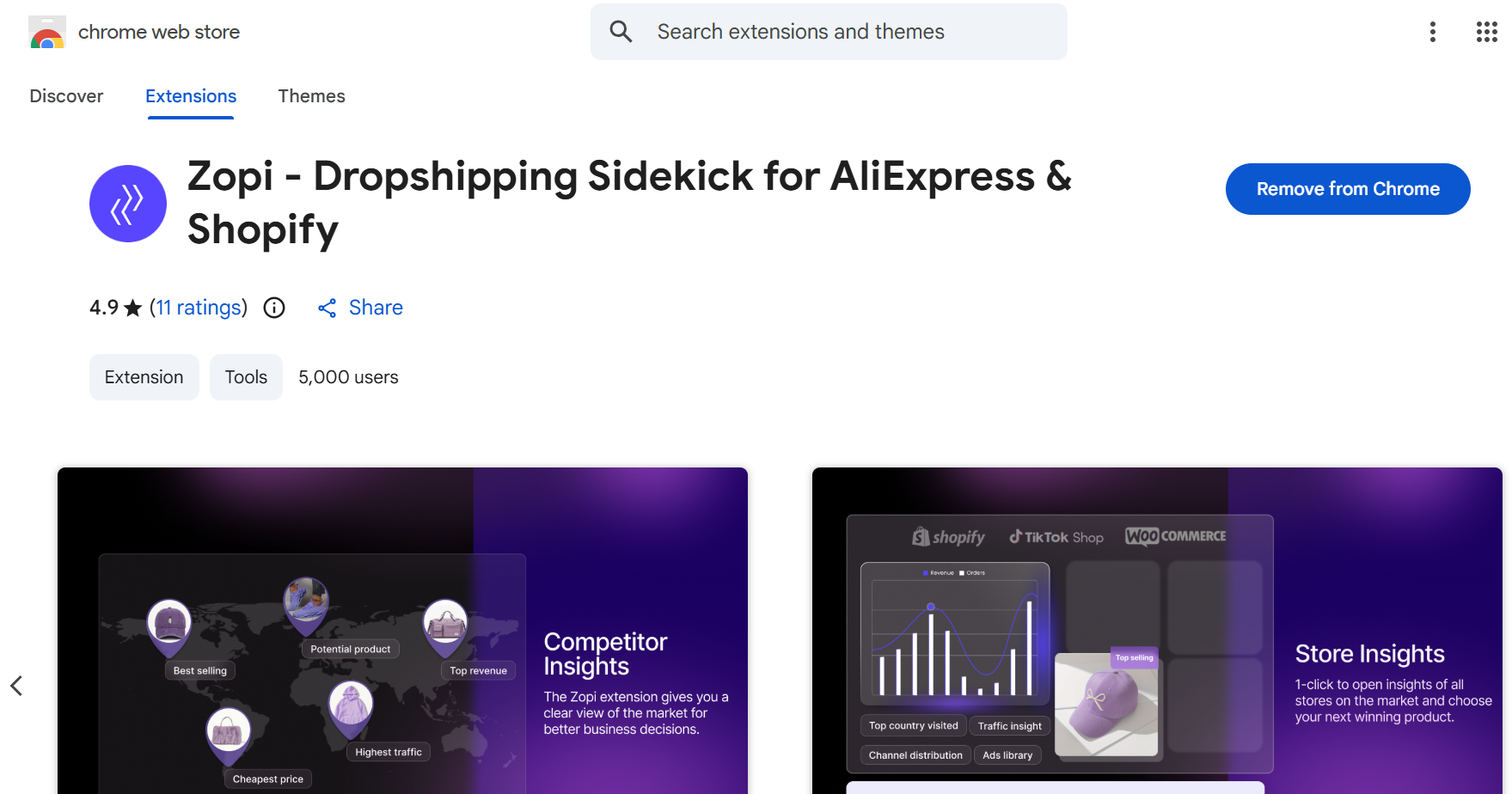
Step 1: Open Chrome Web Store

Step 2: Install Extension

  • Click Add to Chrome
  • Confirm installation

Step 3: Log In to Your Zopi Account

  • Open the extension
  • Sign in using your Zopi account

Step 4: Connect Your Shopify Store

If not already connected:

  1. Open Zopi dashboard
  2. Connect your Shopify store
  3. Confirm authorization

How to Import Products Using the Extension

Step 1: Open a Supported Supplier Website

Go to:

  • AliExpress
  • Temu
  • eBay
  • Amazon

Step 2: Open a Product Page

Choose the product you want to import.

⚠️ Make sure:

  • Product is active
  • Variants are available
  • Images load correctly

Step 3: Open Zopi Chrome Extension

  • Click the Zopi extension icon in Chrome

Step 4: Review Product Information

The extension may display:

  • Product title
  • Price
  • Variants
  • Supplier insights

Step 5: Import Product

  • Click Import to Zopi or similar action button

The product will be sent to:
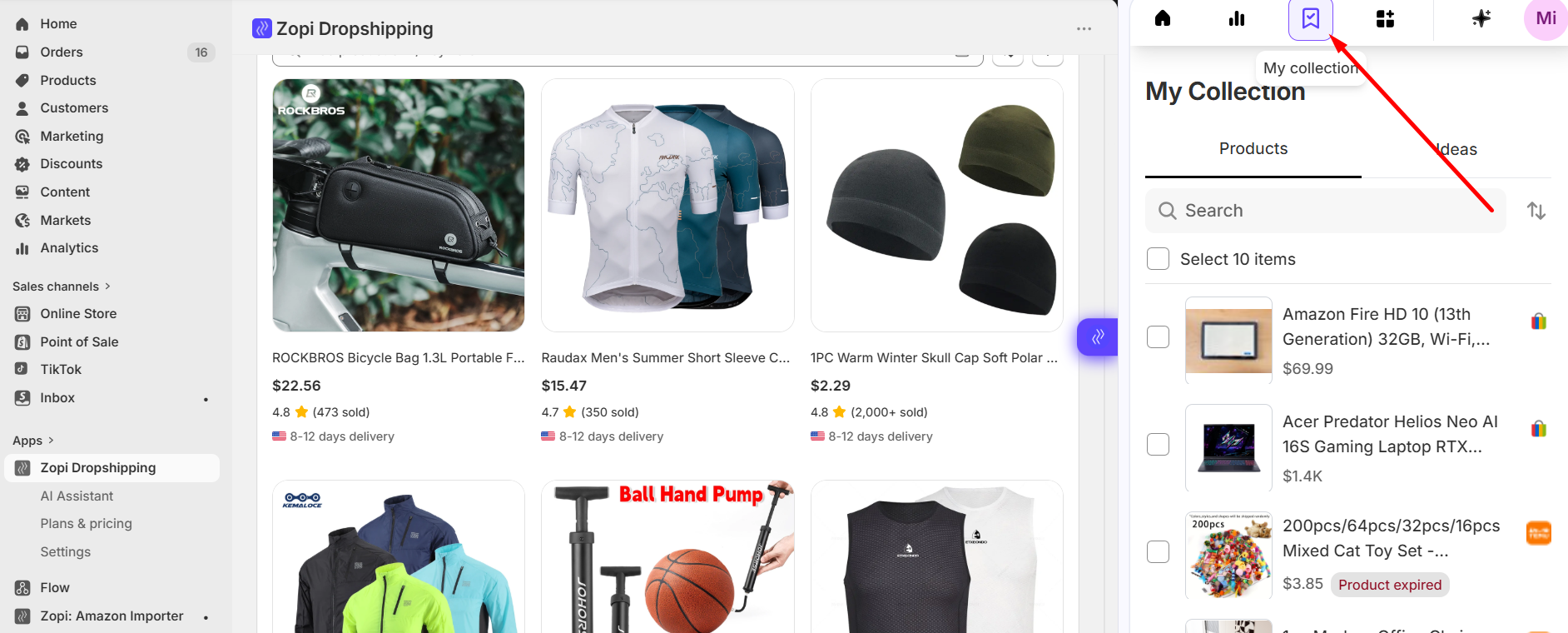
Zopi Extension > My collection
What Happens After Import

After importing, you should always review the product before publishing.

  1. Open: Zopi Extension > My Collection
  2. Choose products to push
  3. Click Push product to channel

For best results, follow this workflow:

  1. Find product
    → Supplier website 
  2. Import via Chrome Extension
    → Send product to Zopi
  3. Push to Shopify
    → Publish product
  4. Fulfill orders
    → Manage via Zopi Orders

Best Practices

  • Always review products after import
  • Remove low-quality images or supplier branding
  • Verify variants before pushing to store
  • Use reliable suppliers with good ratings
  • Keep the Chrome Extension updated

Conclusion

The Zopi Chrome Extension makes product importing faster and easier across multiple supplier platforms.

By combining the extension with Zopi’s editing and fulfillment workflow, you can streamline your product sourcing process and manage your store more efficiently.


Related articles

Product Imported but Missing Images or Variants

Sometimes a product imports successfully into Zopi, but some images or variants (size, color, etc.) are missing. This guide explains why it happens and how to fix it before pushing the product to your Shopify store. Why Images or Variants Go Missing When Zopi imports a product from suppliers like AliExpress, Temu, eBay, or Amazon,…

Troubleshooting Zopi Extension Issues: Common Problems and Solutions

Running a smooth dropshipping business relies on reliable tools, and the Zopi Chrome extension is one of the most important. This extension helps automate importing products from AliExpress, eBay or Temu directly into your Shopify store. However, like any tool, users may sometimes face issues. If you’re experiencing problems with the Zopi extension, don’t worry—this…

Split Products from Import List

At times, you may find that a single product has too many variants, prompting the need to divide it into multiple smaller products. Zopi provides a convenient Split Product feature that allows you to easily separate products as needed. Follow the guide below to learn how to utilize this feature! How to Split Products from…

Subscribe
Notify of
guest

0 Comments
Inline Feedbacks
View all comments

Table of contents

What the Zopi Chrome Extension DoesSupported PlatformsHow to Install the Chrome ExtensionStep 1: Open Chrome Web StoreStep 2: Install ExtensionStep 3: Log In to Your Zopi AccountStep 4: Connect Your Shopify StoreHow to Import Products Using the ExtensionStep 1: Open a Supported Supplier WebsiteStep 2: Open a Product PageStep 3: Open Zopi Chrome ExtensionStep 4: Review Product InformationStep 5: Import ProductWhat Happens After ImportRecommended next steps:Recommended WorkflowBest PracticesConclusion

Related articles

Why Can’t I Import Products in Zopi

If you cannot import products into Zopi, the issue is usually related to your product import quota or file import requirements. This article explains the most common reasons and how to fix them. Product Import Quota Reached Each Zopi subscription plan includes a different product import quota. Once the quota is used up, it will…

Split Products from Import List

At times, you may find that a single product has too many variants, prompting the need to divide it into multiple smaller products. Zopi provides a convenient Split Product feature that allows you to easily separate products as needed. Follow the guide below to learn how to utilize this feature! How to Split Products from…

Optimize Your Product Sourcing and Importing Workflow with the Zopi Extension

If you’re running a dropshipping business, product sourcing is everything. Zopi’s powerful Chrome Extension makes it easier than ever to discover trending products, compare prices, and import directly to your Shopify or WooCommerce store – all with just a few clicks. In this guide, you’ll learn how to streamline your product search, save promising finds,…

Share your thought