
If your Shopify orders are not showing in Zopi, the issue is usually related to the order status in Shopify.
For an order to sync successfully to Zopi, it must meet specific conditions in Shopify first.
Order Sync Requirements
Before an order can sync from Shopify to Zopi, it must have both of these statuses in Shopify:
- Paid
- Unfulfilled
If one or both statuses are missing, Zopi cannot synchronize the order.
Correct Order Status Example
| Payment Status | Fulfillment Status | Sync to Zopi |
| Paid | Unfulfilled | ✅ Yes |
| Pending | Unfulfilled | ❌ No |
| Paid | Fulfilled | ❌ Order processed incorrectly |
Why Orders Are Not Synced
In most cases, orders are not synced because they have not been marked as Paid yet in Shopify.
This commonly happens when:
- The order was created manually
- The customer used a manual payment method
- The order is still pending payment
- The order was created in the Drafts section
Once the order is marked as paid, Zopi can sync it automatically.
How to Mark an Order as Paid in Shopify
Follow these steps to update the order status in Shopify:
Step 1: Open Shopify Orders
In Shopify admin, go to:
Shopify > Orders
Step 2: Open the Order
Click the order that is not synced to Zopi.
If you cannot find the order in the Orders section, check the Drafts section instead.
Step 3: Mark the Order as Paid
Click one of these buttons:
- Mark as paid
- Collect payment
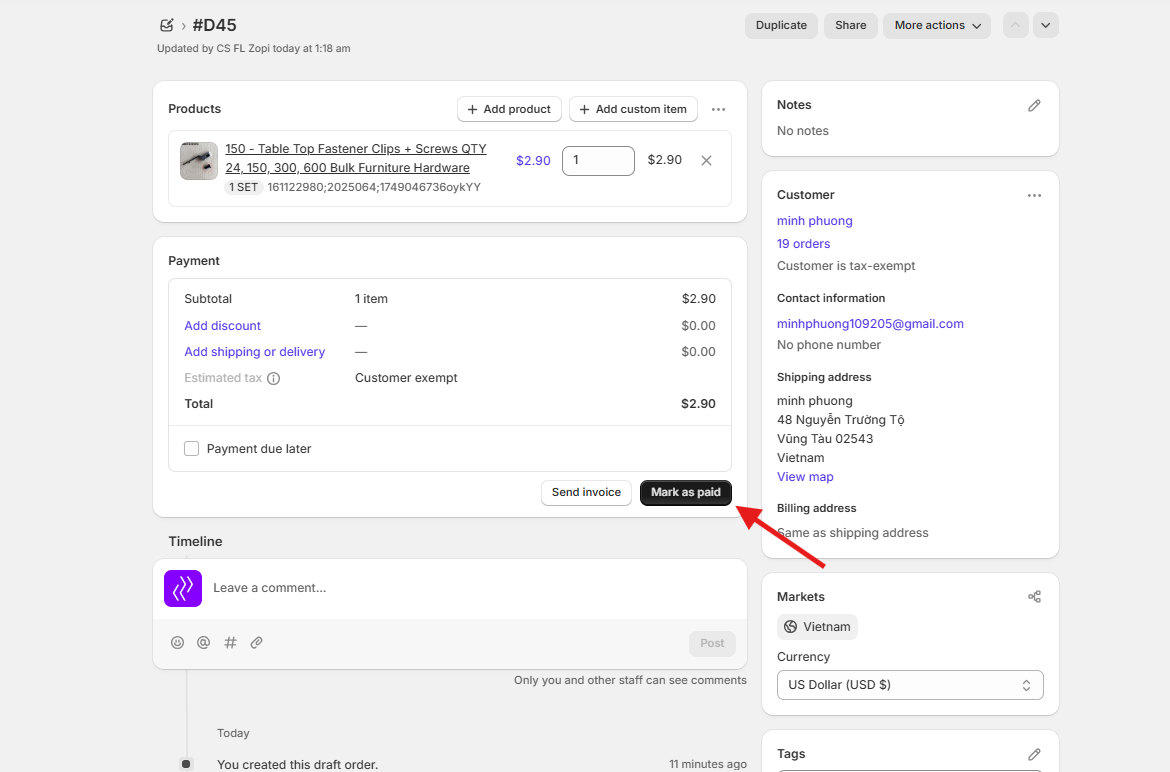
This will update the payment status of the order.
What Happens After Marking as Paid
After the order is marked as Paid, the order will automatically sync to:
Zopi > Place Order
You can then continue fulfilling the order normally in Zopi.
Best Practices
To avoid order sync issues:
- Make sure all orders are marked as Paid
- Keep the fulfillment status as Unfulfilled before importing to Zopi
- Regularly check draft orders in Shopify
- Avoid manually fulfilling orders before syncing them to Zopi
Conclusion
For Shopify orders to sync correctly to Zopi, they must be:
- Paid
- Unfulfilled
If your order is missing in Zopi, first check the payment status in Shopify and mark the order as paid if needed. Once updated, the order should automatically appear in the Zopi Place Order section.
Need Help?
If you need assistance while using Zopi:
- Contact our support team via Live Chat inside Zopi
- Visit the Zopi Help Center for more guides
- Join the Zopi Community to ask questions and learn from other users
👉 Our team is available to help you resolve issues quickly and keep your orders running smoothly.