Imported & Push to store

How to Filter Products Before Add in Zopi

Update on: 20/05/2026

Table of contents

Why Product Filtering MattersWhere to Filter Products in ZopiHow to Filter Products Before ImportStep 1: Open Dropship OperationStep 2: Search for a ProductStep 3: Open FiltersStep 4: Apply Product FiltersStep 5: Review Filtered ResultsStep 6: Import ProductBest PracticesConclusionNeed Help?

Filtering products before import helps you find better products faster and avoid importing low-quality or unsuitable items into your store.

This guide explains how to use product filters in Zopi to narrow down products by price, orders, shipping location, ratings, and more.

Why Product Filtering Matters

Not every supplier product is suitable for your store.

Using filters helps you:

  • Find more reliable products
  • Avoid poor suppliers
  • Save time during product research
  • Improve fulfillment and customer experience

Instead of importing random products, you can focus only on products that match your business goals.

Where to Filter Products in Zopi

You can filter products in:

  • Zopi > Add products
  • Zopi Chrome Extension (on supported supplier platforms)

Supported sources include:

  • AliExpress
  • Temu
  • eBay
  • Amazon

How to Filter Products Before Import

Follow these steps:

Step 1: Open Dropship Operation

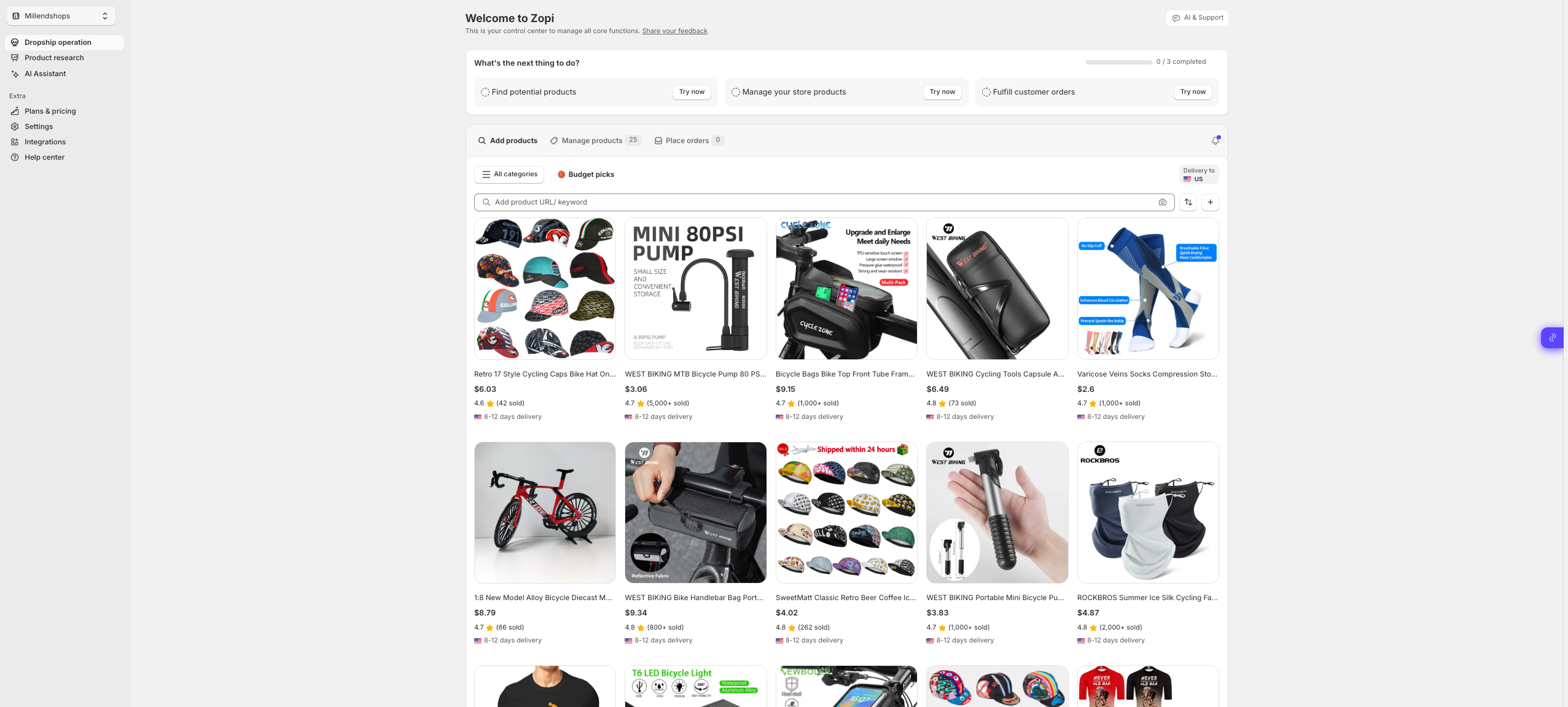
  • Go to: Zopi > Add products

Step 2: Search for a Product

  • Enter keywords related to your niche

Example:

  • “Pet toy”
  • “Kitchen organizer”
  • “Wireless earbuds”

Step 3: Open Filters

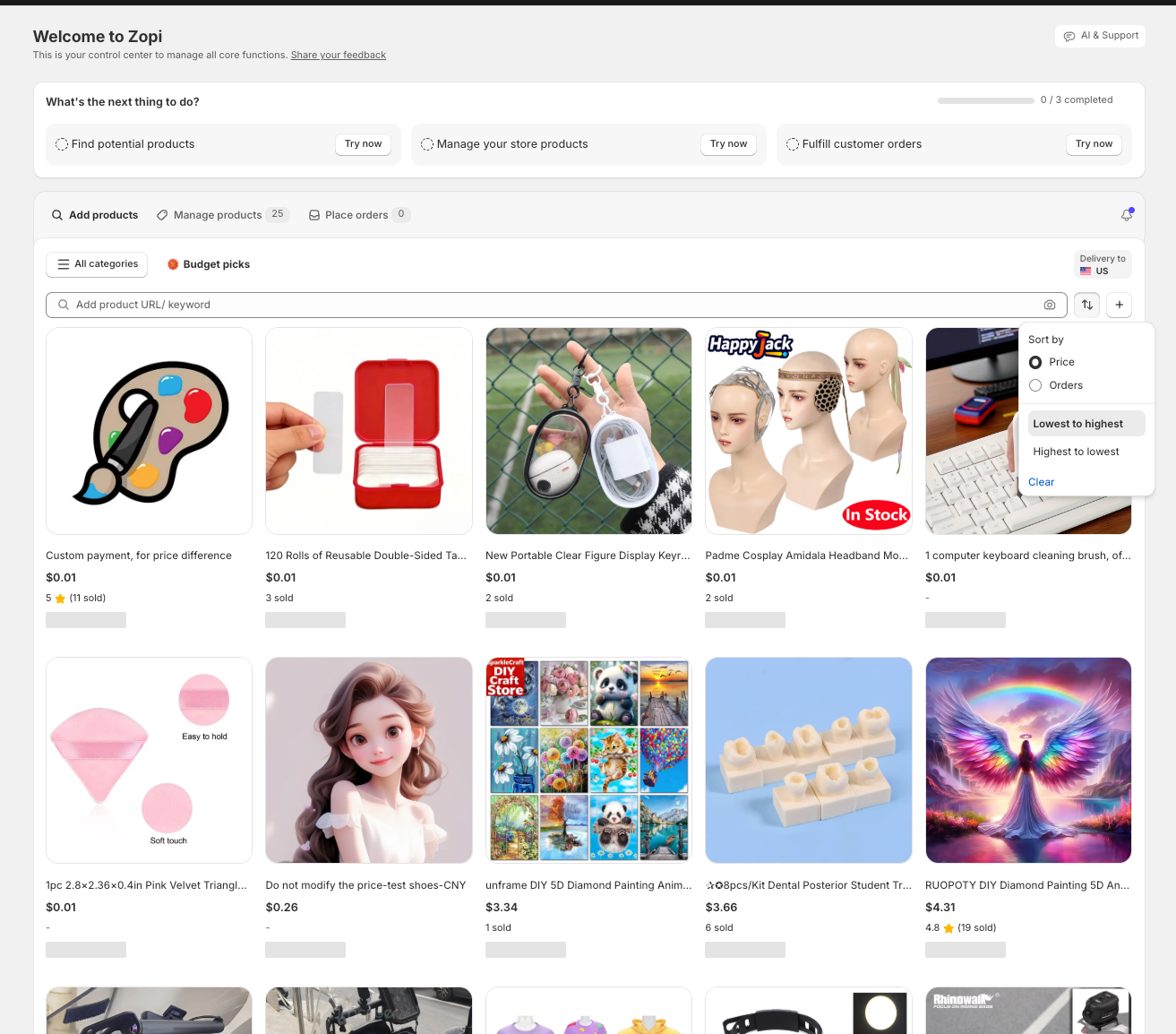
  • Click Filter or filter options panel

Step 4: Apply Product Filters

Choose filters based on your needs.

Examples:

  • Price range
  • Orders count

Step 5: Review Filtered Results

Check:

  • Product quality
  • Supplier reputation
  • Images and reviews

Step 6: Import Product

Once you find a suitable product:

  • Click Push to store
    Then continue your workflow: Edit → Fulfill

Best Practices

  • Avoid importing products only because they are cheap
  • Prioritize suppliers with strong ratings and order history
  • Use local warehouses when possible for faster shipping
  • Test products before scaling heavily
  • Recheck supplier stock regularly

Conclusion

Filtering products before import helps you find higher-quality products and better suppliers more efficiently.

By using filters inside Zopi Product Discovery, you can improve your product selection process and reduce fulfillment problems later.

Need Help?

If you need assistance while using Zopi:

👉 Our team is available to help you resolve issues quickly and keep your orders running smoothly.

Related articles

Set Pricing Rules and Assign Cent

Setting the price for the products you sell in your store is crucial for ensuring profitability. Your selling price must always exceed the cost charged by your supplier. At Zopi, you can leverage the Pricing Rules feature to automate your product pricing effectively. Follow the steps below to set it up quickly and efficiently. Set…

How to Import Multiple Products in Zopi

Importing products one by one can take a lot of time, especially when you are building or scaling your store. With Zopi, you can import multiple products at once using different methods depending on your workflow. This article will show you 3 ways to import multiple products into your Shopify store using Zopi. Import Multiple…

How to Bulk Update Products in Zopi

Zopi allows you to update multiple products at the same time using the bulk editing feature. Instead of editing products one by one, you can quickly apply updates across multiple listings, including: Product status Pricing behavior Out-of-stock settings Product content Product thumbnails Title prefix/suffix 👉 Bulk editing helps save time and keeps your product listings…

Subscribe
Notify of
guest

0 Comments
Inline Feedbacks
View all comments

Table of contents

Why Product Filtering MattersWhere to Filter Products in ZopiHow to Filter Products Before ImportStep 1: Open Dropship OperationStep 2: Search for a ProductStep 3: Open FiltersStep 4: Apply Product FiltersStep 5: Review Filtered ResultsStep 6: Import ProductBest PracticesConclusionNeed Help?

Related articles

Troubleshooting Product Import Issues in Zopi: Common Problems and How to Fix Them

Introduction Importing products is one of the most important steps in building a successful dropshipping store. With Zopi, you can streamline this process—but occasionally, you might run into some roadblocks. In this guide, you’ll learn: Why you might be unable to import products in Zopi How to solve common import issues What to do when…

How to Edit a Product Before Pushing to Your Store in Zopi

Editing your product before publishing helps you improve quality, pricing, and conversion. This step ensures your product looks professional and is ready to sell. When Should You Edit a Product? You should always edit a product before pushing it to your Shopify store. Imported products (from AliExpress, Temu, eBay, Amazon) often have: Messy titles Low-quality…

How to Bulk Update Products in Zopi

Zopi allows you to update multiple products at the same time using the bulk editing feature. Instead of editing products one by one, you can quickly apply updates across multiple listings, including: Product status Pricing behavior Out-of-stock settings Product content Product thumbnails Title prefix/suffix 👉 Bulk editing helps save time and keeps your product listings…

Share your thought