
Troubleshooting & FAQs

How to Fix the “Account Is Running Out of Usage (Less Than 10%)” Warning in Zopi.

Update on: 04/12/2025

Table of contents

What Is the “Account Is Running Out of Usage” Message?Why This Warning Matters for DropshippingStep-by-Step Guide to Fix the Issue by Upgrading Your Zopi PlanStep 1: Go to Settings & BillingStep 2: Select “Change Plan”Step 3: Choose a Higher PlanConclusion

When managing your dropshipping business, staying within your plan’s usage limits is essential to ensure smooth operations. Zopi notifies you when your account’s usage is running low so you can upgrade in time and avoid interruptions. This article explains what the “Account is running out of usage (less than 10%)” message means and how to resolve it quickly.


What Is the “Account Is Running Out of Usage” Message?

The “Account is running out of usage (less than 10%)” notification appears when:

  • Your current plan’s usage limit is nearly full

  • You have less than 10% of your allowed actions or quota remaining

  • Your usage renewal date hasn’t reset yet

You may see this message in two places:

  • Notifications

  • Billing & Plan section in your Zopi account
    .

Why This Warning Matters for Dropshipping

Running out of usage can impact your dropshipping workflow in several ways:

  • Unable to fulfill orders: If you hit the limit, you may be temporarily unable to fulfill new customer orders.

  • Restricted product actions: Importing or pushing products may stop until usage resets or you upgrade.

  • Delayed automation features: Essential automated tasks may pause, affecting your store’s operations.

By upgrading your plan before your quota runs out, you avoid workflow interruptions and ensure a seamless experience for both you and your customers.


Step-by-Step Guide to Fix the Issue by Upgrading Your Zopi Plan

To resolve this warning, simply upgrade to a higher plan with more usage. Follow the steps below to upgrade smoothly.

Step 1: Go to Settings & Billing

  1. Log in to your Zopi account.

  2. From the left sidebar, click Settings & Billing.

Step 2: Select “Change Plan”

  1. Click the Change Plan button.

  2. Review all available plan options, including usage limits and features.


Step 3: Choose a Higher Plan

  1. Select a plan with higher usage to support your store’s needs.

  2. Confirm your upgrade and complete the payment.
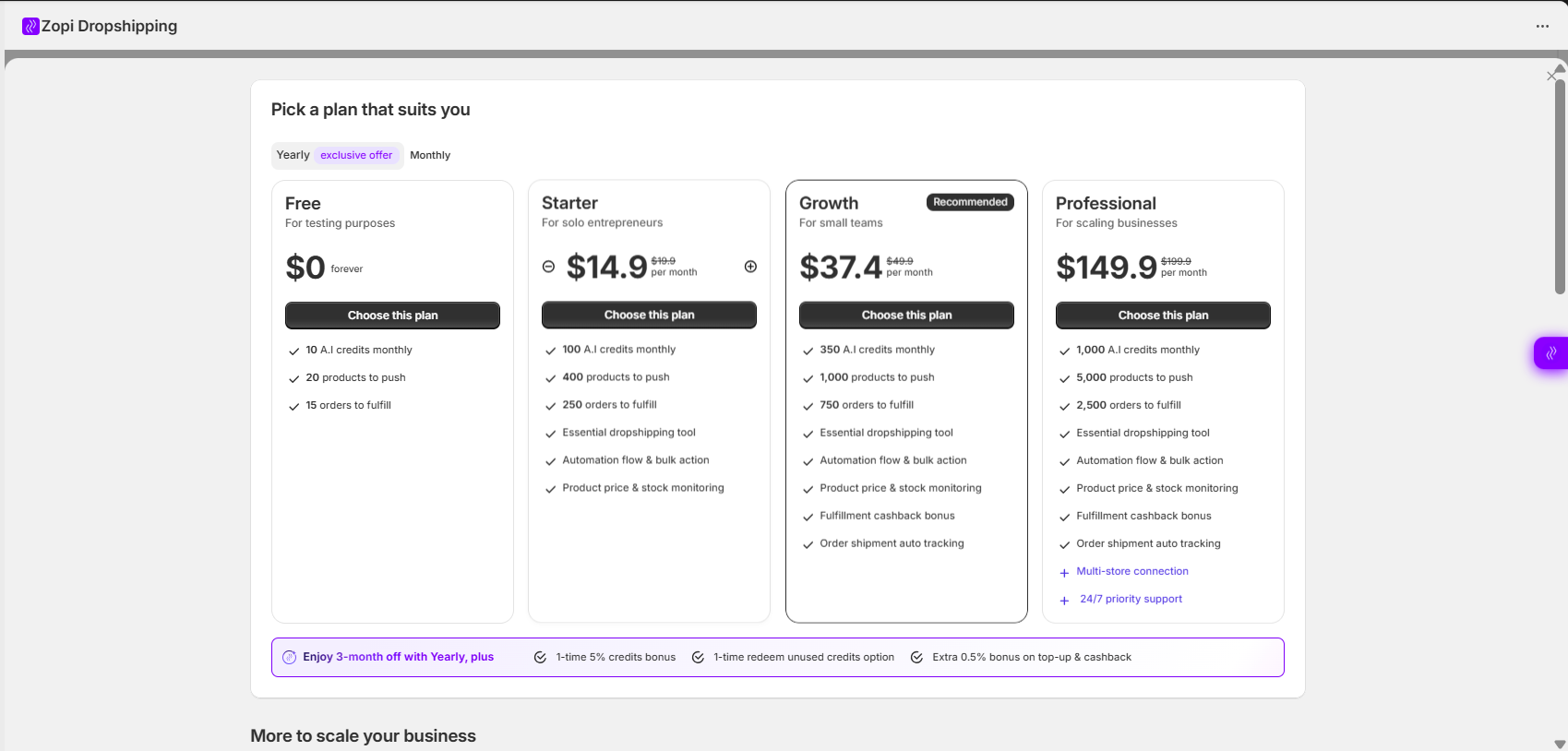
After the upgrade, your usage quota will refresh immediately, and the warning message will disappear.


Conclusion

The “Account is running out of usage (less than 10%)” warning is a helpful reminder to upgrade your plan before hitting your limit. By following the steps in this guide, you can easily upgrade through Settings & Billing → Change Plan and keep your Zopi workflows running seamlessly.

If you need additional help, feel free to contact Zopi Support anytime.


Related articles

How to manually add tracking number to order on Shopify?

If Zopi cannot synchronize tracking information to your store, or if you fulfill your own orders individually in your Shopify admin, you can manually add a tracking number for your customers for both fulfilled and unfulfilled orders. How to Add Tracking for a Fulfilled Order Without a Tracking Number Step-by-Step Instructions From your Shopify admin,…

Can I sync my product information from another Apps to your Zopi App?

When you transition from another application to the Zopi App, we automatically synchronize all your product information from Shopify to our platform. It’s important to note that we do not directly receive any information from other applications. As long as your product information is accessible on Shopify, we will seamlessly sync it to our app….

What is the Shopify ‘Request fulfillment’ option?

In general, Zopi synchronizes orders with the PAID and UNFULFILLED statuses, enabling you to fulfill orders with just a few clicks. However, exercise caution when using the Request Fulfillment button in Shopify. Clicking Request Fulfillment sends a request to a third-party fulfillment service app like Zopi. This action initiates the workflow, changing the order status…

Subscribe
Notify of
guest

0 Comments
Inline Feedbacks
View all comments

Table of contents

What Is the “Account Is Running Out of Usage” Message?Why This Warning Matters for DropshippingStep-by-Step Guide to Fix the Issue by Upgrading Your Zopi PlanStep 1: Go to Settings & BillingStep 2: Select “Change Plan”Step 3: Choose a Higher PlanConclusion

Related articles

How to manually add tracking number to order on Shopify?

If Zopi cannot synchronize tracking information to your store, or if you fulfill your own orders individually in your Shopify admin, you can manually add a tracking number for your customers for both fulfilled and unfulfilled orders. How to Add Tracking for a Fulfilled Order Without a Tracking Number Step-by-Step Instructions From your Shopify admin,…

How to make sure orders are not auto-fulfilled by Shopify?

To enable automatic order fulfillment on Zopi, make sure that Automatically fulfill the order’s line items is unchecked in your Shopify settings. Steps to Adjust Shopify Settings for Order Fulfillment From your Shopify admin, go to Settings > General. Find the Order processing section. Under After an order has been paid, choose Do not automatically…

How to create a staff account, and/or why does support team need it?

We understand your concern about maintaining the privacy of your confidential information. To address your issues without requiring a staff account initially, we strive to assist you as best as we can. However, in certain complex situations, a staff account is essential for us to investigate further and resolve your problem effectively. Rest assured, we…

Share your thought