Troubleshooting & FAQs

How to Fix the “Product Is Unavailable” Error in Zopi

Update on: 04/12/2025

Table of contents

How to Fix “Product Is Unavailable” in Product CenterSteps to fix it in Product CenterHow to Fix “Product Is Unavailable” in Order CenterNeed Help Finding a Supplier? Zopi Sourcing Team Can Support You

When you try to fulfill an order or push a product to your Shopify store, you may see the message “Product is unavailable.” This error usually appears when the supplier can no longer sell the item, or when the product is restricted in the customer’s destination country.

This guide explains why the error happens and gives you two fast ways to fix it so you can continue fulfilling orders smoothly.


Why This Error Happens

This message appears when Zopi cannot fulfill the product because the supplier has made changes. You may encounter this error in the following scenarios:

Here are the common reasons:

  • The supplier stopped selling the product or deleted it.
  • The product is not available for the destination country.
    The supplier changed SKU/variant availability.
    The original link has expired or becomes invalid.

Understanding these causes helps you choose the most accurate fix.


How to Fix “Product Is Unavailable” in Product Center

Steps to fix it in Product Center

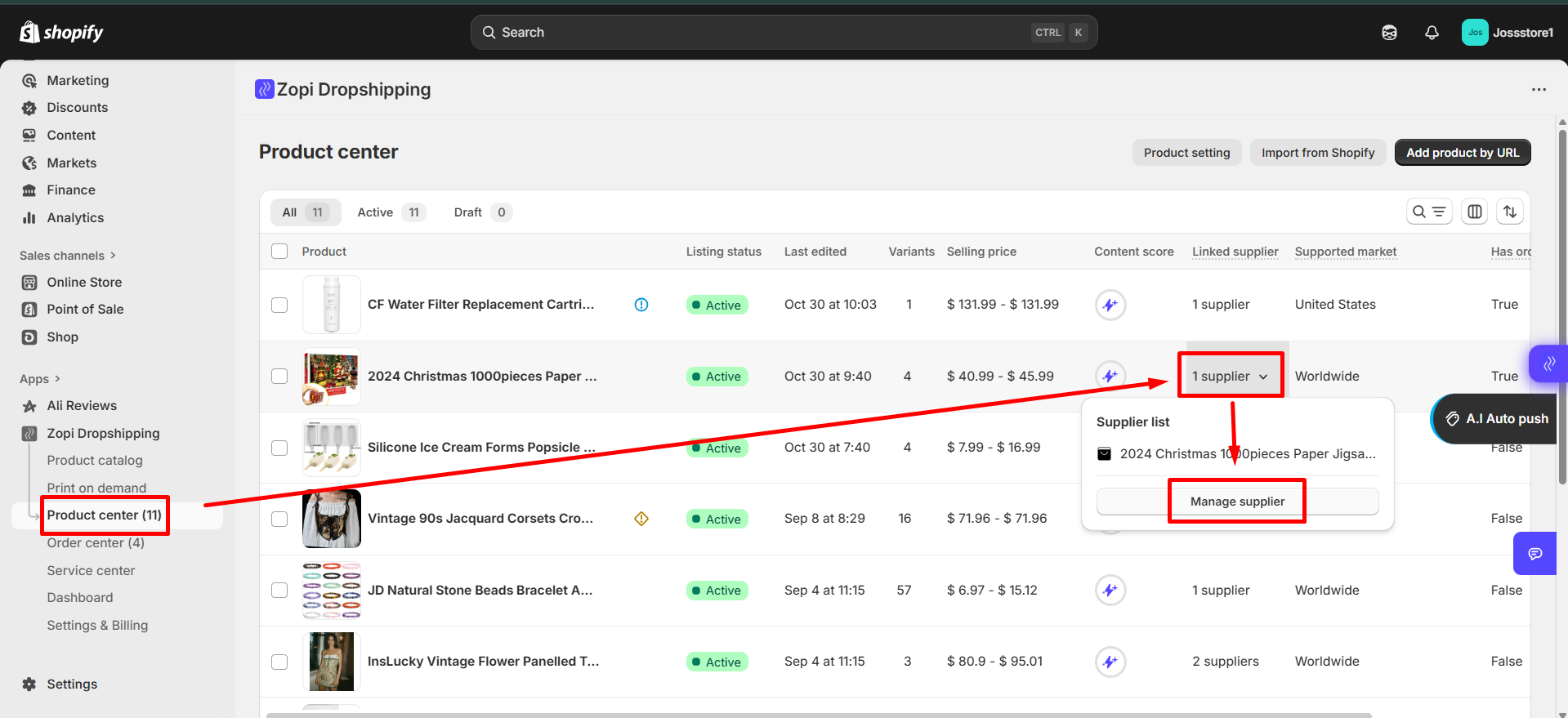
  • Open Zopi → Product Center.
  • Select the product showing the error.
  • Click SupplierManage supplier.


  • Choose one of the two options:
    • Paste a new supplier link (manual option), or
    • Click Find similar suppliers to use Zopi’s recommendations.
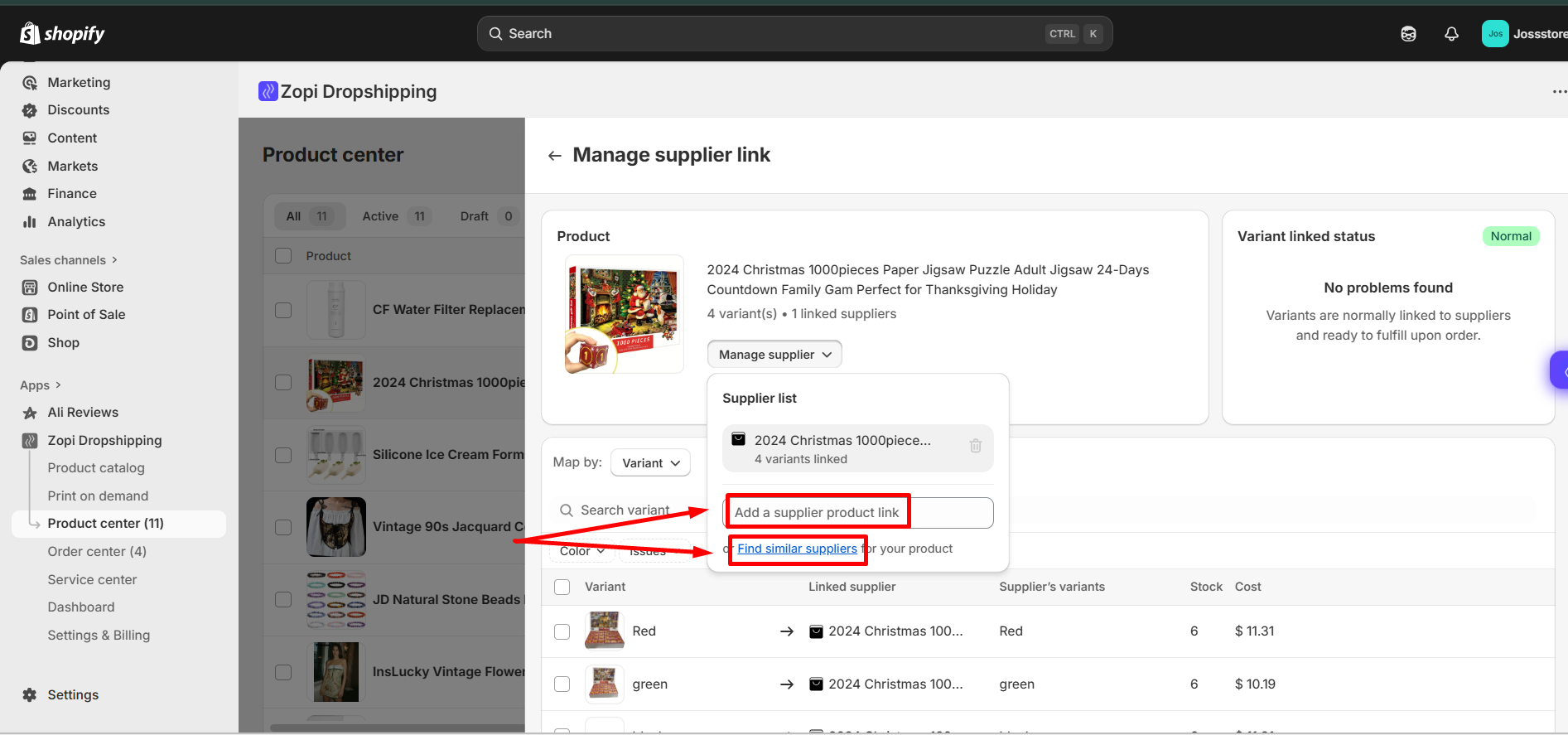
 

  • Save the changes.

For detailed instructions, you can also refer to our full guide:
👉 How to Update Supplier for a Product or Order in Zopi (internal link)


How to Fix “Product Is Unavailable” in Order Center

If the error appears while fulfilling an order, you can swap the supplier link for that specific order without editing the original product.

  1. Use Instant Fulfillment (Recommended)
    This is the fastest way to remap and fulfill your order automatically.
      Learn more here: Instant Fulfillment with Zopi – Speed up your order processing
  2. Update the supplier link manually
  • Open Zopi → Order Center to begin.
  • Go to Order Center and open the order showing the error.
  • Click the chain/link icon next to the supplier section.
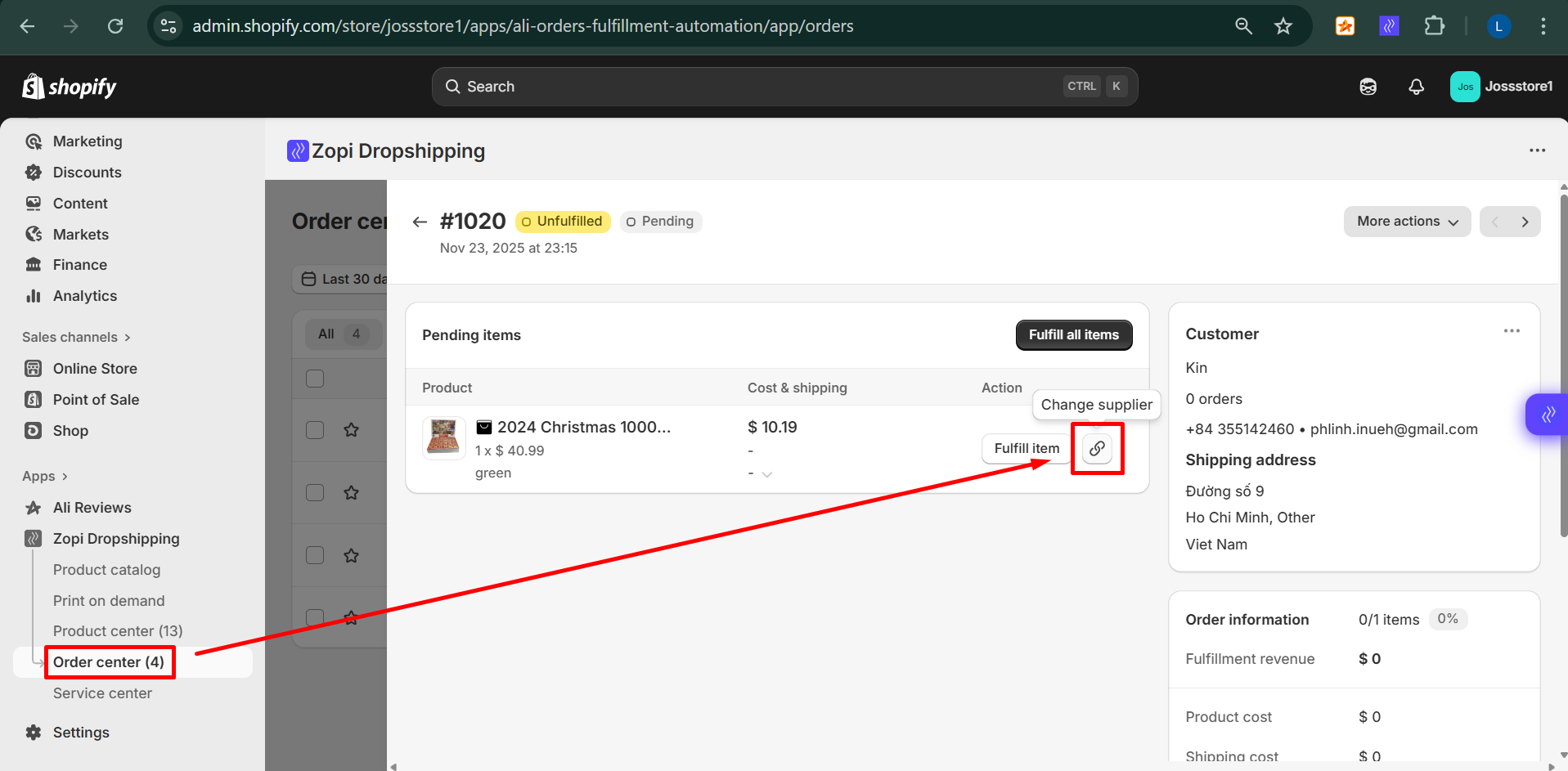
 

  • Choose one of the options:
    • Paste a new supplier link manually,
    • Use Zopi’s recommended alternative suppliers.
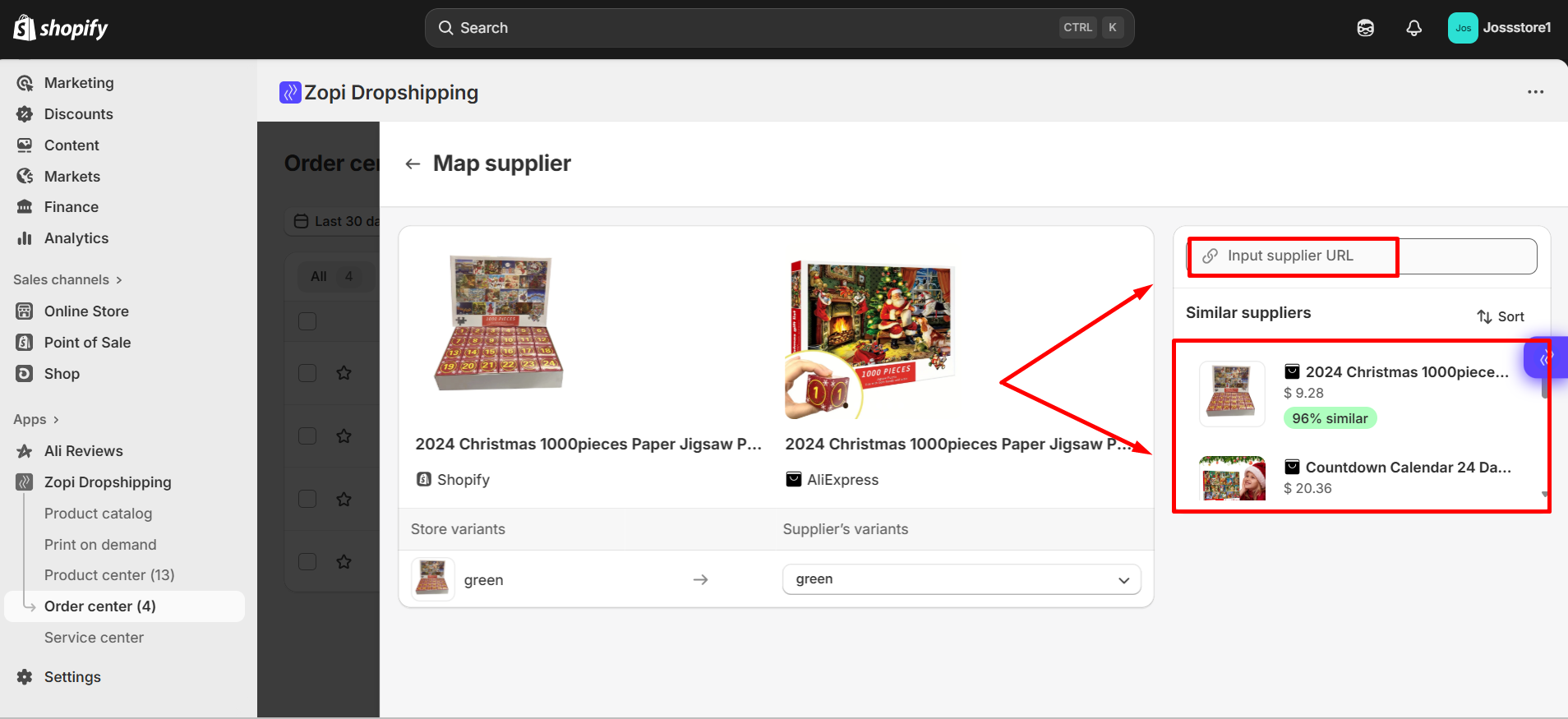
 

  • Once updated, click Fulfill itemMake payment.

For detailed instructions, you can also refer to our full guide:
👉 How to Update Supplier for a Product or Order in Zopi.


Need Help Finding a Supplier? Zopi Sourcing Team Can Support You

If you’re still struggling to find a reliable supplier or want recommendations tailored to your product, Zopi offers a Sourcing Service.

Here’s how the sourcing team can help:

  • Suggest high-quality, stable suppliers
  • Help compare pricing, shipping time, and variant compatibility
  • Recommend alternative products when the original is discontinued 

If you’d like our team to help you choose the best supplier, you can contact Zopi Support directly here:
👉 Contact Zopi Support.

We’re always happy to assist and make sure your store keeps running smoothly!

Related articles

Why do Shopify Products show Sold Out? Steps to resolve it

Is your Shopify store showing products as Sold Out even when stock is available? This often happens due to misconfigured inventory or market settings. With Shopify’s new market structure, new stores have only 1–2 active markets by default. Products outside these markets may appear as Sold Out. ✅ To fix it, review your Market and…

What will happen when you uninstall and re-install our Zopi app?

Uninstalling the Zopi App If you decide to uninstall the Zopi app, here’s what you need to know: 1. Loss of Access to Zopi Features You will no longer be able to use any Zopi features. All app-related data will become inaccessible. 2. Inventory Management for Merchants Using Zopi for Fulfillment Before uninstalling, ensure your…

Why I should not request fulfillment on Shopify?

You should NOT mark orders as fulfilled directly on Shopify (i.e., by manually marking an order as fulfilled in Shopify’s admin) if you want Zopi to manage the automated fulfillment process with your supplier. Here’s why: Zopi Triggers Fulfillment Actions Zopi is designed to automate the order process with your supplier. When an order is…

Subscribe
Notify of
guest

0 Comments
Inline Feedbacks
View all comments

Table of contents

How to Fix “Product Is Unavailable” in Product CenterSteps to fix it in Product CenterHow to Fix “Product Is Unavailable” in Order CenterNeed Help Finding a Supplier? Zopi Sourcing Team Can Support You

Related articles

How to Fix Payment Timeout Orders in Zopi

When dropshipping, it’s common to encounter issues that prevent orders from being fulfilled. One such issue is Payment Timeout, which occurs when an order isn’t paid within the allowed timeframe by the supplier. This guide explains why it happens and how you can quickly fix it using Zopi so you can get back to fulfilling…

Does our app integrate with another source more than AliExpress, like Alibaba, etc. ?

Currently, the Zopi app supports importing products exclusively from AliExpress, Temu, eBay, Amazon and Zopi Suppliers. At this time, importing products from other platforms, such as Alibaba is not available. However, the platform’s wide supplier network ensures access to millions of potential products for your store. Let me know if you’d like details on using…

Why can’t I import products from Temu?

When importing products from Temu, you may encounter a message prompting you to verify your account, along with a status indicating “This item is sold out.” This issue usually arises when Temu requires verification or confirmation of your account information. To resolve this issue and successfully import products, follow these steps: Log out of your…

Share your thought